Why Your App Is Crashing and How to Fix It: Complete 2026 Guide
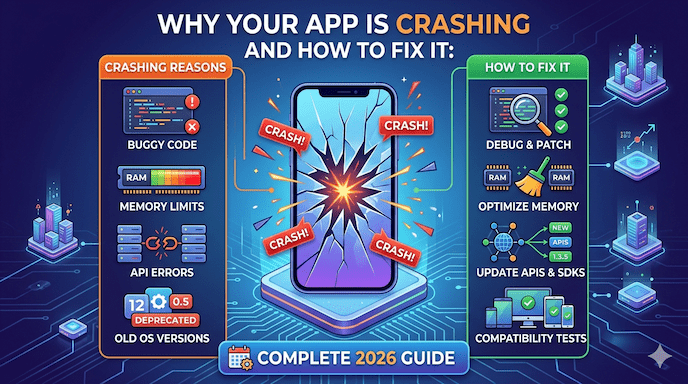
Why your app is crashing and how to fix it is one of the most common frustrations for smartphone users today. You open an app for a quick task, and suddenly it closes, freezes, or shows an error. This problem affects millions daily, whether you’re scrolling social media, shopping online, or using banking tools on your phone.
For regular users, the goal is simple: a quick app keeps crashing fix it so you can get back to normal. For developers and tech teams, understanding root causes helps build more stable apps and avoid bad reviews. This guide covers both sides with easy-to-follow steps, clear explanations, and practical advice suitable for everyone.
Apps crashing wastes time and can lead to lost work or missed opportunities. Studies show that technical issues like crashes are a top reason people uninstall apps—sometimes after just one or two bad experiences. Yet many crashes have straightforward solutions, from clearing the cache to updating software. We’ll explore apps crashing on Android, apps crashing on iPhone, why apps keep stopping, app crashes after update, and more. By the end, you’ll know exactly what to do whether you’re fixing your own phone or improving an app you build.
Common triggers include low storage causing app crash, insufficient RAM mobile issues, corrupted app cache problem, or software update bugs. We’ll break them down simply, one at a time, so you can follow along without confusion.
Understanding Why Apps Crash: The Basics
Mobile apps run in a complex environment with limited resources compared to computers. Your phone juggles multiple programs, background tasks, and hardware limits. When something goes wrong—such as running out of memory or hitting a bug—the operating system often forces the app to close to protect the whole device.
Why apps keep stopping usually comes down to a few core issues:
- The app tries to use more memory (RAM) than is available.
- It encounters unexpected data or network problems that it isn’t prepared for.
- Conflicts arise with the phone’s operating system or other apps.
- Corrupted files build up over time.
Industry data from 2025-2026 shows that even top apps aim for crash-free session rates near 99.95% or higher. iOS often edges out Android slightly due to less device variety, but both platforms see improvements when developers focus on stability. Apps with excellent ratings (above 4.5 stars) typically maintain higher crash-free rates. Health and fitness apps often lead with rates around 99.98%, while lifestyle categories face more challenges.
Users in Tier 1 and Tier 2 countries—such as the US, UK, Germany, Canada, Australia, Japan, South Korea, and growing markets like India, Brazil, or Mexico—rely heavily on apps for daily life. Fast internet helps, but device variety (especially on Android) and frequent OS updates create opportunities for problems.
Apps closing automatically or showing “app not responding” messages often trace back to similar roots. The good news? Most can be fixed quickly at the user level, while developers can prevent them with better practices.
Common Causes of App Crashes for Everyday Users
Let’s look at the everyday reasons your favorite apps might fail.
Low Storage and Insufficient RAM Mobile Issues
One frequent culprit is low storage causing app crashes. When your phone has little free space, apps struggle to save temporary files or load content. Similarly, insufficient RAM mobile issues occur when too many apps run in the background, leaving no room for the one you’re using.
Modern phones manage memory automatically, but heavy users—those with dozens of apps open or large media files—hit limits faster. Background apps affecting performance can quietly drain resources until something breaks.
Device overheating and app crashes also happen during intensive tasks like gaming or video editing, especially in warm environments.
Corrupted App Cache Problem
Apps store temporary data (cache) to load faster next time. Over months, this cache can become a corrupted app cache problem, leading to glitches. Clearing it often resolves app not responding fix issues without losing your main data.
Software Update Bugs and Operating System Compatibility Issues
App crashes after update are very common. A new app version or phone software update (software update bugs) might not play nicely with older files or libraries. Operating system compatibility issues arise when apps use features no longer supported or when manufacturers add custom tweaks (like on some Android skins).
Internet connectivity issues apps face include sudden switches from Wi-Fi to mobile data or poor signal during data-heavy tasks. The app may crash if it doesn’t handle these changes gracefully.
Outdated App Version Errors and App Permissions Causing Crashes
Running old app versions leads to outdated app version errors. Developers fix bugs and improve compatibility in updates, so skipping them leaves you exposed.
Permissions matter too. If an app needs camera or storage access but faces restrictions (or the user denies them mid-use), it can trigger crashes.
Other user-side factors include system glitches mobile apps from conflicting background processes, or aggressive battery savers that kill tasks unexpectedly.
Platform-Specific Crashes: Android vs iPhone
Apps Crashing on Android
Android powers a wide range of devices from many brands, which creates more chances for issues. Apps crashing on Android often relate to device-specific customizations, varied hardware, or memory management differences.
Common signs include sudden closure, “Unfortunately, app has stopped” messages, or freezing. Why apps keep stopping on Android frequently ties to background apps affecting performance, or manufacturer power optimizations that aggressively limit apps.
Samsung and other brands provide built-in tools. For example, clearing the cache or checking for software updates often helps. Low-memory warnings appear more often on Android (around 12-13% rate in some reports) compared to iOS.
Apps Crashing on iPhone
iOS is more controlled, so apps crashing on iPhone tend to stem from app-specific bugs, iOS updates, or storage pressure. Users report apps closing unexpectedly after iOS updates or when System Data grows large.
Fix app freezing issue on iPhone often starts with restarting the device or offloading/reinstalling the app. iOS generally shows higher crash-free session rates, but individual apps can still suffer from memory leaks in mobile apps or poor handling of background tasks.
Both platforms see phone apps not working properly when storage drops critically low or after major updates.
Step-by-Step User Fixes: How to Fix Crashing Apps
Here are proven, simple steps anyone can follow. Start from the top and work down.
- Restart the App and Your Phone. Close the app completely (from the recent apps screen) and reopen it. If that fails, restart your entire device. This clears temporary glitches and refreshes memory.
- Update the App and Your Operating System. Go to Google Play Store or Apple App Store and check for updates. Also, update your phone’s software in Settings. Many software update bugs get resolved this way.
- Clear Cache and Data (Android Focus) For corrupted app cache problem:
- Settings > Apps > [Problem App] > Storage > Clear Cache. Try Clear Data if needed (note: you may need to log in again). This is one of the fastest apps that keeps crashing.
- Free Up Storage Space: Delete unused apps, photos, or videos. Aim for at least 10-15% free space. Low storage, causing app crashes, often vanishes once you create room.
- Reinstall the App. Uninstall completely, restart your phone, then reinstall from the official store. This fixes many app crashes after an update or corrupted installation issues. A fresh copy replaces damaged files.
- Check and Manage Permissions and Battery Settings. Ensure the app has the necessary permissions. On Android, exclude important apps from aggressive battery optimization in Settings > Battery.
- Optimize Internet Connection. For internet connectivity issues, apps: Toggle airplane mode, switch networks, or restart your router. Poor connections during data sync can trigger crashes.
- Safe Mode on Android: Boot into Safe Mode to test if a third-party app is interfering. If the problem stops, uninstall recent apps.
- Offload or Reset on iPhone: Go to Settings > General > iPhone Storage > [App] > Offload App (keeps data) or Delete and reinstall.
- Factory Reset as Last Resort. Back up first! This wipes everything and gives a clean start, but it should be avoided unless nothing else works.
These steps resolve most fix buggy apps on the phone situations for regular users.
Developer Perspective: Root Causes and Prevention
For those building or maintaining apps, understanding why your app is crashing and how to fix it goes deeper into code and architecture.
Key technical causes include:
- Memory leaks in mobile apps: Objects aren’t released properly, slowly consuming RAM until the OS kills the app.
- Unhandled exceptions: Code doesn’t catch errors like null values, bad network responses, or invalid data.
- Race conditions and concurrency issues: Multiple operations happening at once without proper coordination.
- Network problems without graceful handling: No retry logic or offline support.
- Compatibility issues: Outdated SDKs, deprecated APIs, or failure to test across OS versions and devices.
- UI thread blocking: Heavy work is done on the main thread instead of background threads.
App stability issues worsen with third-party libraries, complex features, or insufficient testing on real devices (including budget models common in Tier 2 markets).
Prevention tips:
- Use modern tools for crash reporting and session replay to see exactly what led to the crash (not just the stack trace).
- Implement proper error handling with try-catch blocks and fallback options.
- Optimize memory: lazy loading, image compression, and releasing resources in lifecycle methods.
- Test thoroughly: different OS versions, network conditions (slow, offline, switching), low memory, and device orientations.
- Monitor crash-free session rate as your key metric rather than raw crash counts.
- Follow shift-left testing—catch issues early in development.
Mobile app crash solution strategies also involve feature flags for quick rollbacks and regular dependency updates.
App optimization techniques like efficient background processing (WorkManager on Android, Background Tasks on iOS) help avoid system kills.
Advanced Troubleshooting for Persistent Problems
When basic fixes aren’t enough:
- Check for overheating: Give your phone a break in a cool place.
- Review recent changes: Did a specific app update or phone setting change coincide with the crashes?
- Monitor resource usage: On Android, use built-in developer options or apps to watch RAM and CPU.
- Device-specific quirks: Some Android brands are stricter with background activity. Adjust settings accordingly.
For developers, group crashes by device model, OS version, and user actions to spot patterns.
Fix app freezing issue sometimes requires looking at animation-heavy screens or complex lists that overload the UI.
How to Prevent Future Crashes: Best Practices
Users can help by:
- Keeping apps and OS updated.
- Regularly clear the cache for heavy-use apps.
- Managing storage proactively.
- Avoiding sideloading untrusted apps.
Developers should prioritize:
- Defensive programming.
- Comprehensive testing across popular devices in target markets.
- Real-user monitoring tools.
- Clear user communication during edge cases (e.g., “No internet—retrying…”).
App performance issues fix starts with measuring real metrics and iterating quickly.
Integrating insights from tools and analytics turns troubleshooting app crashes into proactive app optimization techniques.
Real-World Examples and Statistics
Consider a shopping app that crashes during checkout due to a sudden network drop—internet connectivity issues apps without retry logic. Users abandon carts, and the business loses sales.
Or a social app on Android that leaks memory while scrolling endless feeds, leading to insufficient RAM mobile issues on mid-range devices popular in many markets.
Statistics highlight the impact: Many users consider stability critical, and a significant portion will uninstall after repeated crashes or switch to competitors. High crash-free rates correlate strongly with better ratings and retention. Top apps target “five 9s” (99.999%) stability where possible.
FAQs
Why does my app keep crashing after an update?
New app versions can sometimes conflict with old cached files or leftover data from the previous version. This mismatch may cause instability, bugs, or frequent crashes. Clearing the cache or reinstalling the app usually refreshes everything and resolves the issue.
How do I fix apps crashing on Android specifically?
Start by clearing cache and (if needed) app data, then make sure your apps and system software are fully updated. Free up storage and disable aggressive battery optimization for affected apps. You can also use Safe Mode to check if third-party apps are causing conflicts.
What about apps crashing on iPhone?
Update both iOS and the app to ensure compatibility with the latest fixes and improvements. If the problem persists, try restarting your device or offloading and reinstalling the app. Also, check your storage—especially “System Data”—as low space can affect performance.
Can low storage really cause crashes?
Yes, low storage is a very common reason behind app crashes. Apps need free space to store temporary data and run processes smoothly. When storage is full, apps may freeze, fail to load properly, or close unexpectedly.
Will clearing the cache delete my data?
No, clearing the cache only removes temporary files like images or scripts stored for faster performance. Your personal data (accounts, settings) remains safe. However, selecting “Clear Data” will reset the app and may require you to log in again.
Conclusion
Why your app is crashing and how to fix it usually comes down to resource limits, corrupted data, compatibility problems, or unhandled errors. Whether you’re a frustrated user dealing with apps closing automatically or a developer tackling memory leaks in mobile apps and app stability issues, the path forward is clear: start with simple steps like restarting, updating, and clearing cache, then dig deeper as needed.
By following the actionable advice here—clearing cache, freeing storage, updating software, and applying app optimization techniques—most people can fix buggy apps on their phones. Developers who focus on robust error handling, thorough testing, and real-user insights build apps that earn trust and keep users coming back