Fix Internet Speed Issues on Android: Easy Steps to Speed Up Your Phone in 2026
Fix internet speed issues on Android is a common frustration for millions of users worldwide. If your phone feels laggy while browsing, videos buffer endlessly, or downloads crawl, you are not alone. Many Android users suddenly notice their connection slowing down, even with a good signal.
This guide shares practical, easy-to-follow solutions to fix slow internet on Android, improve Android internet speed, and address Android internet not working properly. Whether you use Wi-Fi or mobile data, these steps help beginners and moderately tech-savvy users get faster, more stable connections without complicated tools.
Why Does Your Android Internet Suddenly Slow Down?
Several everyday factors cause why is my Android internet so slow all of a sudden. Understanding the reasons helps you apply the right fix quickly.
- Weak signal strength or interference: Walls, distance from the router, or electronic devices can weaken Wi-Fi. Mobile data suffers in areas with poor tower coverage.
- Network congestion: Too many devices on the same network during peak hours slow everyone down, especially on public Wi-Fi.
- Background apps using data: Apps running silently consume bandwidth for updates, syncs, or notifications, leaving less for your browsing or streaming.
- Outdated software: Old Android versions or apps cause compatibility issues that reduce performance.
- Cache buildup: Temporary files from apps and browsers pile up and slow down loading times.
- Data throttling by carriers: Some plans limit speeds after high usage, even on unlimited packages.
- VPN effect on internet speed: Certain VPNs add encryption overhead that reduces speed, though good ones can sometimes bypass congestion.
- Incorrect settings: Wrong APN, DNS, or network mode settings lead to Android data connection issues.
- Router distance and connectivity problems: Being too far from the router or having an outdated router creates Wi-Fi signal interference issues.
- Malware or adware: Rare but possible—unwanted apps quietly use your data.
These issues affect 4G/5G speed on Android devices and make apps load slowly, even with good internet. In 2026, with more devices connected and higher demands for streaming and gaming, these problems appear more often.
Quick Checks Before Deep Troubleshooting
Start with these simple actions to test and fix laggy internet Android:
- Restart your phone. This clears temporary glitches and often improves speed immediately.
- Toggle Airplane mode on for 15–30 seconds, then turn it off. This performs an airplane mode reset trick that refreshes your connection to the nearest tower or router.
- Switch between Wi-Fi and mobile data. If one works better, the problem lies with the other.
- Run a speed test using free apps like Ookla Speedtest. Note your download/upload speeds and compare them to your plan’s expected rates.
- Move closer to your router or to an area with a stronger mobile signal (aim for at least 2–3 bars).
These quick steps solve many cases of unstable internet connection on Android.
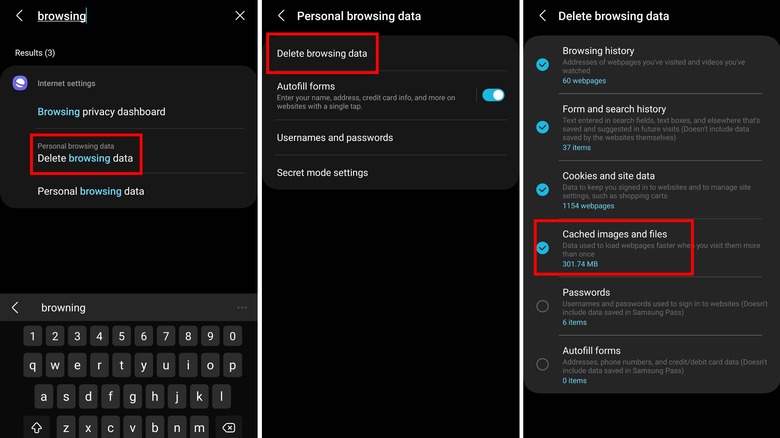
Clear Cache to Improve Internet Speed
One of the easiest and most effective ways to speed up Android browsing is by clearing the cache. Accumulated temporary files slow down apps and the browser.
How to clear cache on Android:
- Go to Settings > Storage (or Apps > See all apps on some devices).
- Select Cache data or go into individual apps like Chrome or your browser.
- Tap Clear cache. Avoid clearing data unless you want to reset the app completely.
Do this for your main browser and data-heavy apps like YouTube or social media. Many users notice faster page loads right away. Repeat every few weeks for best results. This directly helps fix buffering problem on Android phones.
Stop Background Apps from Slowing Down the Internet on Android
Background apps using data quietly eat your bandwidth. Stopping them frees resources for the apps you actually use.
Steps to manage background data:
- Go to Settings > Apps.
- Choose an app (e.g., Facebook, Instagram, or cloud backup apps).
- Tap Data usage or Mobile data & Wi-Fi.
- Turn off Background data or Unrestricted data for non-essential apps.
You can also use Battery optimization or Data Saver mode to limit background activity. Data Saver restricts background data and can make browsing feel snappier when enabled wisely. This is a key part of Android network speed optimization without installing extra apps.
Update Android System for Better Performance
Outdated software is a hidden culprit behind Android internet not working properly. Updates often include network improvements and bug fixes.
How to update:
- Go to Settings > System > System update (paths vary slightly by brand like Samsung or Google Pixel).
- Check for and install any available Android OS updates.
- Open the Google Play Store, tap your profile, and update all apps.
Keeping everything current helps improve 4G/5G speed on Android devices and reduces compatibility problems that cause slow loading.
Optimize Wi-Fi Settings and Fix Slow Wi-Fi on Android
Slow Wi-Fi on Android fix often involves simple router and phone tweaks.
- Restart your router by unplugging it for 30 seconds.
- Forget the Wi-Fi network on your phone (Settings > Network & internet > Wi-Fi > Forget) and reconnect.
- Move closer to the router and reduce interference by keeping it away from microwaves or cordless phones.
- Check router distance—ideally stay within 30–50 feet in open space for best signal.
For better performance, consider changing your Wi-Fi channel in the router settings (usually via 192.168.1.1 or similar in a browser) to avoid crowded channels.
If Wi-Fi connected but no internet issue persists, test with another device. The problem might be with your internet service provider.
Boost Mobile Data Speed Android Without Apps
You can increase mobile data speed on Android without apps through built-in settings.
Preferred network type:
- Go to Settings > Network & internet > SIMs (or Mobile network).
- Set Preferred network type to 5G or LTE/4G only if 5G is unstable in your area. This prevents the phone from constantly switching and losing speed.
APN settings for faster internet:
Contact your carrier for the correct APN (Access Point Name). Wrong APN causes Android data connection issues. Edit it under Mobile network > Access Point Names. Common fast settings include using your carrier’s recommended values—search your provider + “APN settings” for the latest.
Smart network switch or adaptive connectivity: Enable features like “Smart network allocation” if available. They help the phone choose the best connection automatically.
These tweaks support how to improve download speed on Android mobile effectively.
Reset Network Settings Android – A Powerful Fix
When basic steps fail, reset network settings to fix slow internet Android is highly effective. It clears saved Wi-Fi passwords, Bluetooth pairings, and mobile settings, but does not delete your apps or files.
How to reset network settings on Android:
- Open Settings.
- Go to System > Reset options (or search “reset” in Settings).
- Select Reset Wi-Fi, mobile & Bluetooth or Reset network settings.
- Confirm and enter your PIN if asked.
Your phone will restart. After that, reconnect to your Wi-Fi and test the speed. This resolves many fix Android Wi-Fi connected but no internet issue cases, and how to fix unstable internet connection on Android. Google officially recommends similar troubleshooting for connectivity problems.
Change DNS Settings Android for Faster Internet
DNS (Domain Name System) translates website names into addresses. Slow or overloaded DNS servers make everything feel laggy.
Easy DNS change:
- Go to Settings > Network & internet > Private DNS.
- Select the Private DNS provider hostname and enter dns. google or 1dot1dot1dot1.cloudflare-dns.com.
- Save and test.
Google DNS or Cloudflare DNS often provides quicker responses, helping speed up Android browsing and reduce buffering.
Manage Bandwidth Usage Apps Android
Identify which apps consume the most data:
- Go to Settings > Network & internet > Internet or Data usage.
- Review the list and restrict heavy users like video streaming apps when not needed.
Close unused apps from the recent apps screen. This directly tackles background apps using data and supports tips to make Android internet faster for gaming.
Best Settings for Faster Internet Speed on Android
Combine these for optimal results:
- Enable Data Saver when on limited plans.
- Use a lightweight browser or Chrome with data-saving extensions/modes.
- Disable auto-updates for apps over mobile data (Play Store > Settings > Auto-update apps > Over Wi-Fi only).
- For gaming, close all background processes and use a stable 5G or Wi-Fi connection with low latency.
These best settings for faster internet speed on Android, making a noticeable difference in daily use.
Advanced Tips: VPN, Throttling, and More
- VPN effect on internet speed: Test different servers. Some premium VPNs reduce throttling by masking traffic, but free ones often slow you down. Use only when needed.
- Mobile data throttling Android: If you hit your plan’s fair usage limit, speeds drop. Check with your carrier or switch to a better plan.
- How to stop background apps from slowing internet Android: Use built-in tools or developer options (enabled by tapping Build number 7 times in About phone) to limit background processes.
- To fix buffering problem on Android phone, lower video quality temporarily or use download mode when possible.
Avoid unreliable “internet speed booster” apps. Most do little and some harm performance. Stick to official settings and trusted methods.
Tips for Better Performance in Specific Situations
For gaming: Use tips to make Android internet faster for gaming by enabling Game Mode if available, connecting to 5G, and ensuring low ping. Close all other apps.
For streaming: Clear browser cache and use Wi-Fi over mobile data when possible. Position yourself for the strongest signal.
Why apps load slowly on Android even with good internet: Often due to cache, too many open tabs, or server-side issues. Clear cache and limit tabs.
How to increase internet speed on phone overall: Combine multiple fixes—restart, clear cache, update, reset network, and optimize DNS.
Many users in Tier 1 and Tier 2 countries face these issues due to varying network infrastructure, dense populations causing congestion, or older devices. Following these steps helps regardless of your location or carrier.
Common Mistakes to Avoid
- Ignoring software updates.
- Keeping too many apps running.
- Placing the router in a corner or cabinet.
- Using public Wi-Fi without caution (it’s often congested or insecure).
- Resetting network settings too often without noting saved passwords.
Patience matters. Apply one change at a time and test speed after each to see what works best for your device.
Conclusion
To fix internet speed issues on Android, start with simple restarts and cache clearing, then move to background app management, updates, DNS changes, and network resets if needed. These practical steps address fix slow internet on Android, boost mobile data speed Android, slow Wi-Fi on Android fix, and many other related problems.
By following this guide, most users see noticeable improvements in browsing, downloading, and streaming without spending money on new devices or apps. Consistent maintenance—like regular updates and cache clearing—keeps your connection smooth longer.