How to Fix Slow Laptop in Windows 11: Easy Steps for Everyday Users
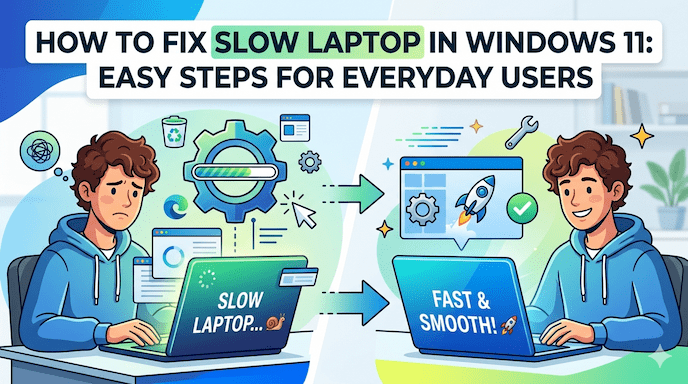
Is your laptop feeling sluggish after updating to Windows 11? Many everyday users face Windows 11 performance issues like slow startup, apps that take forever to open, or the spinning circle that never stops. If you are searching for how to fix slow laptop in Windows 11, you are not alone. A laptop running slow Windows 11 can make simple tasks frustrating, whether you are browsing, working, or watching videos.
The good news is that most slow PC Windows 11 solution steps are free, safe, and do not require expert skills. In this guide, you will learn practical ways to improve Windows 11 performance, reduce high CPU usage Windows 11, fix disk usage 100% Windows 11, and boost laptop speed Windows 11. We focus on simple actions that bring quick results for regular users in Tier 1 and Tier 2 countries who want fast, reliable fixes.
Common signs include long boot times, lagging when switching apps, or overheating during light use. These problems often come from too many background processes, low free storage, or outdated settings after a Windows 11 update. By following the steps below, you can make Windows 11 faster and enjoy smoother daily use.
How to fix slow laptop in Windows 11 starts with understanding why it happens. Let us explore the causes and then move to clear, step-by-step solutions.
Why Your Laptop Runs Slow on Windows 11
Windows 11 brings nice visuals and new features, but it needs more resources than older Windows versions. Many laptops, especially those with 8GB RAM or an older hard drive, show Windows 11 performance issues soon after updating.
Here are the main reasons for a laptop running slow Windows 11:
- Too many startup programs: Apps like Spotify, OneDrive, or antivirus tools start automatically and use RAM and CPU right away.
- Low free storage space: When your main drive (usually C:) has less than 15-20% free space, Windows struggles to work properly.
- Background apps slowing laptop: Features like notifications, weather widgets, or cloud sync run quietly and eat resources.
- Outdated drivers Windows 11: Old graphics or chipset drivers cause lag, especially after a system update.
- High disk usage or CPU spikes: Processes like Windows Search or Superfetch (SysMain) can push disk usage 100% Windows 11 or high CPU usage Windows 11.
- Visual effects and animations: Fancy menu transitions and transparency use extra power on mid-range hardware.
- Overheating laptop performance drop: Dust in vents makes the fan work harder, and the system slows down to protect itself.
- Malware causing slow PC: Hidden threats run in the background and steal resources.
- Power plan settings Windows 11: The “Balanced” or “Power saver” mode limits speed to save battery.
- Computer slow after Windows 11 update: New updates sometimes add temporary bugs or extra processes until you optimize.
Fix slow Windows 11 laptop problems by tackling these one by one. Many users see big improvements after the first few steps.
Quick Checks Before Starting Fixes
Before diving deep, do these easy checks:
- Restart your laptop. A simple restart clears temporary memory and stops stuck processes.
- Open Task Manager (press Ctrl + Shift + Esc) and look at the Performance tab. Note your RAM, CPU, and Disk usage.
- Check free space: Right-click your C: drive in File Explorer > Properties. Aim for at least 20% free.
If RAM is constantly near full or the disk stays at 100%, the fixes below will help.
How to Fix Slow Laptop in Windows 11: Step-by-Step Solutions
1. Disable Startup Programs Windows 11
Too many programs launching at boot is one of the top causes of Windows 11 slow startup issues.
Steps:
- Press Ctrl + Shift + Esc to open Task Manager.
- Click the Startup apps tab (or “Startup” in older views).
- Look at the “Startup impact” column. Disable anything marked High or Medium that you do not need immediately (examples: Steam, Adobe updater, Spotify, Discord).
- Right-click the app > Disable.
Many users cut boot time from several minutes to under 45 seconds just with this change. Repeat this check every few months.
Tip: Keep essential items like your antivirus enabled.
2. Free Up Storage Windows 11 and Clean Junk Files
A full drive slows everything down. Windows needs room to create temporary files.
How to do it:
- Go to Settings (Windows key + I) > System > Storage.
- Turn on Storage Sense and click “Run Storage Sense now” or configure it to clean automatically.
- Click “Temporary files” and select items like Recycle Bin, previous Windows installations, and old update files. Delete them.
- Use the built-in Disk Cleanup tool: Search for “Disk Cleanup” in the Start menu, select your C: drive, and clean system files.
Clearing 20-40GB of junk often gives an instant boost to improve Windows 11 performance. Keep at least 15-20% free space on your main drive.
For SSD vs HDD performance, note that SSDs feel much faster. If you still use an HDD, upgrading to an SSD is one of the biggest speed up Windows 11 PC upgrades possible.
3. Adjust Power Plan Settings Windows 11
Power saver mode reduces speed to save battery, even when plugged in.
Fix:
- Search for “Power & battery” in Settings.
- Under Power mode, choose Best performance when plugged in.
- For more control, go to Control Panel > Power Options > Select “High performance” or “Balanced”.
This small change helps with the Windows 11 lag fix during everyday tasks.
4. Update Windows and Drivers
Outdated drivers Windows 11, and missing updates often cause the computer slow down after Windows 11 update.
Steps:
- Go to Settings > Windows Update > Check for updates. Install everything, including optional updates for drivers.
- Restart when prompted.
- For graphics drivers (important for smooth visuals), visit the manufacturer’s site (Intel, NVIDIA, or AMD) and download the latest version for your model.
Regular updates include performance improvements and security patches that fix Windows 11 troubleshooting performance issues.
5. Reduce Visual Effects Settings
Windows 11 uses many animations that can slow down older or low-RAM laptops.
How to change:
- Search for “View advanced system settings” and open it.
- Under the Advanced tab, click Settings in the Performance section.
- Choose “Adjust for best performance” or manually turn off animations and shadows.
This makes menus open instantly and helps fix lagging laptop Windows 11.
6. Manage Background Apps Slowing Laptop
Many apps run in the background even when closed.
Steps:
- Go to Settings > Apps > Installed apps.
- For each non-essential app, click the three dots > Advanced options > Set “Background apps permissions” to Never.
- Common culprits: News, Weather, Mail, or social apps.
Reducing these frees up RAM and lowers high CPU usage Windows 11.
7. Scan for Malware Causing Slow PC
Viruses and adware hide and use your resources.
Simple method:
- Open Windows Security (search for it in Start).
- Go to Virus & threat protection > Quick scan or Full scan.
- For extra safety, download the free version of Malwarebytes and run a scan.
Remove any threats found. A clean system feels much snappier.
8. Fix High Disk Usage 100% Windows 11 and High CPU
If Task Manager shows disk or CPU at 100%:
- Disable SysMain (Superfetch): Search for “services.msc” > Find SysMain > Right-click > Properties > Set Startup type to Disabled > Stop the service.
- Disable Windows Search indexing if you rarely search files (same services window).
- Check Resource Monitor (search for it) to see which process uses the most disk.
These tweaks often solve stubborn disk usage 100% Windows 11 problems.
9. Clean Physical Dust and Prevent Overheating
Overheating laptop performance drop is common and easy to fix.
- Shut down your laptop.
- Use compressed air to gently clean vents and the fan area (do not open the case unless experienced).
- Use the laptop on a hard, flat surface, not on a bed or lap.
- Consider a cooling pad for heavy use.
Clean every 3-6 months for best results.
10. Uninstall Bloatware and Unused Programs
Many laptops come with extra software that slows things down.
- Go to Settings > Apps > Installed apps.
- Sort by size or install date.
- Remove games, trial software, or manufacturer bloat you never use.
This step directly supports Windows 11 optimization tips.
11. Additional Windows 11 Performance Settings
- Turn off Delivery Optimization: Settings > Windows Update > Advanced options > Delivery Optimization > Turn off “Allow downloads from other PCs”.
- Disable transparency effects: Settings > Personalization > Colors > Turn off Transparency effects.
- Limit notifications to reduce background activity.
These small changes add up when you want to make Windows 11 faster.
Advanced but Safe Optimizations
For users comfortable with more steps:
- Run the Performance troubleshooter: Settings > System > Troubleshoot > Other troubleshooters > Performance.
- Check for corrupted system files: Open Command Prompt as administrator and type sfc /scannow, then DISM /Online /Cleanup-Image /RestoreHealth.
- Consider increasing virtual memory if RAM is low (search “advanced system settings” > Advanced > Performance Settings > Advanced > Virtual memory).
Always create a system restore point before advanced changes.
When to Consider Hardware Upgrades
If software fixes are not enough:
- Upgrade RAM: Going from 8GB to 16GB makes a huge difference for multitasking.
- Switch to SSD: If your laptop has an HDD, replacing it with an SSD dramatically improves boot time and app loading (SSD vs HDD performance).
- Clean install of Windows 11 as a last resort (backup files first).
For many budget laptops common in everyday use, these upgrades are affordable and effective.
Windows 11 Slow Startup Fix Specifically
Slow boot is frustrating. Combine these:
- Disable most startup programs.
- Ensure plenty of free disk space.
- Update BIOS if available from your laptop manufacturer (check their support site).
- Use Fast Startup (enabled by default, but test turning it off in Power Options if issues persist).
Most users report boot times dropping significantly after optimization.
Prevention Tips to Keep Your Laptop Fast
To avoid future laptop running slow Windows 11 problems:
- Restart weekly.
- Keep Windows and drivers updated.
- Run Storage Sense regularly.
- Monitor startup apps every month.
- Avoid installing too many browser extensions.
- Use a good antivirus and scan periodically.
- Keep vents clean.
Following these habits helps maintain good speed over time.
FAQs
Q1: How to fix slow laptop in Windows 11?
How to fix slow laptop in Windows 11 is easy. Disable startup programs, free up storage, and update drivers. These steps quickly speed up Windows 11 PC and fix most Windows 11 performance issues.
Q2: Why is my laptop running slow Windows 11?
A laptop running slow Windows 11 often happens due to full storage, too many background apps, or outdated drivers. Simple Windows 11 optimization tips like cleaning junk files solve it fast.
How to fix the disk usage 100% Windows 11?
To fix disk usage 100% Windows 11, disable SysMain service and free storage. This reduces high CPU usage Windows 11 and helps boost laptop speed Windows 11.
Conclusion
How to fix slow laptop in Windows 11 does not have to be complicated. By disabling unnecessary startup programs, freeing storage, updating drivers, adjusting power and visual settings, and scanning for malware, most users see noticeable improvement in Windows 11 performance issues. These Windows 11 optimization tips are designed for everyday people who want quick, free results.
Start with the easiest steps — restart, clean storage, and manage startup apps — and work your way through. In many cases, your laptop running slow Windows 11 will feel fresh again without spending money. Consistent small maintenance keeps high CPU usage Windows 11, disk usage 100% Windows 11, and lag away.