The Windows Clipboard Trick How to Copy Multiple Items: Save Time Every Day
This “one-item” problem with the normal Windows copy-paste frustrates many people every day. Office workers writing reports, students collecting research, and even regular users switching between messages all run into it.
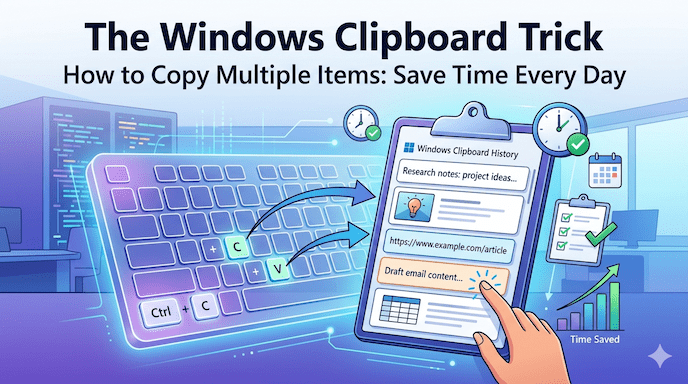
The good news is that Microsoft added a smart built-in tool called Clipboard History. This, the Windows Clipboard Trick How to Copy Multiple Items, feels like a secret that most people miss. Once you know it, your daily work becomes smoother and faster.
You can copy several things one after another — text, links, or small pictures — and pick any of them later to paste. No more losing what you copied. It helps you work quicker, switch tabs less, and keep important pieces ready when you need them.
Many people lose several minutes each hour just from re-copying things. Over a week, that adds up to real lost time, especially when you handle lots of documents or emails.
In this guide, you will discover easy ways to use clipboard management Windows, master productivity shortcuts Windows, and make copy and paste multiple texts simple. It works great for office professionals, students, researchers, power users, and anyone who copies and pastes often.
The Quick Answer
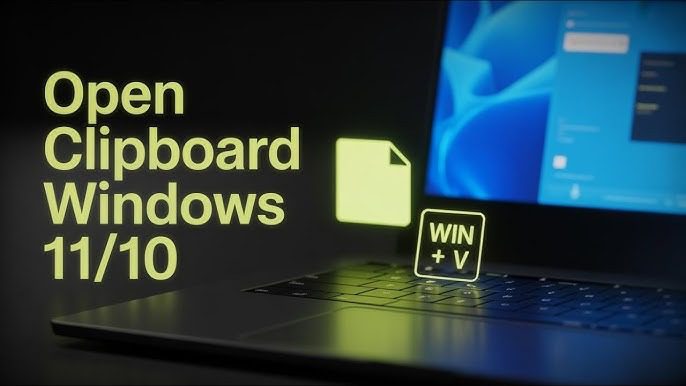
Want the fastest way? Just press Windows Key + V.
That opens your clipboard history. You can copy items normally with Ctrl + C. Then use Win + V to see everything you copied and paste the one you want.
It works on Windows 10 (Version 1809 or newer) and Windows 11. You can copy plain text, formatted text, clickable links, and even small images (less than 4 MB).
Here is a simple table to remember it:
| Shortcut | What It Does | Works On |
| Win + V | Open clipboard history | Windows 10 (1809+), Windows 11 |
| Ctrl + C | Copy an item | All Windows versions |
This quick trick makes how to copy and paste multiple items in Windows feel easy and natural.
Step 1: Enabling the “Secret” Clipboard
The feature is not turned on when you first get Windows. Here is how to switch it on in simple steps:
- Click the Start button.
- Open Settings (you can also press Windows Key + I).
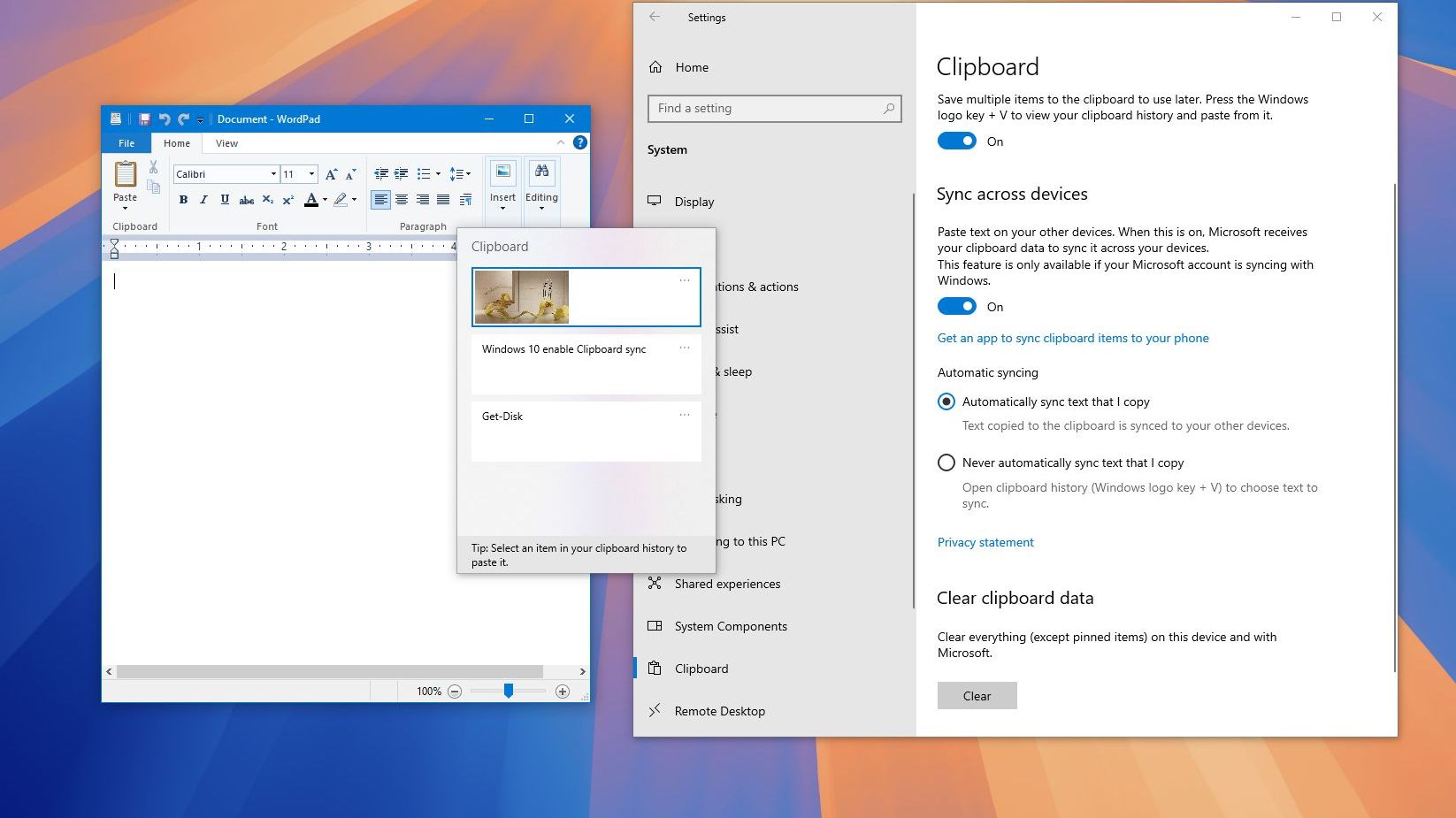
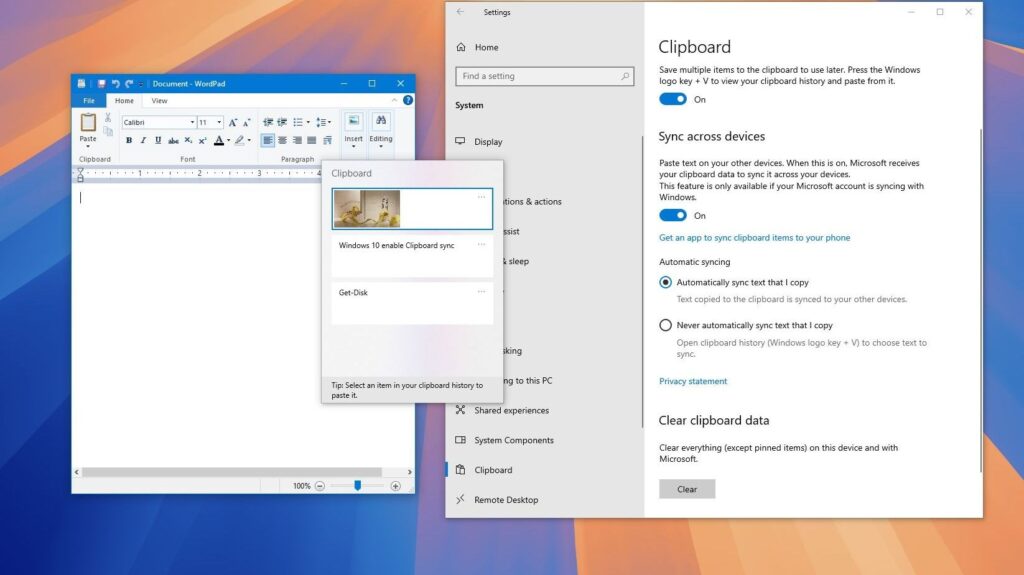
- Click System, then choose Clipboard.
- Turn on the switch for Clipboard history.
Why does Microsoft keep it off at first? It helps protect your privacy and uses very little computer power. Once it is on, it starts saving what you copy from that moment.
While you are in the settings, look for Sync across devices. Turn that on if you use more than one Windows computer with the same Microsoft account. Then you can copy something on your work laptop and paste it later on your home computer. This clipboard syncing across devices feels like magic for people who work from different places.
Step 2: Mastery – Copying & Pasting Multiple Items
Now that it is ready, let us use it in real life.
How to collect items:
Copy things the usual way. Highlight text or a link, then press Ctrl + C (or right-click and choose Copy). Do this for three, five, or even ten items. You do not need to paste right away. The history saves them quietly.
How to paste what you need:
- Click in the spot where you want to put the text (like in your document or email).
- Press Win + V to open the list.
- Scroll and click the exact piece you want. It passes right there.
You can copy and use plain text, nicely formatted text, web links that stay clickable, and small screenshots.
Here is a clear table showing what works:
| Type of Content | Does It Work? | Helpful Notes |
| Text | Yes | Plain or with formatting |
| HTML links | Yes | They stay clickable |
| Images or screenshots | Yes | Must be under 4 MB |
This method turns multiple clipboard items into something you use without thinking.
Advanced Productivity Tricks
The real fun starts when you go a bit deeper.
Pinning your favorite pieces:
Some things you use again and again — like a standard email reply, a project code, or your address. Pin them so they never disappear from the list.
To pin something:
- Press Win + V
- Move your mouse over the item
- Click the three dots
- Choose Pin
Pinned items stay even if you clear everything else or restart your computer. This pin clipboard items trick is perfect for Office productivity hacks and daily repeated work.
Cloud sync across your computers:
With sync turned on, your copied items can move with you. Many people who use Microsoft accounts already enjoy this. It makes reuse copied content Windows much easier for remote work or study.
You can also find emojis and special symbols easily in the clipboard window on newer Windows versions. It helps when you want to add a friendly touch to messages or reports.
Power users mix this with other Windows hidden features to build fast workflows. For example, while writing a long report, you can gather quotes and data from many places and put them together in the right order without losing anything.
Privacy & Housekeeping
Great tools need smart habits.
If you copy something private, like a password or personal note, open Win + V, find the item, click the three dots, and choose Delete. This keeps your list clean.
There is often a Clear all button at the top of the window when you want a completely fresh start. Remember that pinned items stay safe.
Important safety note: Do not pin real passwords or bank details. Use a proper password manager for those instead. Good housekeeping keeps clipboard management Windows both useful and private.
Troubleshooting: Why Isn’t It Working?
Sometimes it does not show what you expect. Try this simple checklist:
- Did you turn on Clipboard history in the settings?
- Is your Windows 10 version 1809 or newer? Older versions do not have it.
- If this is a work computer, your company’s IT team might have turned it off.
- The history only saves things you copy after you enable the feature.
- Try restarting your computer if nothing appears.
Most people fix it quickly once they check these points. The Windows 10 clipboard shortcut tutorial and Windows 11 clipboard multiple items guide become easy after the first try.
Comparison: Windows 10 vs Windows 11 Clipboard
Both versions work well, but Windows 11 feels a little nicer.
| Feature | Windows 10 | Windows 11 |
| Look and feel | Simple window | Cleaner, modern floating window |
| Image support | Basic | Better handling of pictures |
| Search option | Not available | Available in newer updates |
| Clearing items | Through menu | Easy, clear all button at the top |
The main job — how to keep multiple clipboard items in Windows — stays strong in both. Windows 11 just makes it feel smoother for daily use.
How This Trick Helps Real People
Office professionals who write reports and emails save the most time. You can gather numbers from spreadsheets, quotes from websites, and links from research — then drop them exactly where they belong without extra work.
Students and researchers love collecting many references while reading. Multiple clipboard items let you keep everything together and organize it later in your notes or paper.
Windows power users enjoy combining this with other shortcuts for super-fast work. Casual users who often copy addresses or messages finally stop the annoying cycle of losing what they copied.
More Ways to Make Your Work Easier
Think about how this fits into your bigger habits. Pair it with good organization and regular short breaks to avoid getting tired from switching tasks too often.
Many people also use it alongside Microsoft Office tools for even better control when creating professional documents.
Conclusion
The Windows Clipboard Trick How to Copy Multiple Items is a small built-in feature that brings big help. By turning on Clipboard History and using Win + V, you can copy many things, pin the ones you need often, sync them between computers, and cut down on wasted time.
It makes your daily tasks feel calmer and quicker. Many users say it saves them hours over a week by removing the frustration of constant re-copying.
Try turning it on today and test it with your next few tasks. You will likely notice the difference right away.