How to Fix Lag in Roblox on Low-End PC: Simple Steps for Smooth Gameplay in 2026
Are you a student gamer or casual player struggling with choppy gameplay on your old PC or laptop? Many low-end gamer users face frustration when Roblox lags, stutters, or shows low FPS. The good news is you can fix most issues without buying new hardware or spending money.
How to fix lag in Roblox on low-end PC starts with understanding common problems like high graphics settings, background apps, outdated drivers, and network issues. This guide shares easy and quick fixes tailored for budget users with limited resources. You will learn how to fix Roblox lag on low-end PC without upgrading hardware, plus the best settings to run Roblox smoothly on low-end laptop.
Whether you have an old Windows 10 machine, Intel HD graphics, or just 2GB RAM, these steps help you get better performance. Follow along for a step-by-step guide to reduce lag in Roblox for beginners that delivers real results.
Why Roblox Lags on Low-End Computers and How to Fix It
Roblox is a popular platform with user-created games, but it can struggle on weaker hardware. Why is Roblox lagging on my low-end computer and how to fix it often comes down to a few key reasons.
Roblox minimum system requirements include a processor from 2005 or later with at least 1.6 GHz, 1GB RAM (though 4GB+ works much better in practice), and DirectX 10 support. Many older PCs meet the bare minimum but still lag in busy experiences because modern Roblox games use more effects and players.
Common causes include:
- High in-game graphics demand too much from your CPU or integrated GPU.
- Background programs are eating up RAM and CPU.
- Outdated graphics or network drivers.
- Wi-Fi interference is causing high ping.
- Overheating or power-saving modes throttle performance.
- Temporary files and cluttered storage are slowing your system.
Roblox lag fix low-end PC focuses on reducing these demands. Official Roblox advice recommends lowering graphics quality first, then closing other apps if stuttering or choppy visuals continue.
For how to make Roblox run faster on old PC Windows 10, or Windows 11, start simple and work through the tweaks. These changes often boost FPS significantly on budget laptops.
Check Your Roblox System Requirements First
Before diving into fixes, confirm your PC meets basic needs. Roblox runs on very old hardware, but smooth play needs a bit more.
- Processor: Recent (post-2005) with 1.6 GHz or better. Older AMD chips sometimes have issues.
- RAM: At least 1GB, but aim for 4GB+ for fewer problems in multiplayer games.
- Graphics: DirectX 10 compatible. Integrated Intel HD graphics works for basic play.
- Storage: At least 300MB free, preferably on an SSD if possible.
If your setup is below these, some low-end PC gaming optimization helps a lot. Many players run Roblox on 10+ year old laptops by applying the right settings.
Tip: Press Ctrl + Shift + Esc to open Task Manager and check current CPU, RAM, and GPU usage while in a game. High usage points to where the bottleneck lies.
Step 1: Adjust Roblox Graphics Settings for Maximum FPS Boost
One of the quickest wins is changing in-game options. Best Roblox settings for low-end PC 2026 focus on lowering visual demands.
Here is how to do it:
- Launch Roblox and join any experience.
- Press the Esc key to open the menu.
- Click the three-line icon (Settings).
- Under Graphics, turn Graphics Mode from Auto to Manual.
- Drag the Graphics Quality slider all the way down (or to the lowest comfortable level).
- Set the game to Fullscreen mode for better resource use.
- Disable or lower extras like shadows, textures, effects, and anti-aliasing if available.
These changes reduce the load on your GPU and CPU, leading to higher FPS and less stuttering. Many users see immediate improvements on Intel HD graphics setups. Lower graphics mean your device works less hard, resulting in smoother play.
Related tip for how to stop Roblox stuttering on low-end devices: Combine manual mode with fullscreen. Test in a busy game and adjust until FPS feels stable (aim for 30+ FPS minimum).
For even more control, some players explore advanced engine tweaks, but start with these basics for a Roblox FPS boost without any software downloads.
Step 2: Close Background Apps and Optimize RAM Usage
Low RAM (like 2GB) gets eaten quickly by other programs. Background apps slowing PC is a top cause of Roblox low FPS fix needs.
How to fix:
- Press Ctrl + Shift + Esc to open Task Manager.
- Go to the Processes tab.
- Sort by CPU or Memory usage.
- Right-click unnecessary apps (browsers with many tabs, antivirus scans, music players) and select End task.
Also, disable startup programs:
- In Task Manager, switch to the Startup apps tab.
- Disable anything not essential (like OneDrive, Spotify, or cloud sync tools).
This frees RAM and CPU for Roblox. For how to increase FPS in Roblox on 2GB RAM PC, this step often makes the biggest difference. Keep only Roblox and essential drivers running.
Pro tip: Use Windows performance mode by searching for “Power Options” in the Start menu and selecting High Performance. On laptops, always plug in the charger—battery mode often limits speed.
Step 3: Update Graphics Drivers and Enable Hardware Optimizations
Outdated drivers cause poor performance, especially on integrated graphics. Update graphics drivers is key for GPU optimization settings.
Simple ways:
- Go to Windows Settings > Update & Security > Windows Update > Check for updates.
- For Intel, AMD, or NVIDIA, visit the manufacturer’s site or use their app for the latest version.
- Restart your PC after updating.
Next, set Roblox to use high performance:
- Search for “Graphics settings” in Windows.
- Add Roblox Player to the list.
- Choose High performance or your dedicated GPU if available.
Enable Hardware-accelerated GPU scheduling (HAGS) in Windows Graphics settings for better frame delivery on low-end systems.
These tweaks help with Roblox performance tweaks for budget laptops and reduce Roblox delay fix PC issues.
Step 4: Improve Your Network for Lower Ping and Less Lag
Roblox lag fix for slow internet and low-end PC often involves network tweaks, as high ping makes players warp or actions feel delayed.
Easy ways to fix Roblox lag without a graphics card:
- Switch to a wired Ethernet connection instead of Wi-Fi whenever possible. Wired reduces interference and latency.
- Change DNS to Google’s public servers (8.8.8.8 and 8.8.4.4) for faster lookups.
- Right-click the network icon > Open Network & Internet settings > Change adapter options.
- Right-click your connection > Properties > IPv4 > Use the following DNS addresses.
- Close background downloads or streaming while playing.
- Use Roblox’s built-in connection troubleshooting if needed.
For how to fix high ping and lag in Roblox PC, a stable connection makes multiplayer experiences much better. Test your internet speed—Roblox needs consistent bandwidth, not necessarily super-fast speeds.
Reduce ping in Roblox by limiting other devices on your network during play.
Step 5: Clean Up Your PC – Delete Temp Files and Textures
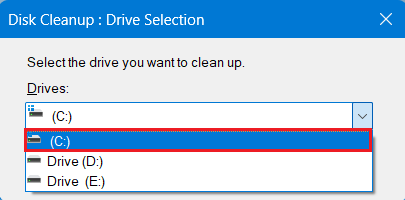
Clutter slows everything down. Delete temporary files regularly as part of PC performance tweaks for gaming.
Steps:
- Press Windows + R, type %temp%, and press Enter.
- Select all (Ctrl + A) and delete what you can (skip locked files).
- Empty the Recycle Bin.
For extra Roblox performance optimization, some users delete heavy texture folders in the Roblox installation directory (keep essential ones like grass, sky, water). This lightens the load without breaking the game much.
Run sfc /scannow in an admin Command Prompt to repair system files if crashes or weird issues appear.
Step 6: Advanced Tweaks for Windows 10 and Windows 11
For Roblox lag fix Windows 10 or Roblox lag fix Windows 11:
- Disable fullscreen optimizations for the Roblox executable (right-click > Properties > Compatibility tab).
- Turn on Game Mode in Windows Settings > Gaming.
- Reduce visual effects: Search “Performance Options” and choose “Adjust for best performance” or customize.
- Keep your PC cool—clean dust from vents to prevent thermal throttling.
These system performance tweaks help with FPS drop causes on older machines.
How to boost FPS in Roblox without downloading software: Stick to built-in Windows tools and in-game settings. No third-party apps needed for most gains.
Step 7: Additional Optimization Tips for Low-End Setups
- Play in Fullscreen rather than windowed or borderless for better resource allocation.
- Lower resolution in Windows Display settings if needed (try 1280×720 or lower).
- Avoid running Roblox with overlays (Discord, Steam, etc.)—disable them.
- For laptops: Use a cooling pad or elevate the device for better airflow.
- Test different experiences—some Roblox games are lighter than others.
Roblox graphics settings low-end PC work best when combined. Many budget users report stable 30-60 FPS after these changes.
For how to optimize Roblox for better performance on weak PC, repeat the process: lower graphics → free resources → stable network → clean system.
Common Roblox Issues and Quick Fixes
- Stuttering: Lower graphics, disable fullscreen optimizations, close apps.
- Low FPS: Manual graphics mode + high-performance power plan.
- High Ping: Wired connection + DNS change.
- Teleporting players: Network fix.
- Slow loading: Delete temp files and ensure enough storage space.
If nothing helps, reinstall Roblox as a last resort.
Conclusion
How to fix lag in Roblox on low-end PC is achievable with these free, straightforward methods. By adjusting best settings to run Roblox smoothly on low-end laptop, closing background programs, updating drivers, cleaning files, and improving your network, you can enjoy much better gameplay without upgrades.
Remember the key steps: lower in-game graphics, free up RAM and CPU, use a stable connection, and keep your system tidy. These Roblox performance optimization techniques work well for student gamers, casual players, and anyone on a budget.