Linux Command Line Shortcuts: Master Your Terminal for Faster Productivity in 2026
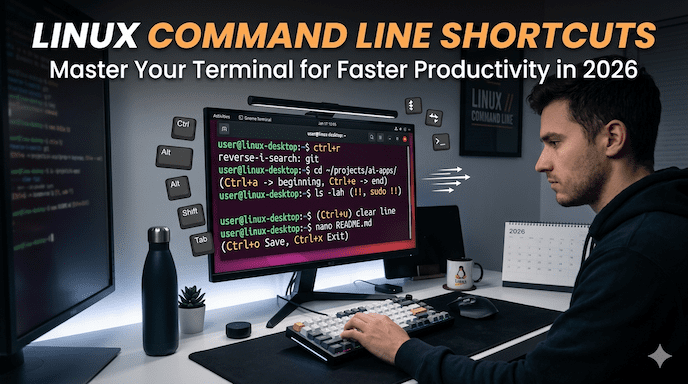
Linux Command Line Shortcuts help developers, system admins, and everyday Linux users work much faster in the terminal. Instead of typing long commands or using arrow keys slowly, these simple key combinations let you move the cursor, edit text, search history, and manage processes with ease. Whether you are a beginner learning the basics or a professional optimizing your workflow, knowing these Linux command line shortcuts saves hours every week.
In this detailed guide, you will discover the most useful Linux terminal shortcuts, Bash keyboard shortcuts, and practical examples. We will cover everything from basic navigation to advanced tricks like reverse search command Linux, and tab autocomplete Linux. By the end, you will have a full terminal shortcuts cheat sheet you can use daily.
Why Learning Linux Command Line Shortcuts Matters for Productivity
Many people new to Linux feel overwhelmed by the command line. Typing every character and fixing mistakes with backspace takes time. Linux command line shortcuts change that. They come from the Readline library used in Bash and similar shells, making the terminal feel like a powerful text editor.
Studies and community feedback show that experienced users complete tasks 2-3 times faster with these shortcuts. For developers and sysadmins in Tier 1 and Tier 2 countries, where remote work and cloud environments are common, this efficiency means quicker deployments, faster debugging, and less frustration.
Command line productivity Linux improves when you stop relying on the mouse or slow navigation. Shortcuts reduce errors in long pipelines and help you handle big logs or scripts smoothly.
For example, imagine fixing a typo in a complex Docker run command. With Linux command editing shortcuts, you jump to the mistake in one keystroke instead of pressing the left arrow dozens of times.
Understanding the Basics: How Linux Terminal Shortcuts Work
Most Bash command shortcuts use the Ctrl (Control) and Alt (Meta) keys combined with letters. These bindings work in Bash, Zsh (with default settings), and many other shells on Ubuntu, Debian, Fedora, and other distributions.
The shortcuts fall into clear categories:
- Cursor and navigation
- Text editing and deletion
- Command history and search
- Process control
- Screen and terminal management
- Auto-completion and advanced tricks
Learning them step by step builds muscle memory. Start with 5-10 shortcuts and add more each week. Many users report feeling more confident after just a few days of practice.
Linux shell shortcuts are consistent across most setups, but some terminals or desktop environments add extras like Ctrl + Shift + C for copy and Ctrl + Shift + V for paste in GUI-based terminals (such as GNOME Terminal or Konsole).
Essential Cursor Movement Shortcuts for Linux Terminal
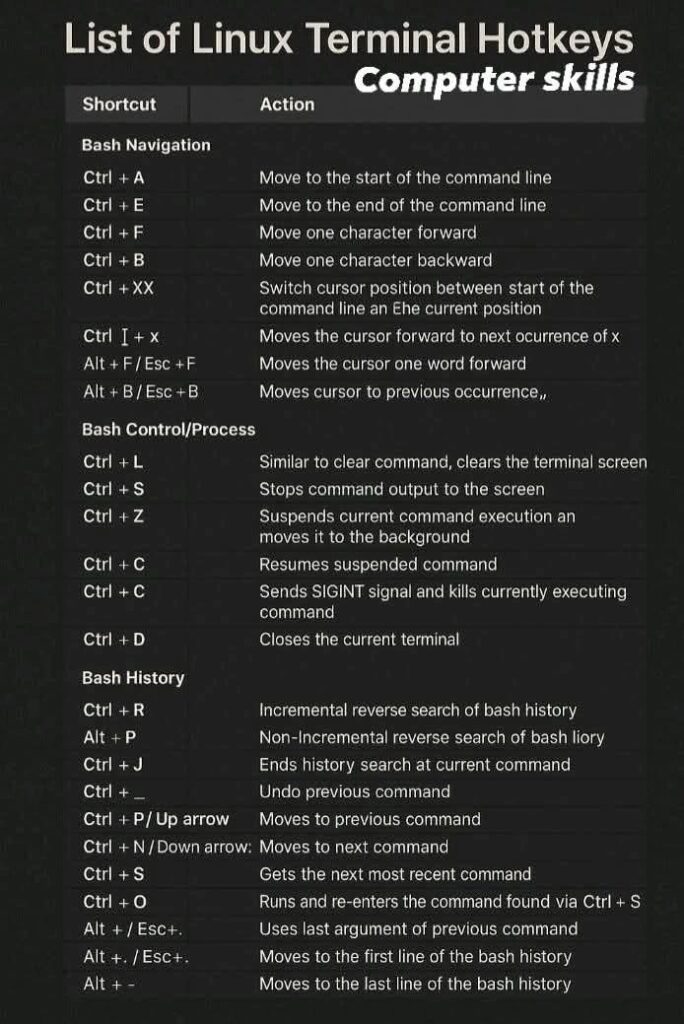
Moving around long commands is one of the first skills that speeds up your work. Here are the key Bash navigation shortcuts:
- Ctrl + A: Jump to the beginning of the line. Great for adding sudo at the start of a command.
- Ctrl + E: Jump to the end of the line. Perfect for adding options or redirects at the end.
- Ctrl + B: Move back one character (like left arrow).
- Ctrl + F: Move forward one character (like right arrow).
- Alt + B: Move back one word.
- Alt + F: Move forward one word.
These move cursor terminal shortcuts feel natural once you practice. Combine them: Press Ctrl + A, then Ctrl + K to delete everything and start fresh.
Terminal keyboard commands Linux like these save seconds on every command. Over a day of heavy terminal use, those seconds add up to real productivity gains.
For even quicker jumps, some setups support Ctrl + Left/Right Arrow for word movement, though this can vary by terminal emulator.
Powerful Text Editing and Deletion Shortcuts
Editing mistakes without retyping the whole command is where Linux command line shortcuts shine.
- Ctrl + U: Delete (cut) everything from the cursor to the beginning of the line.
- Ctrl + K: Delete everything from the cursor to the end of the line.
- Ctrl + W: Delete the word before the cursor.
- Ctrl + Y: Paste (yank) the last deleted text. Use this after any cut operation.
- Alt + D: Delete the word after the cursor.
- Ctrl + T: Swap (transpose) the two characters before the cursor — useful for fixing typos like “teh” to “the”.
- Alt + T: Swap the two words before the cursor.
Linux command editing shortcuts let you fix long pipelines quickly. For instance, you type ls -la /wrong/path and realize the path is wrong. Use Ctrl + W to remove the bad path, then type the correct one and press Ctrl + Y if needed.
Many professionals combine these with Alt + . (insert last argument from previous command). After running cat important.log, press Alt + . in the next command to reuse important.log without typing it again. This is one of the most loved Linux quick commands.
Command History Shortcuts: Never Retype the Same Thing Twice
One of the biggest time-savers in Linux CLI shortcuts is the history system.
- Ctrl + R: Start the reverse search command Linux. Type part of an old command, and it finds it instantly. Press Ctrl + R again to cycle through matches. This is often called the single most useful shortcut.
- Ctrl + G: Cancel the reverse search if you change your mind.
- Ctrl + P: Go to the previous command (same as Up arrow).
- Ctrl + N: Go to the next command (same as Down arrow).
- !!: Repeat the last command. Very handy with sudo !! When you forget permissions.
- !n: Run command number n from history (check numbers with history command).
- !string: Run the most recent command starting with “string”.
- !$: Reuse the last argument of the previous command (similar to Alt + .).
Bash history search shortcuts like Ctrl + R make repetitive tasks effortless. Developers often search for past git or kubectl commands this way.
To make history even better, add these lines to your ~/.bashrc or ~/.zshrc:
Bash
export HISTSIZE=10000
export HISTFILESIZE=20000
shopt -s histappend
This keeps more history and saves it properly across sessions.
Process Management and Termination Shortcuts
When a command runs too long or hangs, you need quick control.
- Ctrl + C: Send SIGINT to terminate the current foreground process. The most common way to stop a running program.
- Ctrl + Z: Suspend the current process and send it to the background. Later use fg to bring it back or bg to resume in the background.
- Ctrl + D: Log out or end input (EOF). Use this at an empty prompt to close the shell cleanly.
- Ctrl + L: Clear the terminal screen (same as typing clear).
Kill process shortcut Linux with Ctrl + C is essential, but remember it may not work for all stubborn processes — sometimes you need kill or pkill commands afterward.
Clear terminal shortcut Linux (Ctrl + L) keeps your screen tidy during long sessions.
Screen, Buffer, and Terminal Management Shortcuts
- Ctrl + L: Clear screen (already mentioned, but worth repeating).
- Ctrl + S: Freeze terminal output (XOFF flow control). Useful if the output scrolls too fast.
- Ctrl + Q: Resume output after Ctrl + S.
- In many GUI terminals, Ctrl + Shift + Page Up / Page Down is used to scroll through the history buffer.
- Ctrl + Shift + T: Open a new tab (depends on your terminal emulator, like GNOME Terminal).
- Ctrl + Shift + N: Open new window (emulator-specific).
These Linux terminal hotkeys help manage messy output and multitasking in the shell.
Auto-Completion and Advanced Productivity Tricks
Tab autocomplete Linux is probably the first shortcut most beginners discover. Press Tab to complete commands, file names, or options. Press Tab twice to see all possibilities.
Other advanced ones:
- Alt + .: Insert last argument (mentioned earlier).
- Ctrl + X Ctrl + E: Open the current command line in your default editor ($EDITOR) for complex editing. Set export EDITOR=nano or vim in your shell config.
- Ctrl + XX: Toggle between the current cursor position and the start of the line.
Linux alias commands take shortcuts further. Add to your ~/.bashrc:
Bash
alias ll=’ls -la’
alias update=’sudo apt update && sudo apt upgrade’
alias gs=’git status’
Then you type ll instead of the full command. Combine aliases with keyboard shortcuts for maximum Linux workflow optimization.
For Zsh vs Bash shortcuts, Zsh offers more features out of the box with plugins like Oh My Zsh. It enhances Tab completion with autosuggestions and better history search. Many users switch to Zsh for modern command line navigation tricks.
Comprehensive Linux Command Line Shortcuts Cheat Sheet
Here is a clean terminal shortcuts cheat sheet you can bookmark or print:
Navigation
- Ctrl + A — Start of line
- Ctrl + E — End of line
- Alt + B — Back one word
- Alt + F — Forward one word
Editing
- Ctrl + W — Delete previous word
- Ctrl + U — Delete to start of line
- Ctrl + K — Delete to end of line
- Ctrl + Y — Paste deleted text
- Ctrl + T — Transpose characters
History
- Ctrl + R — Reverse incremental search
- !! — Last command
- !$ or Alt + . — Last argument
Control
- Ctrl + C — Kill running process
- Ctrl + Z — Suspend process
- Ctrl + D — Logout / EOF
- Ctrl + L — Clear screen
Miscellaneous
- Tab — Auto-complete
- Ctrl + X Ctrl + E — Edit line in editor
Many users keep a similar list in a text file or use tools like cheat.sh for quick reminders.
Linux command shortcuts list like this helps beginners and reminds experts. Practice one section per day for best results.
Real-World Examples and Use Cases
Let’s look at practical scenarios where Linux command line shortcuts save time.
Scenario 1: Debugging a failing script
You run a long Python script that errors. Use Ctrl + C to stop it, Ctrl + R to find the previous Python command, edit it with Ctrl + A and Ctrl + K, then rerun.
Scenario 2: Working with Git
After git commit -m “fix bug”, you realize you forgot to stage files. Use Ctrl + P or !! with adjustments, or Alt + . to reuse the message.
Scenario 3: Managing servers remotely
On a production server via SSH, a process hangs. Ctrl + Z suspends it, check with jobs, then decide to kill %1 or resume.
These examples show how terminal efficiency tips turn the command line into a fast, reliable workspace.
For deeper debugging knowledge, explore related techniques that professionals use daily.
Common Mistakes and How to Avoid Them
Beginners sometimes press Ctrl + D too many times and accidentally log out. Be careful at empty prompts.
Another issue: Ctrl + S freezes the terminal. Remember Ctrl + Q to unfreeze.
In some environments, the Alt key may not work as expected. You can use Esc instead (press Esc then B for Alt + B behavior).
Test shortcuts in a safe environment first. Many users practice in a virtual machine or Docker container.
Linux pipe and redirect commands work beautifully with shortcuts. Edit a long command1 | command2 > file using the editing keys before pressing Enter.
Customizing Shortcuts for Your Workflow
You can remap bindings if defaults do not suit you. Edit ~/.inputrc for Readline settings:
text
“\C-p”: history-search-backward
“\C-n”: history-search-forward
For Zsh, use bindkey commands.
Many developers create custom Linux alias commands and functions to combine shortcuts with common tasks.
This customization supports Linux workflow optimization tailored to your role — whether coding, administering systems, or learning as a student.
Benefits for Different Audiences
Developers and system admins gain speed in daily tasks like deploying code or monitoring servers.
Beginners learning Linux CLI build confidence faster when small wins (like clearing the screen instantly) accumulate.
Students and tech learners prepare better for certifications and interviews where terminal knowledge is tested.
Productivity-focused professionals using the terminal regularly reduce fatigue and errors.
No matter your level, these Linux keyboard commands level up your skills.
Integrating Shortcuts with Modern Tools and Shells
In 2026, many users run Zsh with plugins for an even better experience. Zsh vs Bash shortcuts differ slightly in extensions, but core Ctrl bindings remain the same.
Tools like fzf enhance Ctrl + R with fuzzy finding. tmux or screen adds another layer of keyboard-driven workflow.
Combine shortcuts with good practices from clean code and debugging to write and run scripts more effectively.
Step-by-Step Guide to Mastering Linux Command Line Shortcuts
- Open your terminal and try Ctrl + L to clear it.
- Type a long command and use Ctrl + A and Ctrl + E to navigate.
- Practice deleting with Ctrl + W and restoring with Ctrl + Y.
- Run a few commands, then use Ctrl + R to search history.
- Suspend something harmless with Ctrl + Z and resume with fg.
- Add one alias to your shell config and reload with source ~/.bashrc.
- Review the cheat sheet daily for one week.
Follow this, and you will notice real improvement in command line productivity on Linux.
FAQs
What are the most important Linux command line shortcuts for beginners?
Start with Ctrl + A, Ctrl + E, Ctrl + C, Ctrl + L, and Ctrl + R. These cover navigation, stopping processes, clearing the screen, and searching command history. These are the most frequently used shortcuts in daily terminal work. Learning them first will significantly improve your speed and confidence in the Linux command line.
Do these Bash keyboard shortcuts work in Zsh?
Yes, most core shortcuts work the same in Zsh as in Bash. Basic navigation, editing, and history shortcuts behave almost identically. However, Zsh can extend functionality using plugins like Oh My Zsh, which adds smarter autocomplete and enhanced key bindings.
How can I create a personal terminal shortcuts cheat sheet?
You can copy essential shortcuts into a simple text file or a markdown document for quick reference. Many users keep it pinned in their notes or on their desktop. You can also use online terminal tools like curl cheat.sh/bash/shortcuts to access quick command references directly in the terminal.
Are there shortcuts for clearing the terminal?
Yes — Ctrl + L is the fastest shortcut to clear the terminal screen without deleting command history. It simply refreshes your view, making your workspace clean while keeping all previous commands accessible.
Conclusion
Linux command line shortcuts transform how you interact with the terminal. From simple Linux terminal shortcuts like clearing the screen to advanced Bash keyboard shortcuts such as reverse search and argument reuse, these tools make you faster, more accurate, and less frustrated.
We covered navigation, editing, history, processes, auto-completion, and customization — everything you need for a complete terminal shortcuts cheat sheet. Practice regularly, customize where it helps, and combine with good habits for the best results.