What is Developer Option in Android Phone? A Complete Guide to Hidden Settings
Developer Options is a hidden “power user” menu in every Android phone that gives you access to advanced system settings normally kept away from regular users. Think of it as the secret control panel that lets you tweak how your phone behaves under the hood.
Android powers more than 3 billion active devices worldwide, making it the most popular mobile operating system on the planet. Yet most people never touch Developer Options simply because of its name. They assume it is only for professional coders. In reality, everyday users in Tier 1 and Tier 2 countries can safely use many of these tools to make their phones feel faster, games look smoother, and daily tasks more convenient.
The good news? You do not need any technical background to benefit. With simple changes, you can speed up a lagging phone, improve gaming performance, recover files, or reduce annoying delays when switching between Wi-Fi and mobile data. This complete guide explains everything clearly so you can explore with confidence.
Here is a quick summary table for easy reference:
- Is it safe? → Yes, when used carefully
- Is it free? → Completely free
- Does it void warranty? → No
- Who should use it? → Beginners curious about hidden features, intermediate users wanting performance gains, and advanced users needing debugging tools
How to Enable Developer Options on Android (Step-by-Step)
Unlocking Developer Options is surprisingly easy and works on almost all Android phones released in the last decade.
Universal Method (Works on most devices):
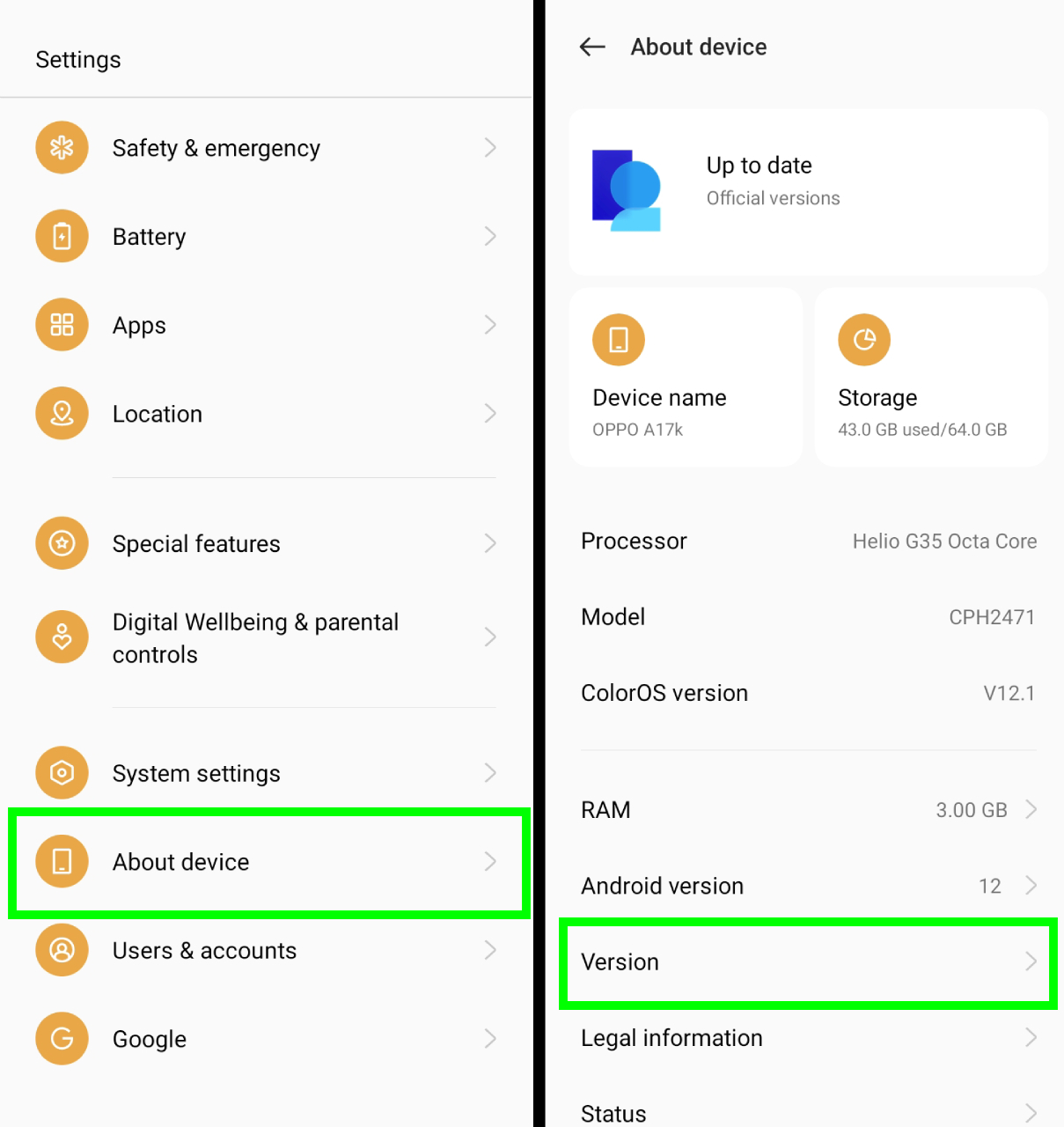
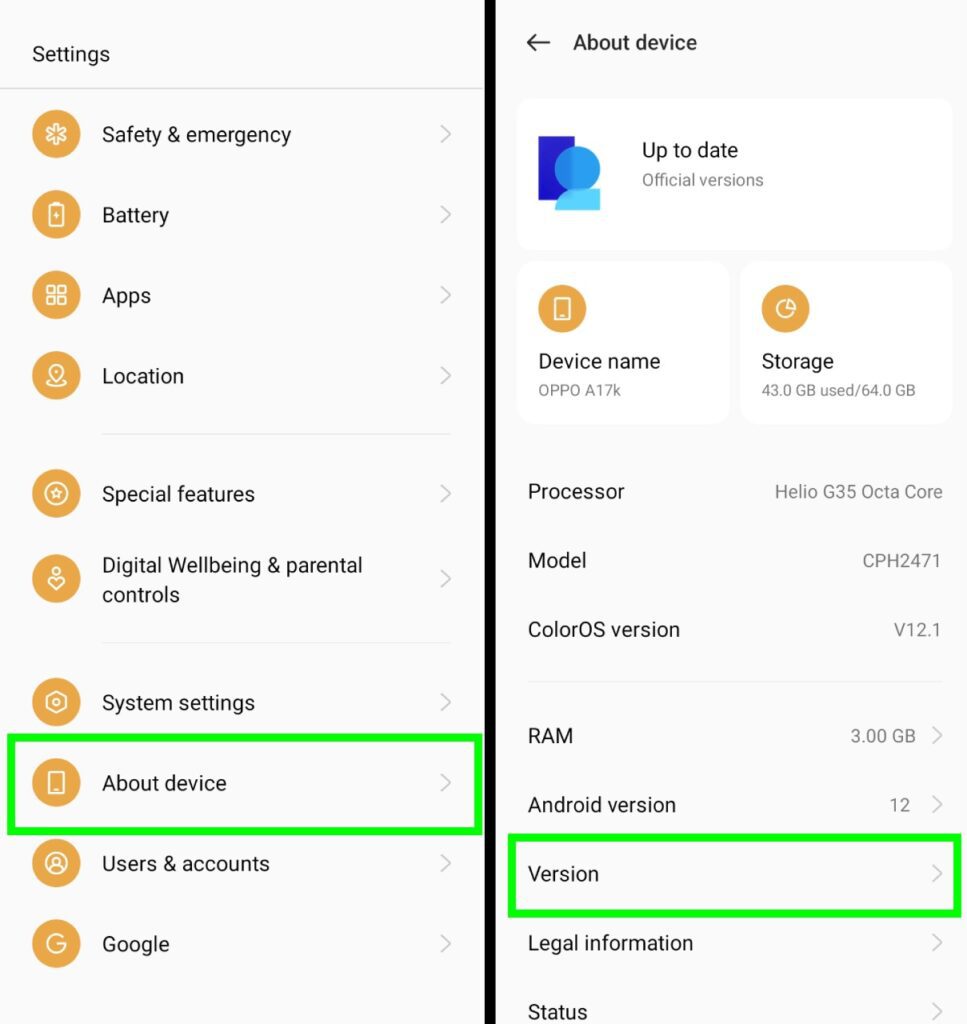
- Open the Settings app on your phone.
- Scroll down and tap About phone (sometimes called About device or My phone).
- Find the build number in the list.
- Tap the build number quickly seven times.
- You may need to enter your PIN or pattern for security.
- A message will appear: “You are now a developer!”
That is it! The hidden menu is now active.
Brand-Specific Paths:
- Samsung (One UI): Settings → About phone → Software information → Build number
- Xiaomi / Redmi / POCO (MIUI / HyperOS): Settings → About phone → Tap MIUI version or Build number repeatedly
- OnePlus (OxygenOS): Settings → About phone → Build number
- TECNO, Infinix, Itel (Carlcare devices): Settings → About device / My Phone → Build number
Why does Google hide it?
The company wants to prevent beginners from accidentally changing important settings that could cause problems. By requiring seven taps, they add a small barrier so only people who really want the options will find them.
Where to Find Developer Options After Enabling
Once unlocked, you can access the menu in two common ways:
- Go to Settings → System → Developer options
- On some brands: Settings → Additional settings → Developer options
You will see a toggle switch at the top. When turned off, most options become inactive for safety. Keep it on only when you need the features.
Many related keywords people search include Android developer settings, developer mode Android, Android hidden menu, and Android advanced settings. All of them point to this same powerful section.
Why Do People Use Developer Options?
Real users turn to Developer Options for practical reasons that improve daily life:
- Speed up a slow phone – Animation tweaks make the interface feel much snappier.
- Improve gaming experience – Better graphics and reduced lag.
- Recover files or test apps – Using tools like USB debugging on Android and ADB commands.
- Reduce lag when switching networks – Especially useful for people who travel or use both Wi-Fi and mobile data heavily.
- Create tutorials or debug touch issues – Visual feedback helps identify problems.
These benefits explain why searches for how to speed up Android using developer options and the best developer options for gaming Android keep growing.
Top 7 Developer Options Features You Should Know
Here are the most useful and popular settings explained in simple language.
1. USB Debugging (ADB Access)
This option allows your phone to communicate with a computer using ADB commands android.
What it does: Enables file transfer, app installation, screen mirroring, and data recovery even when the phone screen is broken.
Use cases: Backing up photos, installing custom apps, or fixing software issues.
Safety tip: Turn USB debugging android off when you are not using it to avoid security risks.
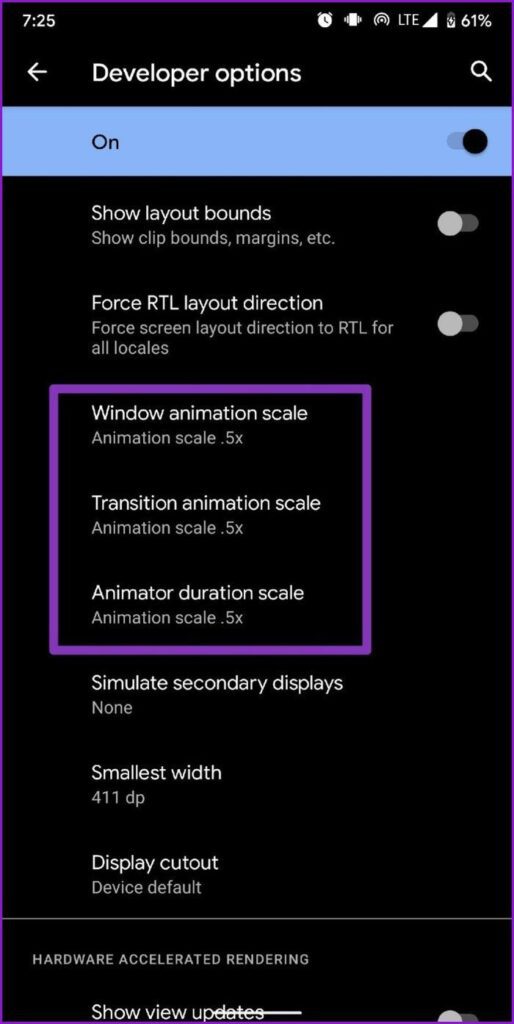
2. Window, Transition & Animator Scale
These three settings control how fast menus, app switches, and animations appear.
Default is 1x. Change all three to 0.5x or Off for an instant perceived speed boost.
Many users report their phone feels twice as fast without any real hardware change. This is one of the safest and most popular performance tweaks android.
3. Force 4x MSAA (Gaming Boost)
Force 4x MSAA android improves graphics quality in games that use OpenGL by applying anti-aliasing.
It makes edges smoother and visuals cleaner, especially on high-end devices.
Trade-off: It uses more battery and GPU power, so use it only while gaming.
4. Mock Location App (GPS Control)
This lets you fake your GPS location for testing apps or protecting privacy.
Mock location app android is popular with travelers and testers, but use it responsibly and ethically.
5. Mobile Data Always Active
When enabled, your phone keeps mobile data ready even on Wi-Fi.
This reduces delay when switching networks – perfect for heavy internet users who hate buffering.
6. Default USB Configuration
Set your phone to always connect as File Transfer (MTP) instead of Charging Only.
The default USB configuration Android saves time every time you plug into a PC.
7. Show Taps & Pointer Location
Show taps Android displays a circle every time you touch the screen.
Pointer location shows exact coordinates.
These are excellent for creating tutorials, screen recordings, or fixing touch sensitivity problems.
Other powerful options include Stay Awake (screen stays on while charging), limiting background processes to save RAM, and OEM unlocking (for advanced users who want to install custom software).
Is Developer Options Safe to Use?
Yes, Developer Options is safe when you use it correctly. Google designed it this way, and simply enabling the menu does not harm your device.
Balanced view:
Most settings are harmless. A few (like aggressive GPU tweaks or limiting processes too strictly) can cause temporary lag or app crashes if misused. The key is understanding what each toggle does before changing it.
Examples of risks:
- Setting animation scales too low on a very old phone might make some apps behave strangely.
- Leaving USB debugging on in public places increases minor security exposure.
Overall, millions of users enable developer mode on Android every day without issues.
Security Tips You Must Follow
- Keep USB debugging turned off when not needed.
- Avoid plugging your phone into unknown or public USB ports (risk of juice jacking).
- Change only one setting at a time and test your phone for a day.
- If something feels wrong, simply turn the main Developer Options toggle off.
Is developer mode safe for Android? The answer is yes for careful users.
Common Developer Options Myths Debunked
Myth: It voids warranty → Reality: No. Enabling Developer Options does not void your warranty. Only bootloader unlocking or rooting might affect it in some cases.
Myth: It damages your phone → Reality: No, when used properly.
Myth: It drains battery → Reality: Only specific features (like Force 4x MSAA or Stay Awake) can increase usage. Most tweaks actually help save resources.
Myth: Developer Options disappeared after Android update → Reality: It sometimes hides again. Just tap Build number seven times once more.
How to Disable or Hide Developer Options
Want to turn it off? Two easy ways:
Method 1 (Simple):
Go to Developer options → Toggle the switch at the top to Off.
Method 2 (Full reset):
Go to Settings → Apps → Settings app → Storage → Clear data. This hides the menu completely (you can re-enable it anytime).
Searches like how to hide developer options on Android “ are common because some users prefer a clean settings list.
Pro Tips for Using Developer Options Safely
- Always note the default value before changing any setting.
- Test changes one at a time.
- Restart your phone after important tweaks to see the full effects.
- For beginners: Start with animation scales and Show taps – they are low-risk and give quick wins.
- Advanced users: Combine USB debugging Android with proper ADB tools for powerful file management.
These Android power user options give you control that stock settings simply do not offer.
FAQS
What does OEM Unlocking do?
It allows you to unlock the bootloader for installing custom ROMs. Most regular users never need it.
Is Developer Mode good for gaming?
Yes. Settings like Force 4x MSAA on Android, animation scaling, and background process limits often improve frame rates and smoothness.
Can Developer Options improve battery life?
Indirectly yes. Limiting background processes and speeding up animations can reduce power usage.
Conclusion
What is Developer Option in Android Phone? It is your gateway to hidden Android settings that can transform how your device performs. From simple speed boosts using animation scale Android to advanced tools like ADB commands, this menu puts real power in your hands.
Used wisely, Developer Options makes your Android phone faster, more responsive, and better suited to your needs – whether you are a student in Pakistan trying to stretch battery life, a gamer wanting smoother graphics, or someone who just likes understanding their device better.What is Developer Option in Android Phone?