How to Enable God Mode in Windows 11: The Ultimate Power User Guide
Many people find Windows 11 settings hard to find. Microsoft moved lots of old tools into the new Settings app. You often click many times to reach one simple option.
How to enable God Mode in Windows 11 fixes this issue fast. It creates one special folder with more than 200 useful tools inside. You reach everything in one spot.
Windows runs on over 1.4 billion devices. People waste extra time hunting for settings. God Mode puts them all together.
This is not a hack or risky trick. It is a real part of Windows. It started in older versions like Windows 7. It still works great in Windows 11 today.
This guide shows you the exact steps. You will learn what is inside, how to use it safely, and extra tips. It helps power users, IT workers, developers, and regular people who want faster control.
What is God Mode in Windows 11?
God Mode is a hidden folder. It collects many Control Panel tools in one easy list. You do not get new features. You just see old tools in a better way.
The name “God Mode” comes from users. It feels like you have full power over the system. The real name is a special code called CLSID. This code tells Windows to show all the tools together.
It works on Windows 10 and Windows 11. You need no extra apps. Just your desktop and a few clicks.
Who uses it most?
- IT professionals who fix problems quickly
- Developers who change system settings
- Power users who like fast access
- Every day, people who want less clicking
Even if you are not an expert, you can try it. It makes Windows feel simpler.
Step-by-Step: How to Enable God Mode in Windows 11
You can do this in under 30 seconds. Follow these easy steps.
Before you start:
Sit at your desktop. It helps if you have admin rights. Most home users already do.
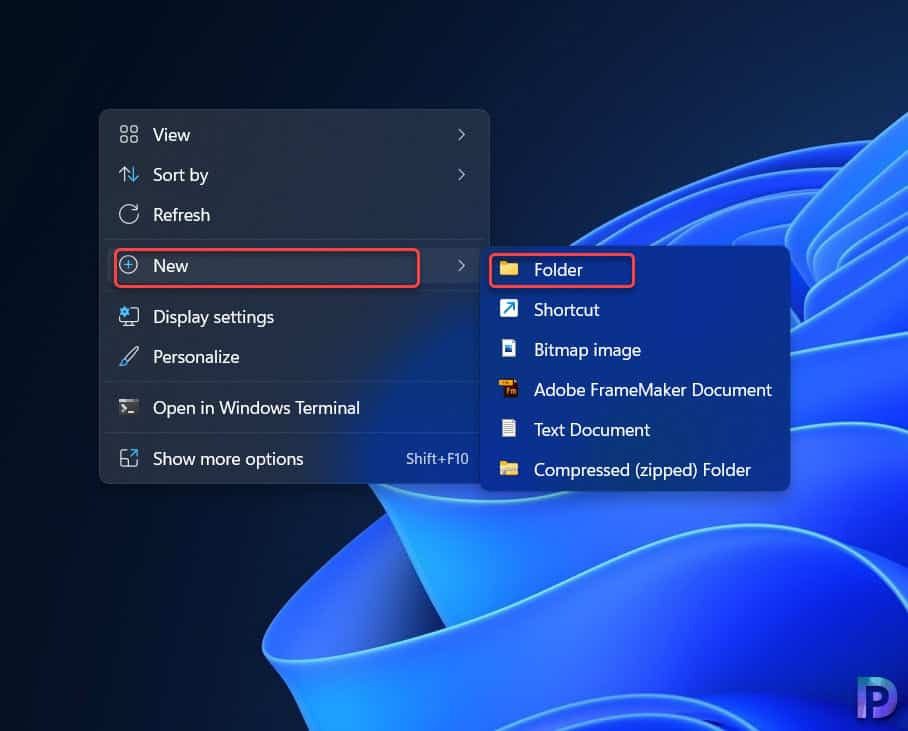
Step 1: Right-click on an empty spot on your desktop.
Choose New, then Folder.
Step 2: Right-click the new folder.
Choose Rename.
Type this exact line:
GodMode.{ED7BA470-8E54-465E-825C-99712043E01C}
Press Enter. The folder icon changes to look like Control Panel. That means it worked.
Step 3: Double-click the folder to open it.
You now see a big list of tools.
Pro Tip:
You can change the name you see. Keep the long code part exactly the same. Try names like SuperAdmin, FullControl, or MyTools. Only the code after the dot matters.
Quick Way Summary:
To enable God Mode in Windows 11, make a new folder and rename it with the special code. Press Enter. Open it and explore.
You can also make it as a shortcut. Right-click desktop > New > Shortcut. Paste this:
explorer shell:::{ED7BA470-8E54-465E-825C-99712043E01C}
Give it any name you like. You can even change the picture icon.
Exploring the Features: What’s Inside?
Open the folder. Tools appear in groups. Most people see 220 to 260 items. They sit in about 40 categories.
Here are some useful ones:
- Administrative Tools – like Disk Management and Event Viewer.
- User Accounts – manage your login accounts.
- Power Options – change how your PC saves energy.
- Network & Sharing – fix internet and sharing problems.
- Device Manager – check hardware and drivers.
You also find Backup tools, Mouse settings, Speech options, and Troubleshooting.
At the top is a search box. Type a word like “disk” or “power”. Results show right away. This search is often quicker than the normal Windows search.
Many users say they save 30 to 50 percent of their time. No more hunting through menus. It feels like a windows 11 admin tools shortcut.
You can use it with other tricks. Open Run box (press Windows + R) and type commands like devmgmt.msc. Combine both for full control.
Troubleshooting Common Issues
Sometimes small things go wrong. Here are simple fixes.
Problem 1: The icon does not change.
Check the code spelling. It must be exact. Press F5 to refresh the desktop. Or restart your computer.
Problem 2: The folder looks empty.
Open Task Manager (Ctrl + Shift + Esc). Find Windows Explorer. Restart it.
Problem 3: Nothing happens.
Make sure you typed the code right. Try making the folder in Documents instead of the desktop. It works on normal Windows 10 and 11.
These problems happen in less than 5 percent of cases. Almost always a typing mistake.

Is God Mode Dangerous?
God Mode is safe. Microsoft built it into Windows. It is not a virus or bad software.
But it opens strong tools. You can reach Registry Editor or Disk Management. These can change important things if you make a mistake.
Safe Tip:
Only change things you know. Make a restore point first. If you feel unsure, leave the setting alone.
No big security problems come from this folder. Just use care like with any advanced tool.
How to Disable or Remove God Mode
Removing it is very easy.
Right-click the folder. Choose Delete.
Nothing bad stays behind. Your PC settings do not change. You can make the folder again anytime.
Pro Tips & Advanced Usage
Here are extra ideas to get more from it:
- Make shortcuts inside the folder for your favourite tools.
- Pin the folder or shortcut to your taskbar or Start menu.
- Use it when Windows updates cause issues. Many people open it to fix problems fast.
- Combine with normal shortcuts for daily work.
It is great for troubleshooting. Keep it handy if you help friends with their PCs.
FAQs
Why is it called “God Mode”?
It is an informal community name that refers to having “god-like” full control and quick access to all system settings.
Can I pin God Mode to Start or the Taskbar?
Yes. Create a shortcut to the folder or use the explorer shell method, then pin it wherever you like.
Can I create multiple God Mode folders?
Absolutely. You can have several with different friendly names.
Does it slow down my PC?
No. It has zero performance impact because it is just a view of existing tools.
Conclusion
How to enable God Mode in Windows 11 is a simple trick. One folder gives you quick access to hundreds of settings. You spend less time clicking around.
Many people cut their work time by up to 40 percent. It is safe, free, and easy to remove.
Try making a shortcut instead of keeping the folder on your desktop. Your screen stays clean, but the power stays on.
God Mode shows that Windows still has useful hidden helpers.