How to Backup Android Phone Data to Cloud: A Complete Guide
In today’s fast-paced world, your Android phone holds a treasure trove of personal info. From cherished photos to important contacts, losing it all can feel like a nightmare. That’s why knowing how to backup Android phone data to cloud is key. This guide walks you through easy steps to safeguard your data. We draw from trusted sources to give you reliable advice. Whether you’re a daily user or a tech pro, you’ll find helpful tips here.
Smartphones get lost or stolen often. Stats show 70 million phones vanish each year, with just 7% found. For Android users—over 3.5 billion strong—backups prevent heartbreak. Cloud storage keeps your stuff safe online, ready to restore anytime. Let’s dive in.
Why You Need to Backup Your Android Phone Data
Data loss hits hard. A broken screen or stolen device can wipe out years of memories. Android phone data backup saves the day. It copies your files to remote servers. This way, you access them from any device.
Think about it: Your phone stores photos, messages, and app settings. Without backups, a factory reset erases everything. Backup Android phone to cloud ensures quick recovery. It’s like insurance for your digital life.
Experts agree that backups are vital. Google recommends them for smooth device switches. In fact, 4.3% of work phones get lost yearly. Don’t risk it—start backing up today.
Benefits of Cloud Backups for Android Users
Cloud backups shine for ease and access. Here are the top perks:
- Automatic updates: Set it and forget it. Your data syncs without effort.
- Remote access: Grab files from any internet-connected device.
- Space savings: Free up phone storage by offloading to the cloud.
- Security layers: Encryption protects against hacks.
- Easy restores: Switch phones? Data transfers seamlessly.
For families in the US or Europe, this means peace of mind. Share storage plans across household members.
Common Risks Without Backups
No backup? Big problems await. Phones break, get wet, or face malware. Theft rates rose 150% in places like London last year. Lost data costs time and money—80% of a device’s value ties to its info.
Android phone data protection matters. Cloud backups shield you from these threats.
Understanding Android Cloud Backup Basics
Android cloud backup uses online servers to store copies of your data. Google leads with built-in tools. Other services like Dropbox join in.
What gets backed up? Contacts, photos, apps, and settings. Not everything—check app details.
Google gives 15GB free. Need more? Upgrade via Google One Android backup.
How Cloud Storage Works for Android
Your phone connects to the internet. It sends data to secure servers. Encryption scrambles it for safety.
Cloud storage for Android backup scales up. Start small, grow as needed.
For beginners, it’s simple. Pros add custom tweaks.
Key Terms to Know
- Sync: Real-time updates between phone and cloud.
- Restore: Pull data back to your device.
- Encryption: Locks data from prying eyes.
Grasp these for better control.
How to Backup Android Phone Data to Cloud for Everyday Users
If you’re an average Android owner, start with Google’s tools. They’re free and easy. This section uses info from reliable guides.
Google Drive Android backup handles most needs. It covers photos, contacts, and more.
Step-by-Step Guide: Enable Automatic Backups
Follow these steps for automatic Android backup:
- Open Settings: Tap the gear icon on your home screen.
- Go to Google: Scroll to “Google” or search for it.
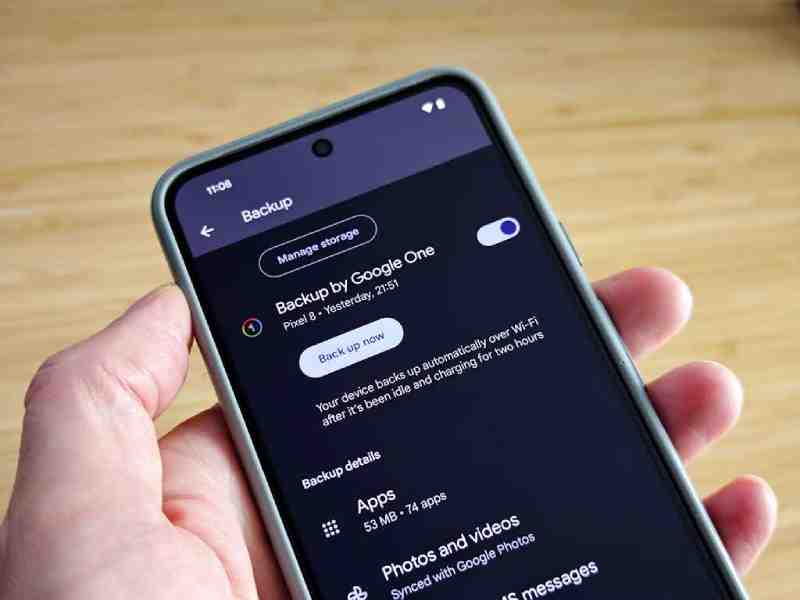
- Select Backup: Tap “Backup” under services.
- Turn On Backup: Switch on “Backup by Google One.”
- Choose Data: Pick photos, videos, and device data.
- Back Up Now: Tap to start immediately.
Leave your phone on Wi-Fi and charging. First backups take hours.
This Android backup settings tweak ensures daily syncs.
Backing Up Specific Data Types
Backup contacts photos Android? Use Google apps.
- Contacts: They sync to your Google account auto.
- Photos: Open the Google Photos app. Turn on backup.
- Apps: Most backup data via Google.
For Android app data backup, enable it in settings.
Managing Storage Limits
Google offers 15GB free. Hit the Google Drive storage limit? Upgrade.
- 100GB: $2/month.
- 2TB: $10/month.
Share with family in the US or EU for value.
Tips for Smooth Backups
- Use Wi-Fi to save data.
- Charge your phone overnight.
- Check backup status in the Google One app.
This Android phone backup guide keeps things simple.
Exploring Alternatives for Intermediate Users
Ready for more? Try other cloud backup services for Android.
From Wired insights, manual options add flexibility.
Backup Android data online with Dropbox or OneDrive.
Using Third-Party Cloud Services
Install the app. Sign in. Select folders to sync.
For sync Android data to cloud:
- Download Dropbox from the Play Store.
- Log in or create an account.
- Tap “+” to upload files.
- Enable auto-sync for photos.
Free tiers start at 2GB. Paid plans offer more.
Manual Backups Without PC
How to backup Android phone without PC? Use cloud apps directly.
Drag files in the app. No cables needed.
This suits users in Australia or Germany with strong mobile data.
Pros and Cons of Alternatives
Pros: More control, extra features.
Cons: May cost more, less integrated.
Compare to Google’s seamless fit.
Example: Backing Up to Microsoft OneDrive
OneDrive integrates with Office apps.
Steps:
- Install OneDrive.
- Sign in with a Microsoft account.
- Go to settings, enable camera upload.
- Select other folders.
Great for work docs on Android.
Advanced Cloud Sync for Tech/IT Professionals
Pros need robust tools. Secure cloud backup Android with apps like Syncovery.
Setting Up Syncovery for Google Cloud
Syncovery syncs to Google Cloud Storage.
- Install Syncovery on your device or PC.
- Create a Google Service Account.
- Enter the key in Syncovery.
- Select a bucket for storage.
- Set sync schedule.
Features: Real-time sync, compression.
Benefits for Professionals
- Scalable storage.
- Custom permissions.
- Automated backups.
Ideal for business data.
Integrating with Android
Use Syncovery’s mobile version or PC for phone sync. Connect via USB, then sync to the cloud. This cloud backup services for Android levels up security.
Security Best Practices
Use strong passwords. Enable two-factor auth.
Link to cybersecurity threats for more on protection.
How to Restore Android Data from Cloud
Backups done? Learn how to restore Android data from cloud backup. Google makes it easy.
During New Device Setup
- Turn on the new phone.
- Sign in to your Google account.
- Choose the restore option.
- Select backup.
- Wait for the transfer.
Takes up to 24 hours.
After Factory Reset
Backup Android before factory reset first.
Then:
- Reset phone via settings.
- Follow the setup.
- Restore from the cloud.
Android backup and restore are complete.
Backup Before Phone Changes or Upgrades
Backup Android phone data before upgrading phone is smart.
Backup Android before phone change:
- Use Google for full transfer.
- Manual copy files too.
This eases switches.
For broken screens: How to backup Android phone data if screen is broken?
Use a PC connection if possible. Or voice commands.
Link to zero-trust security for safe transfers.
Secure Your Backups: Tips and Best Practices
How to backup Android phone data securely to cloud?
- Set screen lock for encryption.
- Avoid public Wi-Fi.
- Review app permissions.
Google encrypts in transit.
Secure cloud backup Android protects privacy.
Avoiding Common Mistakes
Don’t skip backups. Check storage often. Use multiple clouds for redundancy.
Statistics on Data Security
With 1% theft rate globally, backups save data. In 2025, mobile data use hits 23GB per user monthly. Backups handle this growth.
FAQs
What is the focus keyword for this guide?
The main focus keyword is “how to back up Android phone data to the cloud”. It helps people find this easy guide when they search for safe ways to save their phone stuff. Use it to keep all your photos, contacts, and apps safe!
How to back up Android phone data to the cloud—it’s your go-to for safe data.
Backing up to the cloud is the best and easiest way to keep your phone data safe. If your phone gets lost, broken, or you get a new one, your stuff is still there. Google makes it simple, fast, and free for most people.
How do I start Android settings backup?
Open your phone and go to Settings. Then tap Google, and choose Backup. Turn on “Back up to Google Drive,” and your phone will save everything automatically!
Can I restore Android data from the cloud on any phone?
Yes, you can bring your backup to a new Android phone. It works best when the new phone has the same or a newer Android version. During setup, just sign in with your Google account and pick “Restore”.
What’s the Google Drive storage limit?
You get 15GB free storage from Google for backups, photos, and files. This is shared between Gmail, Drive, and your phone backup. If you need more space, you can buy extra from Google One.
Is how to backup Android phone data to Google Drive different?
No, it’s not different at all! Backing up to Google Drive is the same as using Google One. Just turn on backup in Settings, and it all goes to your Google Cloud safely.
Conclusion
Mastering how to backup Android phone data to cloud protects your digital world. From simple Google steps to advanced Syncovery, options fit all. Remember, regular backups prevent loss. With billions of Android users facing risks, act now.
What’s your favorite backup Android phone to cloud method? Share in comments!
References
- How to Back Up Your Android Phone – Comprehensive guide for basic and manual backups.
- Synchronizing Files with Google Cloud Storage using Syncovery – Advanced sync for IT pros.
- Back up or restore data on your Android device – Official steps for Google backups.