How to Improve Laptop Battery Life Windows 11: Simple Tips for Longer Usage
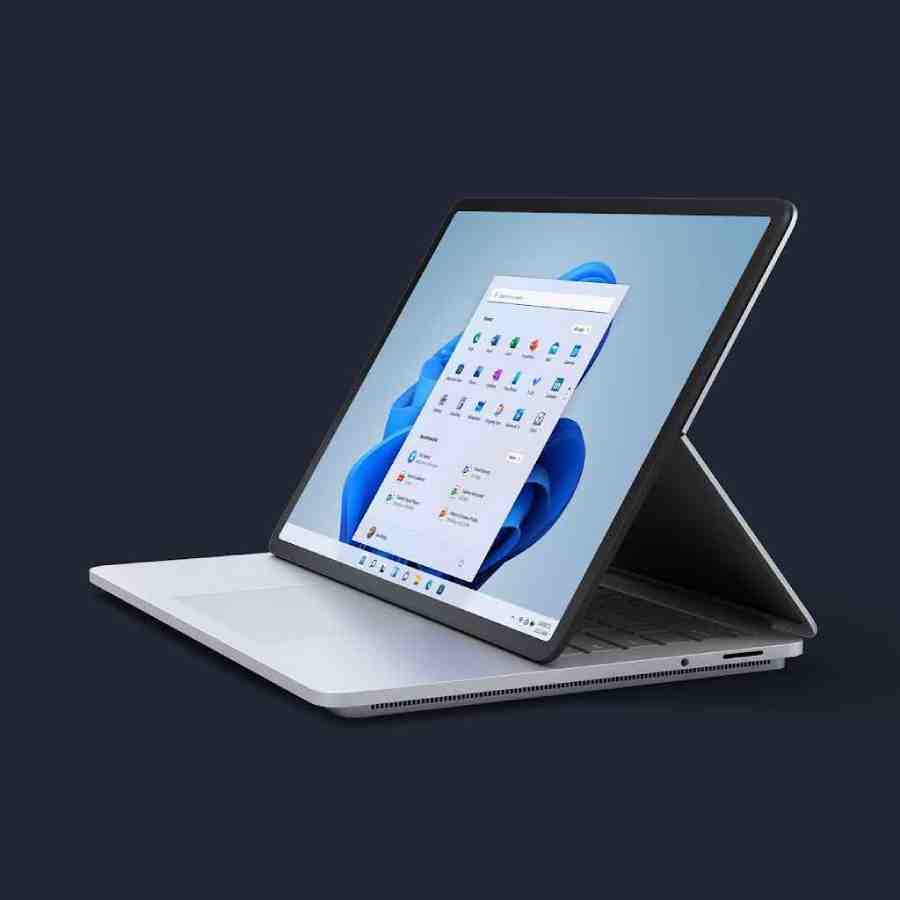
If you use a Windows 11 laptop, you know how frustrating it can be when the battery drains fast. Many people want to know how to improve laptop battery life on Windows 11. Good news: You can make big changes with simple steps. These tips help everyday users and tech fans get more hours from one charge.
Windows 11 has tools like energy saver mode Windows 11, and power & battery settings Windows 11. They make it easy to fix Windows 11 battery drain fix issues. Follow this guide to extend laptop battery life Windows 11 without buying new things.
Why Does Your Windows 11 Laptop Battery Drain Fast?
Many things cause battery drain on laptops. The screen uses a lot of power if it stays bright or on too long. Apps running in the background keep the device awake. High refresh rates make things smooth, but use more energy.
Other reasons include old drivers, too many startup programs, or heat. New features in Windows 11, like better standby, help. But wrong settings can still cause problems. Users often see a better life after tweaks.
One common issue is background apps battery usage. Apps check for updates even when you do not use them. This leads to reduce battery usage Windows 11 needs.
Quick Wins to Start Improving Battery Life Today
Start with easy changes. They give fast results.
- Lower screen brightness — The display uses the most power. Turn it down with the slider in quick settings. This helps a lot with screen brightness battery drain.
- Turn on Energy Saver early — Do not wait for a low battery. Click the battery icon and turn on energy saver mode Windows 11. It stops some background work.
- Shorten screen timeout — Go to Settings > System > Power & battery > Screen and sleep. Set the screen to turn off after 2-3 minutes on battery.
These steps can add 30-60 minutes right away.
How to Improve Laptop Battery Life Windows 11 with Built-in Settings
Windows 11 has great tools in the power & battery settings Windows 11.
Use Energy Recommendations
This feature finds ways to save power.
- Open Settings > System > Power & battery.
- Click Energy recommendations.
- Hit “Apply all” for quick fixes. Or pick ones like lower brightness or shorter sleep time.
Microsoft says this helps lower power use and makes the battery last longer.
Pick the Best Power Mode
In the same Power & battery page, find Power mode.
- Choose the Best power efficiency when on battery. It limits background tasks for a longer life.
- Switch to Balanced or Best performance when plugged in.
This is one of the best battery settings Windows 11.
Adjust Screen and Sleep Times
Set shorter times for idleness.
- On battery power, turn off the screen after 3 minutes.
- Put the device to sleep after 5 minutes.
This stops waste when you step away.
Lower Refresh Rate
High rates like 120Hz look nice but drain fast.
- Go to Settings > System > Display > Advanced display.
- Pick 60Hz if you can.
Great for refresh rate battery consumption.
Manage Apps to Stop Battery Drain
Apps are big culprits for app power usage Windows 11.
Check Battery Usage by Apps
- In Power & battery > Battery usage.
- See which apps are used the most over 24 hours or a week.
- For high ones, click and set to “Managed” background activity.
Limit Background Apps
- Go to Settings > Apps > Installed apps.
- For each app, turn off background permission if not needed.
Disable Startup Apps
Too many start slow things and drain the battery.
- Open Task Manager (Ctrl + Shift + Esc).
- Go to the Startup apps tab.
- Disable ones you do not need right away.
This helps with startup apps Windows 11.
Switch Browsers for a Better Life
Many users say Chrome drains more. Try Edge or Firefox.
Edge has built-in efficiency mode. Turn it on in settings for less browser battery usage Windows 11.
Generate a Battery Report to Check Health
Want to know the real battery status?
- Open Command Prompt as admin.
- Type: powercfg /batteryreport
- It makes an HTML file. Open it to see the capacity history and usage.
Look at design vs full charge capacity. If low, the battery may be old.
This is great for the battery report Windows 11 and the battery health Windows laptop.
If degraded much, think about replacement. But tweaks help old batteries too.
Advanced Tips for More Battery Savings
For users who want extra.
Turn Off Unneeded Features
- Disable Bluetooth if not using.
- Turn off location services in Privacy settings.
- Use airplane mode when no Wi-Fi is needed.
Keep Device Cool
Heat causes laptop overheating battery drain. Use on a hard surface. Clean vents.
Avoid direct sun or hot places.
Update Everything
New updates fix drain bugs. Check Windows Update often.
Also, update drivers from the maker’s site.
Choose Dark Theme
Dark backgrounds save a bit on some screens.
- Settings > Personalization > Colors > Dark.
Optimize Video and Graphics
- In Settings > Apps > Video playback, pick “Optimize for battery life”.
- For games or heavy apps, set to power saving in Graphics settings.
Habits to Make Battery Last Longer
Settings help, but habits matter.
- Charge to 80-90% if plugged in a lot. Some laptops limit charge.
- Unplug when full to avoid stress.
- Restart weekly to clear temp issues.
- Close lids to sleep, not hibernate if draining overnight.
These stop Windows 11 laptop battery draining overnight.
Common Problems and Fixes
Some users see a drain after updates. Try:
- Run the power troubleshooter in Settings > System > Troubleshoot.
- Reset power plans.
For Windows 11 battery saver mode not working, check if enabled correctly.
If why my Windows 11 laptop battery drains fast, check apps first.
How to Improve Laptop Battery Life Windows 11 for Specific Uses
For Students
Use Windows 11 battery saving tips for students: Lower brightness, close tabs, and use OneNote offline.
For Work
Set Windows 11 battery optimization for work laptops: Efficiency mode, limit notifications.
For Gaming Laptops
Harder, but lower settings, cap FPS for how to improve gaming laptop battery life Windows 11.
On Old Laptops
Focus on basics: Clean install if needed, upgrade RAM/SSD if possible, for how to increase battery life on old Windows 11 laptops.
FAQs
Why does my Windows 11 laptop battery drain so fast?
Common causes include high screen brightness, background apps consuming power, high refresh rates (like 120Hz), too many startup programs, outdated drivers, or heat buildup. Features like automatic syncing and live updates in Windows 11 can also contribute if not managed. Start by checking Battery usage in Settings > System > Power & battery to identify the biggest culprits.
How do I turn on Battery Saver (Energy Saver) mode in Windows 11?
Click the battery icon in the taskbar (or press Win + A for Quick Settings) and toggle Battery Saver on. For automatic activation, go to Settings > System > Power & battery > Battery saver, and set it to turn on at a specific percentage (e.g., 20-30%). This limits background activity, dims the screen, and extends the runtime quickly.
What is the best power mode for battery life on Windows 11?
Select Best power efficiency in Settings > System > Power & battery > Power mode when on battery. It reduces performance slightly but significantly cuts background tasks and power use. Switch to Balanced or Best performance only when plugged in.
How much extra battery life can I realistically get from these tips?
Many users report 1–3 additional hours depending on the laptop model, usage, and starting point. Quick wins like lowering brightness and enabling Battery Saver often add 30–60 minutes immediately. Results vary—older batteries or high-demand tasks (e.g., gaming) see smaller gains.
Conclusion
You now know how to improve laptop battery life Windows 11 with easy steps. From Windows 11 power saving mode to app checks, these Windows 11 battery optimization tips help most users. Start with quick ones like brightness and Energy Saver. Then try reports and advanced tweaks.
Many get 1-3 extra hours. Results vary by laptop, but worth it.