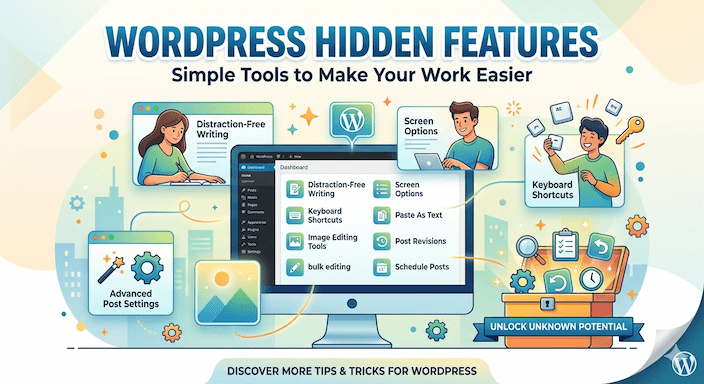
WordPress Hidden Features: Simple Tools to Make Your Work Easier
Do you use WordPress for your blog or small business site? Many people know the main parts, like adding a new post or picking a theme. But WordPress hidden features sit right inside your dashboard and editor. These tools help you work faster without learning hard skills or buying extra items.
This guide explains WordPress secret features in very simple words. You will see clear steps for each one. If you are a new user, blogger, small business owner, or freelancer, these ideas will help you every day. They make daily tasks quicker and reduce extra clicks.
You do not need to be an expert. Just follow the short steps. Many of these hidden tools in WordPress come free with your site. Let us start with the easy ones first.
Why These WordPress Hidden Features Matter for You
WordPress runs many sites because it feels easy. Yet some useful parts stay hidden behind small buttons or simple actions. New users often miss them while they focus on writing or changing colors.
These WordPress lesser known features fix small problems. They cut down on repetitive work. For example, you can update many posts at once instead of one by one. Small business owners like this because it gives them more time for customers. Bloggers enjoy faster writing. Freelancers finish client jobs more quickly.
Recent WordPress updates added even more help. Features like block notes and hide options make teamwork simple. Learning them now keeps your site smooth and up to date.
Easy Dashboard Tools You Can Use Right Now
Your main dashboard controls everything. Some WordPress dashboard tips hide in plain sight at the top right of pages.
Screen Options Panel: Change What You See
The WordPress screen options panel is one of the simplest WordPress hidden settings. It lets you show or hide columns on lists like your posts or pages.
How to use it in easy steps:
- Go to Posts > All Posts in your dashboard.
- Look at the top right and click Screen Options.
- Check boxes for things you want, like Excerpt or Featured Image.
- Uncheck boxes you do not need.
- You can also change how many items show per page.
This small change makes your list cleaner. You spend less time scrolling. Many beginners call this one of the best WordPress hidden features you should use. It helps when you manage lots of content.
Quick Edit Feature: Fix Things Fast
The WordPress quick edit feature lets you change a post title, link, or category without opening the full page.
Simple steps:
- Go to your list of posts.
- Move your mouse over a post title.
- Click the Quick Edit that appears.
- Make your changes in the small box.
- Click Update.
This saves time when you only need to fix one or two details. It is a great WordPress trick for beginners.
Bulk Edit Posts: Update Many at Once
When you have many posts, use WordPress bulk edit posts. This tool changes several items together.
How to do it:
- Go to Posts > All Posts.
- Check the boxes next to the posts you want.
- At the top, choose Bulk Actions > Edit.
- Make changes like adding the same category or changing dates.
- Click Apply.
Small business owners use this to update sale posts or product info quickly. It is one of the top WordPress content management tips.
Site Health Tool: Check Your Site Like a Doctor
The WordPress site health tool looks for problems like old software or slow parts. Find it under Tools > Site Health.
It gives you a simple score and lists what needs fixing. Run it every month. It helps with WordPress security features by pointing out weak spots early.
For example, it may tell you to update your PHP version. Fixing these keeps your site safe and fast. Beginners find it reassuring because it explains issues in plain words.
Gutenberg Editor Tricks That Help You Write Faster
The block editor, called Gutenberg, has many WordPress editor tricks and Gutenberg hidden features. These keep your hands on the keyboard.
Slash Commands: Add Blocks Quickly
Type a forward slash “/” in the editor. A menu pops up. Type what you need, like “image” or “quote.” Pick it from the list.
This WordPress block editor shortcuts method feels quick once you try it. Bloggers say it makes writing smoother because you do not hunt for buttons.
Keyboard Shortcuts: Work Without the Mouse
Here are some easy WordPress keyboard shortcuts:
- Ctrl + B (or Cmd + B on Mac) makes text bold.
- Ctrl + K adds a link.
- Ctrl + Shift + D duplicates a block.
- Alt + Shift + H shows all shortcuts.
Press these keys while you type. They are part of WordPress productivity tips that save seconds on every task. Over a week, those seconds add up to real time.
Try Distraction-Free Mode from the three-dot menu at the top right. Your screen becomes clean with no side tools. Use Spotlight Mode to highlight only the block you work on. These WordPress writing modes help you stay focused.
Revisions: Go Back to Old Versions
WordPress saves every change as a revision. In the post settings on the right, click Revisions. You see past versions and can restore one if needed.
This safety net gives peace of mind. You can try new layouts without worry.
Newer updates in WordPress 6.9 added Block Notes. Click the three dots on a block and add a note. This helps when you work with a team. You can leave messages like “make this bigger” right on the block.
Another 6.9 feature lets you hide blocks on the frontend. The block stays in your editor but visitors do not see it until you turn it back on. Great for seasonal banners or test content.
Media Library Tricks: Handle Pictures Easily
Pictures take time. These WordPress media library tricks make it simpler.
Built-in Image Editor
Go to Media > Library. Click an image, then Edit Image. You can crop, rotate, or flip it right there. No need for other programs for basic fixes.
Drag and Drop Replacement
To update an old picture, drag a new file from your computer onto the old one in the editor. It replaces automatically and keeps the same spot.
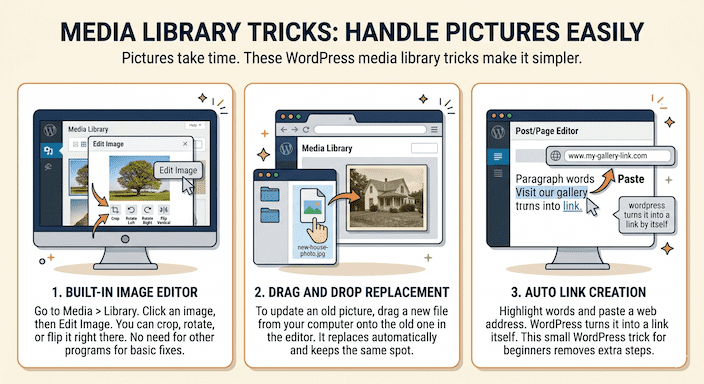
Auto Link Creation
Highlight words and paste a web address. WordPress turns it into a link by itself. This small WordPress trick for beginners removes extra steps.
More Useful Settings for Everyday Work
Sticky Posts
In post settings, check “Sticky.” Your post stays at the top of the blog until you uncheck it. Use it for important news or offers.
Clean Permalinks
Go to Settings > Permalinks. Choose “Post name.” Your web addresses become short and clear, like yoursite.com/about. This helps visitors and search engines.
User Roles
When you add team members, pick the right role: Editor, Author, or Contributor. This limits what they can change and adds safety.
Combine with WordPress security features like strong passwords and regular updates.
Theme Preview Without Risk
Go to Appearance > Themes. Hover over a theme and click Live Preview. See how your site looks without making it live. This prevents mistakes on your public page.
How These Features Help Different Users
Bloggers like WordPress tips and tricks for faster blogging. Slash commands and distraction-free mode help them write more posts with less effort.
Small business owners use WordPress dashboard shortcuts and bulk editing to keep product pages fresh.
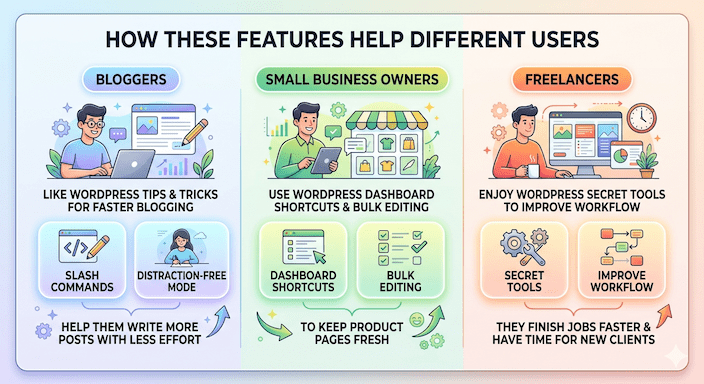
Freelancers enjoy WordPress secret tools to improve workflow. They finish jobs faster and have time for new clients.
Build a Simple Daily Routine
- Open your dashboard and check Site Health.
- Use Screen Options to set your view.
- When writing, try slash commands and keyboard shortcuts.
- Before you publish, preview on phone and computer.
- Run updates when Site Health suggests them.
These unknown WordPress features that save time become normal after a few days. Your site feels easier to manage.
FAQs
What are WordPress hidden features?
WordPress hidden features are tools and options inside your dashboard or editor that most beginners don’t notice. They help you work faster, manage content better, and improve your site without extra plugins or coding.
How do I use the Screen Options panel in WordPress?
Go to Posts > All Posts in your dashboard, click Screen Options at the top right, and check or uncheck boxes to show or hide columns. You can also change how many items display per page.
What is the Quick Edit feature in WordPress?
The Quick Edit feature lets you change a post’s title, category, or slug without opening the full post. Hover over a post title, click Quick Edit, make your changes, and click Update.
What is the Site Health tool in WordPress?
The Site Health tool checks your website for performance, security, and updates. It shows a score and lists issues that need attention, helping you keep your site safe and fast.
How do I edit images directly in WordPress?
Go to Media > Library, select an image, and click Edit Image. You can crop, rotate, or flip images without extra software.
Conclusion
WordPress hidden features give you simple ways to work better. From the WordPress screen options panel and WordPress quick edit feature to Gutenberg hidden features and the WordPress site health tool, these built-in helpers reduce stress.
Use WordPress productivity tips, WordPress workflow tips, and WordPress advanced features step by step. You will create content faster and enjoy your site more.