Unlock Photoshop Hidden Features: Easy Ways to Edit Faster and Smarter
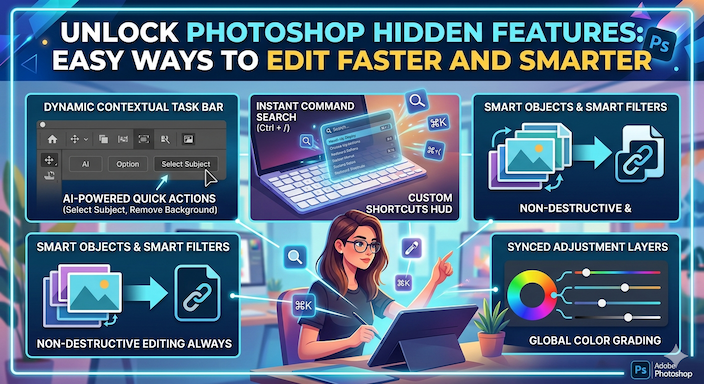
Do you use Photoshop but feel you spend too much time on small tasks? Many people who know the basic tools still miss Photoshop’s hidden features. These simple options can help you work more quickly and get better results.
This guide shares Photoshop secret features and hidden tools in Photoshop that real users love. You will find Photoshop workflow tips that make daily editing easier. These ideas suit intermediate users, designers, and anyone who wants to speed up photo editing.
You do not need to be an expert. The steps use plain words and clear lists. Try one or two ideas today. Soon, you will see how these Photoshop pro tips change your work for the better. Let us start with the simple things that give big help.
Why These Photoshop Hidden Features Help You
Photoshop has many tools. Some sit behind menus or need a special click. When you learn hidden Photoshop features for photographers or designers, you save clicks and time.
Many features support non-destructive editing photoshop. This means you can change your mind later without starting over. Your original photo stays safe.
Photoshop productivity tips like these cut editing time. You focus more on creative ideas and less on repeated steps. Professionals use them to finish client work faster. Beginners grow skills more quickly with Photoshop hacks to improve editing skills.
These features work in recent Photoshop versions, including updates in 2026. They build on basic ideas like layers and brushes. You will learn how to find hidden features in Photoshop yourself after reading this.
Simple Ways to Clean and Organize Your Workspace
A clean screen helps you work fast. Many users miss easy ways to fix messy layers.
One quick check for blank layers: Select a layer and press Ctrl + T (Cmd + T on Mac). If you see a message that says the bounding box is empty, the layer has nothing on it. Delete it to keep things tidy.
To remove all empty layers at once, go to File > Scripts > Delete All Empty Layers. This script cleans your file in seconds. It is one of the best Photoshop tools you didn’t know for big projects.
Photoshop UI customization is also easy. Go to the Window menu and open the panels you need often, like Properties or Info. Drag panels to new spots. Save your favorite setup with Window > Workspace > New Workspace. You can reset it anytime.
Hidden panels in Photoshop include the Discover panel. Click the magnifying glass icon on the right. It shows step-by-step lessons with guides right on your screen. These tutorials teach how to use advanced tools in Photoshop easily while you work.
Fast Color Picking Tricks You Will Use Every Day
Color choice takes time. Here are Photoshop brush settings tricks that speed it up.
Hold Alt (Option on Mac) while you have the Brush tool active. Click on any color in your image to pick it. For even more control, use Shift + Alt + right-click (or Cmd + Ctrl + Option on Mac). This opens a big color picker with hue, saturation, and brightness controls.
Inside this picker, hold the Spacebar to switch quickly between hue and other values. These steps give you the super color picker that many miss.
You can also sample colors from outside Photoshop. Pick the Eyedropper tool. Click and drag your mouse outside the Photoshop window to any spot on your screen, like a website or another program. This helps match colors perfectly for designs.
Color grading in photoshop becomes simple with these methods. You get exact matches without guessing.
Quick Number Adjustments with Scrubby Sliders
Numbers appear in many boxes, like size or opacity. Drag directly on the word next to the number. The value changes as you move your mouse. This is called scrubby sliders.
Hold Shift while dragging for super fast changes – ten times quicker. Hold Alt (Option) for very slow, precise moves. These are Photoshop time-saving tricks that feel like magic once you try them.
Use this in any dialog with numbers. It works for brush size, layer opacity, and filter settings. Many creative professionals say this alone saves minutes every hour.
Smart Ways to Use Layers and Keep Work Safe
Smart objects Photoshop protect your edits. Right-click a layer and choose Convert to Smart Object. Then add filters or adjustments. You can double-click later to change settings without harm.
This is key for non-destructive editing photoshop. Your changes stay flexible.
To copy layers between open files, drag the layer from the Layers panel to the tab of the other document. Wait for the window to switch, then drop it in the middle. This works for single layers, groups, or even adjustment layers. It keeps memory use low.
For templates, save your PSD file, but change the end of the name to .PSDT. When you open it, Photoshop makes a new untitled copy. Your master file stays safe. This is great for repeated designs like social media posts.
Photoshop layer tricks also include zooming straight to a layer’s content. Hold Alt (Option) and click the layer thumbnail. Photoshop jumps to show exactly what is on that layer, even if it is tiny.
Easy Shortcuts That Save Hundreds of Clicks
Shortcuts are among the top Photoshop hidden shortcuts for faster editing.
- Multiple undos: Ctrl + Alt + Z (Cmd + Option + Z)
- Copy layer: Ctrl + J (Cmd + J)
- Free Transform: Ctrl + T (Cmd + T)
Hold a tool letter key to switch tools temporarily, then release to go back. This spring-loaded trick belongs to advanced Photoshop techniques.
In the Transform box, right-click for options like Warp or Perspective. Hold Ctrl (Cmd) while dragging corners for free perspective changes.
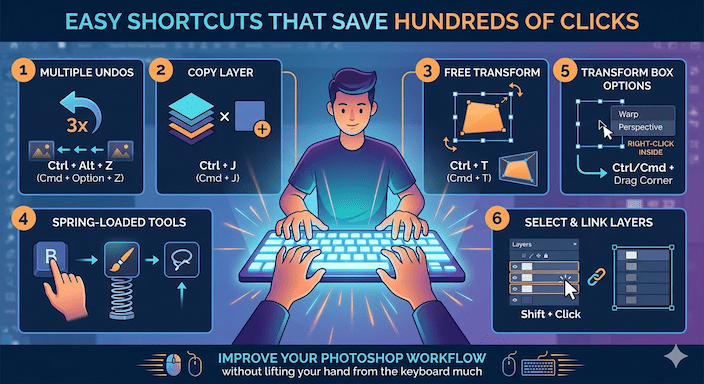
To select many layers, click the first, hold Shift, and click the last. Link them with the chain icon, then transform all at once.
These Photoshop shortcuts list items help you improve photoshop workflow without lifting your hand from the keyboard much.
Better Selection and Transform Ideas
Good selections make editing clean. The Object Selection tool finds subjects fast. Hold Alt to subtract parts you do not want.
For tricky edges like hair, go to Select and Mask. Use the Refine Edge brush there. Save the mask so you can use it again later.
The Transform tool tricks Photoshop include the Vanishing Point filter. It helps place objects in the correct perspective, like logos on a box or wall.
Steps: Copy your object, create a new layer, and go to Filter > Vanishing Point. Click four points to define a surface. Paste your object and drag it onto the plane. It snaps into perfect perspective.
Change the blend mode to Soft Light afterward for a natural look. The grid stays for the next object, so you work faster on multiple items.
Photoshop selection hacks like this make composites look real and take less time.
Fun with Brushes and Old Hidden Assets
Photoshop hides classic brushes and shapes. Open the Brush Preset picker (top bar). Click the gear icon and choose Legacy Brushes. You get many old favorites back.
Do the same for shapes: Window > Shapes, then load legacy from the menu.
These little known photoshop features for creatives give you more options without downloading anything new. Use them for quick icons, patterns, or painting effects.
The Art History Brush creates painterly looks that feel like real art. Experiment on a copy layer for safety.
Automate Repetitive Work with Actions
Actions record your steps. Open Window > Actions. Click the folder icon to make a new set. Then record the button and do your steps, like resize and save.
Stop recording and play the action later with one click. Use File > Automate > Batch to run it on a whole folder of photos.
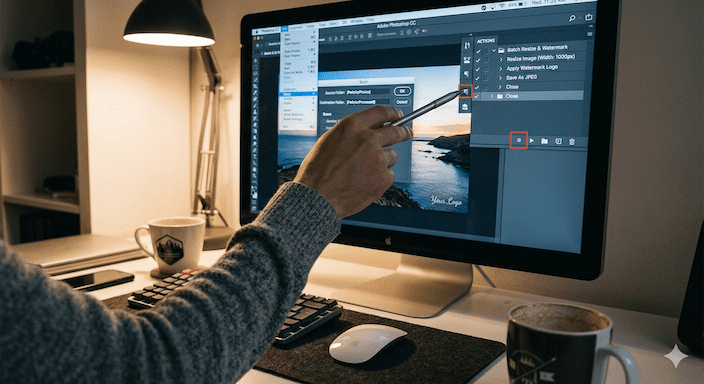
This is one of the strongest Photoshop automation tools. It helps speed up photo editing when you have many similar files.
Retouching Tips That Look Natural
For skin retouching, create a new blank layer. Set its blend mode to Overlay or Soft Light. Paint with a soft brush at low opacity using black or white to dodge (lighten) or burn (darken) areas. This gives gentle lighting control.
Another method uses the Healing Brush on a new layer with Sample All Layers checked. Changes stay separate from the photo.
Photoshop retouching tips like these keep edits non-destructive. You can lower the opacity or erase parts later.
For removing objects, try Content-Aware Fill. Select the area, go to Edit > Fill, and choose Content-Aware. Photoshop fills it smartly using nearby pixels.
More Small but Powerful Ideas
Look at the status bar at the bottom of your document. Click the arrow there to see document size, color profile, and other info.
A small star (*) on a document tab means you have unsaved changes. Save often!
Increase recent files: Edit > Preferences > File Handling. Change the number to show more than 10.
Reset any tool by right-clicking its icon in the options bar and choosing Reset Tool.
These small Photoshop advanced settings keep your work smooth.
How to Discover Even More Features Yourself
Right-click almost anywhere to access extra menu options. Hover on tool icons to see the small triangle that hides more tool options.
Check Preferences often for new controls. Try the Discover panel tutorials regularly – new ones appear with updates.
Work on duplicate files when testing. Use Smart Objects for safety. This habit helps you explore unknown Photoshop features that save time without worry.
Putting It All Together in Your Daily Work
Start with three easy ones: Scrubby sliders, empty layer cleanup, and the super color picker. Practice on a simple photo.
Build a short list of your favorite shortcuts. Keep it next to your screen at first.
Combine ideas. Convert layers to Smart Objects, record an Action for common steps, then use templates for new projects.
For client work, save custom workspaces. Share actions with your team for consistent results.
Track your time on one task before and after using these Photoshop tricks to make editing faster. You will notice the difference quickly.
Things to Watch Out For
Always work non-destructively when possible. Convert to Smart Objects before big changes.
Do not over-customize shortcuts at the start. Learn defaults first.
Test new features on small files. Save often.
Understand basic blending modes explained – Normal, Multiply, Screen, Overlay, and Soft Light cover most needs.
These simple habits prevent common problems.
Real Examples from Everyday Editing
A photographer fixes many portraits. They use the Healing Brush on a new layer, then dodge and burn on a gray Overlay layer. Smart Objects keep filters changeable. Total time drops a lot.
A designer makes social posts. They create a .PSDT template with common elements. Layer Comps show different versions. Actions export all sizes at once.
A graphic artist builds composites. Vanishing Point places objects in perspective. Content-Aware Fill removes distractions. The result looks professional and clean.
These stories show how photoshop secret tricks used by professionals work in real life.
Quick List of Photoshop Tips for Faster Editing
Here are easy Photoshop tips for faster editing to try now:
- Drag on number words for Scrubby Sliders. Add Shift for speed or Alt for slow.
- Alt-click layer thumbnails to zoom to contents.
- Sample colors outside Photoshop with the Eyedropper.
- Run File > Scripts > Delete Empty Layers often.
- Save files as.PSDT for safe templates.
- Hold tool letters for quick switches.
- Use Vanishing Point for perfect perspective placement.
- Open the Discover panel for guided lessons.
Repeat these Photoshop editing hacks, and they become natural. Your speed and quality both improve.
Photoshop tips and tricks for designers 2026 still rely on these classic ideas, plus new updates. The basics give you strong control.
FAQs
What are Photoshop hidden features?
Photoshop hidden features are tools and options that are not easy to see at first. They are often inside menus, shortcuts, or special settings. These features help you work faster and improve editing quality.
Do Photoshop hidden features really save time?
Yes, they can save a lot of time. Features like scrubby sliders, shortcuts, and actions reduce repeated steps and make editing faster.
What is non-destructive editing in Photoshop?
Non-destructive editing means making changes without harming the original image. You can edit later without starting over. Tools like Smart Objects, adjustment layers, and masks help with this.
How do Smart Objects help in Photoshop?
Smart Objects keep your edits flexible. You can apply filters and change them later anytime without losing quality. This is useful for professional editing.
What are Photoshop actions and how do they work?
Photoshop actions record your steps. You can replay them with one click to repeat tasks like resizing or exporting images. They are great for batch editing.
Conclusion
Photoshop hidden features give you simple ways to edit better and faster. You learned about hidden tools in Photoshop, quick color picks, layer cleanup, smart shortcuts, and automation.
These Photoshop advanced tools and Photoshop productivity tips help you improve your Photoshop workflow without stress. Start small, practice often, and watch your skills grow.
Photoshop secrets revealed here come from real use and trusted sources. They work for intermediate users and creative professionals seeking greater efficiency.