Unlock Google Sheets Hidden Functions: Easy Tips for Power Users
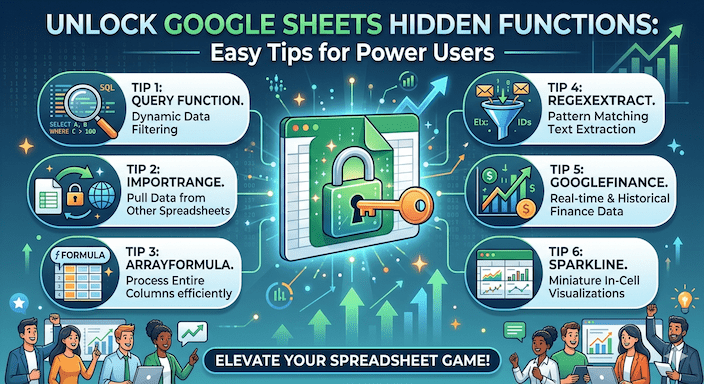
You already use Google Sheets every day. Basic functions sometimes feel too slow for your work. Google sheets hidden functions give you extra power without any hard work. These tools let you manage large lists and create reports that update themselves. You finish tasks quicker and feel more in control of your data.
Many experienced users still miss these secret Google Sheets functions. They make daily jobs smoother and reduce mistakes. You can process thousands of rows fast. You can build smart reports that change when new information arrives. This guide explains everything in clear steps for people who already know the basics but want to go further.
Google sheets hidden functions come from inside Google Sheets. Some stay undocumented, yet they work reliably for many years. You will see real examples that fit business needs like sales tracking or customer lists. These ideas support advanced Google Sheets formulas and Google Sheets tips and tricks that save hours each week.
Why these Google Sheets hidden functions help experienced users
You know basic tools like SUM or VLOOKUP handle small jobs well. When your data grows to many thousands of rows, things slow down. Google sheets hidden functions solve this issue by letting you work smarter. You avoid repeating the same steps over and over.
Experts note that people lose a lot of time on the same spreadsheet tasks. These advanced options cut that time sharply. You do not need to learn coding. You simply type better formulas. Your sheets stay quick and clean even with big information.
These hidden formulas in Google Sheets support Google Sheets data automation and spreadsheet efficiency tips. You create dynamic reports that grow automatically. Changes in one place update everywhere. This works great for team projects or regular business reports.
You gain real speed in data analysis in Google Sheets. Reports that once took hours now finish in minutes. Many power users report big time savings after they start using these methods.
Strong built-in tools that many people underuse
Start with these official functions before you try the secret ones. They form a good base for Google Sheets smart formulas and conditional logic formulas.
The QUERY function works like a simple search tool inside your sheet. You type words similar to database commands. It filters rows, adds numbers, and sorts results in one step.
You write it like this.
=QUERY(your data range, “your search words”)
For example, you can pull top sales items from one region only. Add more conditions to make it stronger. When you combine QUERY with ARRAYFORMULA, your report updates live as new rows appear. This method supports how to use QUERY and ARRAYFORMULA together and handles working with large datasets in Sheets without slowing down.
ARRAYFORMULA applies one rule across many rows at the same time. You stop dragging formulas down long columns. You write the rule once and it covers the whole area.
A simple version looks like this.
=ARRAYFORMULA(if condition then calculate else zero)
This calculates bonuses or discounts for every row instantly. You nest it with other tools for even better results. It powers dynamic formulas in Google Sheets and reduces errors in big sheets.
Import tools bring fresh information from outside. IMPORTXML pulls details from web pages using a path. IMPORTRANGE connects different sheets safely. Your data stays current without manual copying. These options enable Google Sheets automation functions and keep everything automatic.
Truly undocumented functions you can try
Some of the best google sheets hidden functions come from inside the program code. Experts found them and shared how they work. They offer shortcuts that official lists do not show.
CONDITION_ONE_OF_RANGE checks if a value matches any item in a list. It replaces long chains of OR conditions. Your formulas become shorter and easier to read.
You use it inside FILTER like this.
=FILTER(your table, CONDITION_ONE_OF_RANGE(column to check, your list))
It pulls only the rows that match countries or products from your list. This shines in Google Sheets advanced formulas for data analysis when you have many possible matches.
Strict date and time functions give exact checks. ISDATE_STRICT returns true only for pure dates with no time attached. ISTIME_STRICT works only for time values. ISDATETIME_STRICT confirms full date and time together. They help clean messy imported data and support precise conditional logic formulas.
The REFERENCE function grabs a box of cells between two points. You tell it the top left cell and bottom right cell. It pulls that exact block of information. This helps when you need flexible ranges without hard coding numbers.
Fun functions add quick tests. COINFLIP gives true or false at random. It helps with sample data or simple simulations. DUCKHUNT shows a duck emoji for fun. WHATTHEFOXSAY creates silly song lines randomly. These easter eggs make testing more enjoyable while you learn.
Remember, these undocumented options have no official support. Test them on a copy of your sheet first. Many have stayed stable for years, but their behavior could change one day.
Hidden features that change how you work every day
Smart Fill detects patterns after you type a few examples. You enter two or three first names from full names. Sheets suggests the rest of the column. You click to accept and finish cleaning data fast. It works well for creating email addresses from names, too.
Array formulas let you run big calculations in one cell. They apply across ranges without repetition. This reduces manual work and keeps your sheet clean.
The QUERY function acts as your built-in search engine for data. You filter and sort with simple commands instead of many separate steps. It replaces complicated setups and speeds up Google Sheets hacks for faster data processing.
Import functions pull tables or prices from websites automatically. Data refreshes when the source changes. You set it once and forget about manual updates. This supports Google Sheets tips to automate your workflow.
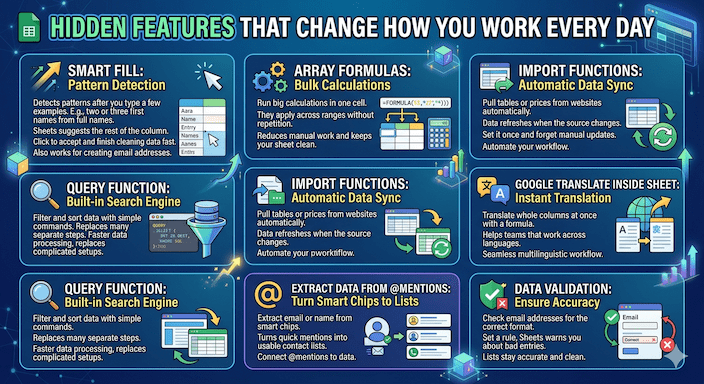
You can extract email or name from smart chips that start with the @ symbol. This turns quick mentions into usable contact lists.
Google Translate works inside your sheet. You translate whole columns at once with a formula. It helps teams that work across languages.
Data validation checks email addresses for the correct format. You set a rule, and Sheets warns you about bad entries. Your lists stay accurate.
Version history lets you go back to any earlier save. You recover deleted information or fix mistakes easily. This gives peace of mind when many people edit together.
These hidden Google Sheets features that save time turn regular sheets into powerful tools.
How to combine functions for maximum power
The real strength appears when you mix tools. You place QUERY inside ARRAYFORMULA for reports that grow by themselves. You add a FILTER with CONDITION_ONE_OF_RANGE for clean multi-choice selections.
Named functions let you save your own complex formulas. You define them once under the Data menu. Then you call them like normal functions anywhere in the sheet. Teams stay consistent, and formulas become easier to maintain.
For very large data, you filter early with QUERY. Then you run calculations only on the needed rows. Your sheet stays fast and responsive.
Real examples you can copy today
In a sales dashboard, you import data from another sheet. You clean names with Smart Fill. You summarize totals with QUERY. You filter regions using CONDITION_ONE_OF_RANGE. The whole report updates live.
A marketing team tracks campaigns across countries. They use strict date functions to separate launch dates from report times. They validate emails and translate feedback with GOOGLETRANSLATE. Everything stays organized and accurate.
These setups show top Google Sheets formulas for business use and spreadsheet efficiency tips that work without coding.
Google Sheets offers advantages over Excel
Some tools feel smoother in Google Sheets. Live import functions have no simple match in Excel without extra steps. Array formulas often expand more naturally here. Real-time team editing works without extra setup. These differences make Google Sheets functions not available in Excel or behave better, a real plus for many users.
Simple productivity ideas to use right away
Learn a few keyboard shortcuts for faster navigation. Set data validation rules to keep information clean from the start. Always make a test copy before you try new formulas. Add short notes inside your sheet to remember what each part does.
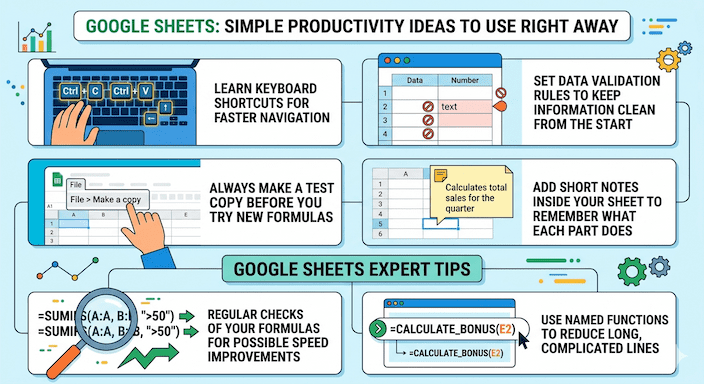
Google Sheets expert tips include regular checks of your formulas for possible speed improvements. Use named functions to reduce long, complicated lines.
Common problems and easy fixes
Avoid nesting too many functions inside each other. Break big ideas into smaller helper columns when needed. Watch for slow performance on huge lists and filter data early. Keep a backup copy before you experiment with undocumented options.
Test new ideas on sample data first. This keeps your main work safe.
Simple steps to start using these ideas
Make a copy of your current sheet to practice safely. Try QUERY on a small part of your data first. Add ARRAYFORMULA to remove dragging. Test CONDITION_ONE_OF_RANGE in one filter. Set up a single import function. Check that results look correct. Save your favorite formulas as named functions for reuse.
Follow these steps and you build Google Sheets automation without coding that lasts.
For ideas on keeping users happy with digital tools, see this guide on user onboarding best practices for apps. Learn clear ways to set prices for software in this SaaS pricing models explained guide.
FAQs
What are Google Sheets hidden functions?
Google Sheets hidden functions are advanced or less-known formulas that are not widely used or documented. They help automate tasks, handle large data, and improve efficiency without extra tools.
Are undocumented Google Sheets functions safe to use?
Most undocumented functions work reliably, but they are not officially supported. It is best to test them on a copy of your sheet before using them in important work.
Which hidden function is best for large datasets?
The QUERY function is one of the best for handling large datasets. It filters, sorts, and summarizes data in one step, keeping your sheet fast and organized.
How does ARRAYFORMULA improve productivity?
ARRAYFORMULA applies one formula to an entire range instead of dragging it down. This saves time, reduces errors, and keeps your spreadsheet clean.
Can hidden functions automate my workflow?
Yes, hidden functions like QUERY, ARRAYFORMULA, and IMPORT tools automate repetitive tasks. They update results automatically when new data is added.
Conclusion
Google Sheets hidden functions offer easy ways to work faster with advanced Google Sheets formulas, secret Google Sheets functions, and useful automation. You now know how to handle complex tasks with simple steps and clean results.