Simple Zoom Hidden Features: Easy Zoom Tips and Tricks You Can Use Today
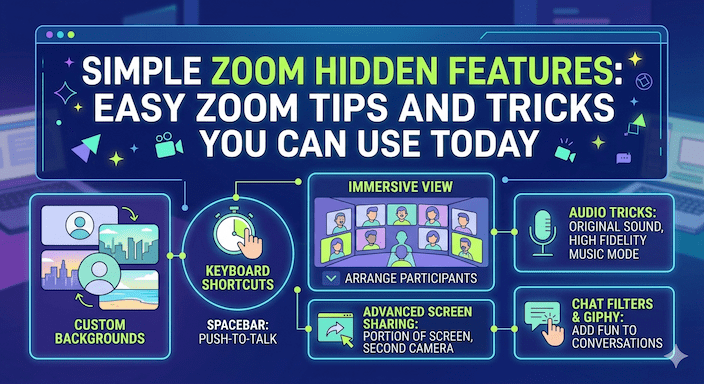
Zoom hidden features help you run better meetings. You already know how to join a call and turn your mic on or off. Now you can learn easy ways to make your Zoom time more fun and useful. These ideas work well for teachers, trainers, and people who lead online groups in places like the US, UK, Canada, Australia, and other busy countries.
Many people use Zoom every day but miss these helpful tools. This guide shows you simple steps. You do not need to be a tech expert. Just follow along and try one thing at a time. Your meetings will feel smoother and more interesting.
Why These Zoom Hidden Features Help You
Meetings take a lot of time. When things go well, people stay focused and learn more. Zoom tips and tricks let you control the room without stress. Teachers can keep students busy in small groups. Trainers can show just one part of their screen. Hosts feel more sure of what they do.
You can use many of these on the free plan. Some need a paid plan for extra power. Start with the free ones. They already make a big difference.
First Step: Update Your Zoom App
Open your Zoom app on the computer or phone. Check for updates. New versions have better tools and run smoother. After you update, click your picture at the top right. Go to Settings. Look at the tabs like Video, Audio, and Meeting. Small changes here turn on many Zoom hidden tools.
Quick tip: In Settings, turn on “Mute my microphone when joining a meeting.” This stops surprise noises when you enter a call.
Make Your Video Look Nice with Virtual Backgrounds Zoom
Virtual backgrounds on Zoom let you change what shows behind you. You can use a picture or even a short video. This makes your call more fun and hides your real room if you want.
To use a video background:
- Join a meeting.
- Click the arrow next to your video camera.
- Pick Virtual Background.
- Choose or add a video file. Keep the file size small so it works well.
Teachers use this to show fun themes for lessons. Trainers add their company logo. It keeps eyes on the talk instead of a messy background.
You can also put your PowerPoint slides as the background. Your face shows on top of the slides. Leave empty space on the slides so your video does not cover important words. This Zoom trick helps during presentations.
Turn on “Touch up my appearance” in Video settings. It makes the light on your face softer. No need for extra lights.
Share Just Part of Your Screen – A Great Zoom Hack
Most people share their whole screen. But you can share only one small part. This stops people from seeing extra tabs or messages.
How to share a portion of the screen:
- Click Share Screen in the meeting.
- Go to the Advanced tab.
- Choose Portion of Screen.
- Move the green box over the exact part you want to show.
- Click Share.
This Zoom screen sharing option keeps attention on your main point. Teachers love it when they show one app or paper. No one gets distracted.
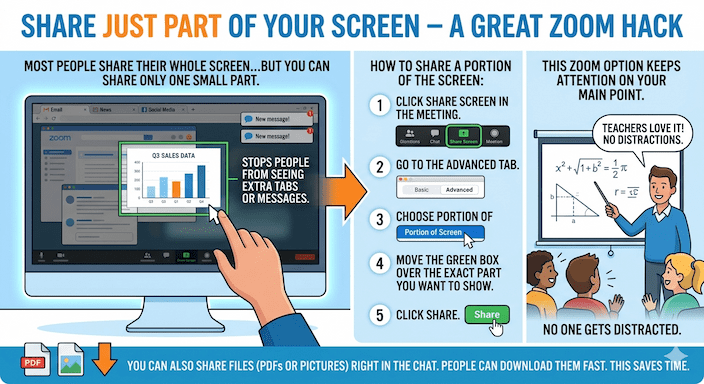
You can also share files like PDFs or pictures right in the chat. People can download them fast. This saves time.
See More People with Gallery View
Zoom normally shows up to 25 people in gallery view. You can change it to see up to 49.
Simple steps:
- Click your picture and go to Settings.
- Click Video.
- Check the box for “Display up to 49 participants in gallery view.”
Now you see more faces at once. This helps in big classes or team calls. You know who is there and can call on people easily.
Use Zoom Breakout Rooms for Small Group Work
Zoom breakout rooms split your big meeting into small groups. People talk and work together in their own room. Then they come back to the main room.
Hosts can pick rooms or let people choose their own. Self-select works great when rooms have different topics.
How to open breakout rooms:
- In the meeting, click Breakout Rooms.
- Decide how many rooms you need.
- Pick how to put people in: manual, random, or let them choose.
- Click Open All Rooms.
While groups work, you can send a message to all rooms at the same time. Say “You have 2 minutes left” or give a quick tip. This keeps things on track.
Best Zoom tips for teachers and trainers: Make rooms before the meeting starts. Plan what each group will do. Walk into rooms quietly to listen or help. When time ends, rooms close and everyone returns.
Many teachers say students talk more in small rooms than in the big group.
Draw and Write with Zoom Annotation Tools
When you share your screen or a whiteboard, you can draw on it. Use pen, highlighter, or shapes. Everyone sees what you draw.
How to start annotating:
- Share your screen or open the whiteboard.
- Click Annotate at the top.
- Pick a tool and draw.
You can save the drawings later. This works well for explaining ideas or marking homework. The shared whiteboard lets everyone draw together like on a real board.
Add reactions like thumbs up or clap. These quick signs show agreement without talking.
Control the Chat and People in the Meeting
Zoom chat features let you send messages to everyone or just one person. You can save the chat after the meeting.
As host, you can stop chat if it gets too busy. Or let only the host send messages.
In the Participants list, you can mute everyone at once.
- On Windows: Press Alt + M
- On Mac: Press Command + Ctrl + M
This Zoom shortcut helps when noise starts. Change how your name shows on screen. Use a short name or fun title if you like.
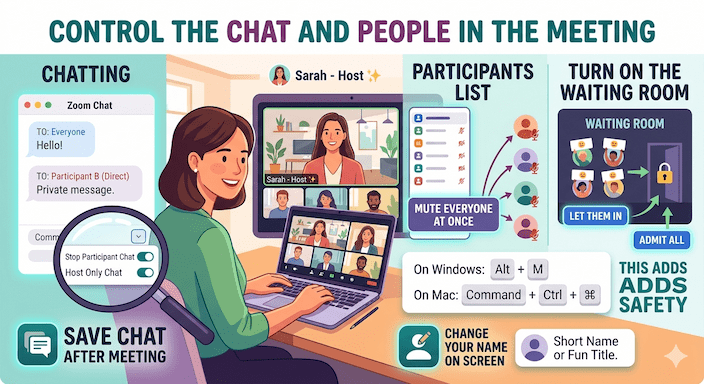
Turn on the waiting room. People wait outside until you let them in. This adds safety.
Use the raise hand button. People put up a virtual hand when they have a question. You see a clear list and call on them one by one.
Record Your Meetings the Easy Way
You can record the meeting to your computer or to the cloud. Tell people first that you will record.
After the meeting, watch the recording to remember what happened. On some plans, Zoom gives a summary of the talk. This saves you time writing notes.
Zoom recording options include separate sound files for each person. This helps if you need clear voices later.
Quick Zoom Shortcuts to Save Time
Learn a few keyboard shortcuts. They let you act fast without clicking menus.
Common ones:
- Mute or unmute your mic: Alt + A (Windows) or Command + Shift + A (Mac)
- Turn video on or off: Alt + V (Windows) or Command + Shift + V (Mac)
- Start sharing screen: Alt + S (Windows) or Command + Shift + S (Mac)
- Show or hide chat: Alt + H (Windows)
These Zoom hacks make you faster as a host. Practice them in a test meeting.
Keep Your Meetings Safe with Zoom Security Features
Good hosts protect their calls. Here are easy steps:
- Add a password to the meeting.
- Use the waiting room.
- Lock the meeting after everyone joins.
- Let only the host share their screen.
- Remove anyone who causes problems.
Check your settings often. Keep the app updated for the newest safety tools.
Make Meetings Fun with Polls and Reactions
Start a quick poll. Ask a question with a few choices. See the results right away. This checks if people understand the lesson.
Use emoji reactions like heart or smile. They let people answer without stopping the talk.
These small Zoom meeting tools keep energy high.
Tips Just for Teachers and Trainers
Try these ideas in your classes:
- Share the plan before the meeting starts.
- Use breakout rooms for group activities.
- Show only part of your screen when teaching software.
- Check the chat for questions often.
- Record classes (with permission) so students can watch again.
Hidden Zoom features for interactive classrooms include letting students pick their breakout room. They feel more in control.
Test everything before your real class. Join a practice meeting with a friend.
Fix Common Problems Fast
The video looks bad. Turn off your video or lower the quality in settings. Too much noise? Use the mute all button and good headphones. Share screen shows too much? Use the portion of the screen option.
Can’t find a button? Look in Settings or press Alt to show all controls.
Most problems go away with small changes.
Put It All Together for Better Meetings
Start your next call with these steps:
- Turn on the waiting room.
- Use gallery view to see people.
- Share only what you need.
- Open breakout rooms for work time.
- Send broadcast messages to keep time.
- Record and review later.
This flow makes your meetings calm and useful. People stay longer and get more done.
Other Easy Zoom Hacks
- Set reminders so you never miss a meeting.
- Use the same link for all your weekly classes.
- Turn on original sound if you play music or need clear voice.
- Adjust video quality if your internet is slow.
These little Zoom tricks add up.
What Comes Next for Zoom
Zoom keeps adding helpful tools. New AI helpers can summarize talks or give quick notes. Check your app updates to see what is new.
FAQs
What are Zoom hidden features?
Zoom hidden features are tools and options that go beyond the basic functions like joining a call or turning your microphone on and off. They include virtual backgrounds, breakout rooms, portion screen sharing, annotation tools, and more. These features help make meetings more interactive, productive, and fun.
Who can benefit from using Zoom hidden features?
Teachers, trainers, online facilitators, and anyone who hosts virtual meetings can benefit the most. These features help keep participants engaged, manage meetings smoothly, and create professional or interactive sessions.
Do I need a paid Zoom plan to access hidden features?
Many hidden features are available on the free plan, such as virtual backgrounds, breakout rooms (limited), and portion screen sharing. Some advanced options, like cloud recording or larger participant limits, require a paid plan.
How do I update Zoom to access hidden features?
Open the Zoom app on your computer or phone. Click your profile picture → Settings → Check for Updates. Always keep your app updated, as new versions often include improved or newly added features.
How can I make my Zoom video look better?
You can use virtual backgrounds, turn on “Touch up my appearance”, or use proper lighting. You can even display PowerPoint slides as your background while keeping your face visible for presentations.
Conclusion
Zoom hidden features make your video calls easier and more fun. You learned about virtual backgrounds Zoom, portion screen sharing, Zoom breakout rooms, annotation, chat controls, and Zoom security features. These Zoom tips and tricks and Zoom productivity tools help teachers, trainers, and hosts every day.
Pick one or two features and try them soon. Your meetings will run better. You will feel more confident.