PC Game Optimization Tips That Work for 2025
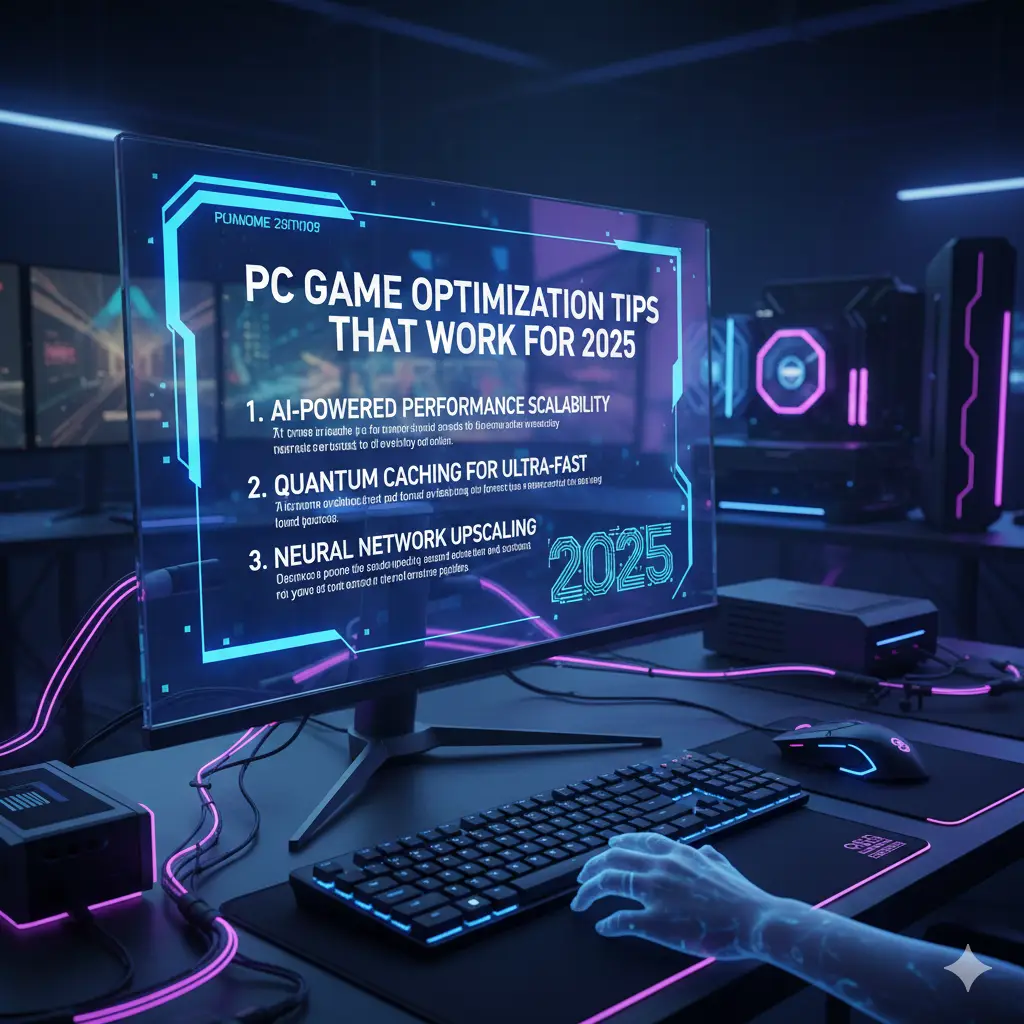
Want to make your games run better? PC Game Optimization Tips That Work can help you get more from your computer. You don’t need a new, expensive PC. Simple changes can boost frame rates, cut lag, and stop stutters. In 2025, games like Call of Duty and Cyberpunk need a fast PC. Over 60% of gamers tweak settings for better play, says a Steam survey. These PC game performance tips work for new and old PCs. From Windows settings to game tweaks, this guide shows easy steps. Let’s make your gaming smooth and fun1!
Why Optimize Your PC for Gaming?
To optimize the PC for gaming means making your computer run games better. Games today need a lot from your PC. Without tweaks, you get slow load times or choppy play. Optimization gives you higher FPS and smooth gaming on PC. It also helps your PC last longer by using less power. Even budget PCs can run big games with the right settings. Most gamers don’t need new parts—just smart changes.Optimization saves money. Instead of a $500 GPU, free tweaks can add 10-20 FPS. It also makes games feel better, especially in fast shooters. For example, lowering shadows in Warzone can boost FPS by 15%, says Medium. Every small change adds up. Start with these tips to play better today.
Update Your Graphics Drivers
One top PC game performance tip is to keep graphics drivers fresh. Drivers are like instructions for your GPU. Old ones cause lag or crashes. NVIDIA and AMD release updates monthly for new games. In 2025, drivers add boosts like ray tracing support. Updating can give 5-10% more FPS in games like GTA V.Go to NVIDIA or AMD’s website. Download the latest driver for your card. Or use tools like GeForce Experience for auto updates. Check drivers every month. It takes five minutes and helps smooth gaming on PC. Don’t skip this easy step for better play.

Turn On Windows Game Mode
Windows has a built-in tool to optimize PCs for gaming. Game Mode stops background apps and gives games more power. It’s free and easy to use. Tests show it can cut lag by 10% in games like Valorant. In 2025, Windows 11 makes Game Mode even better.Go to Settings, then Gaming, and turn on Game Mode. It works on Windows 10 and 11. This tells your PC to focus on your game, not updates or apps. Combine it with other FPS improvement tips for big gains. It’s a quick fix for smoother play.
Adjust In-Game Graphics Settings
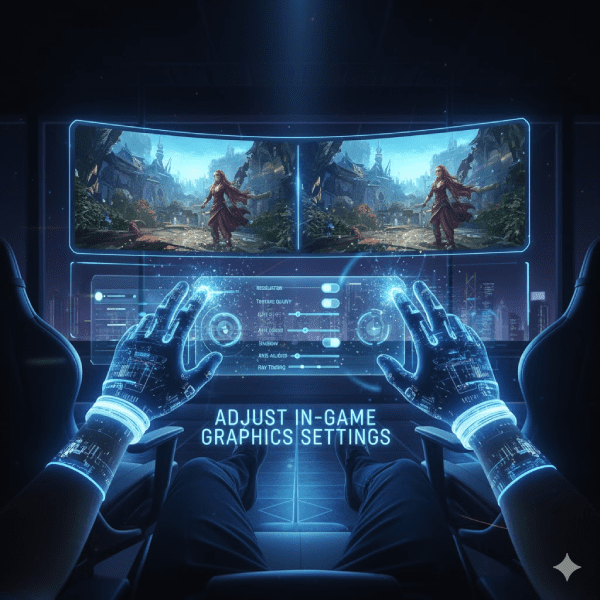
The best PC graphics optimization starts in your games. High settings like shadows or ray tracing slow your PC. Lower them for more FPS. For example, turning off motion blur in Fortnite can add 10 FPS. Most games have presets like Low or Medium.Open your game’s settings. Drop shadows, textures, or anti-aliasing to medium or low. Keep resolution at 1080p for older PCs. Check FPS with in-game tools to see what works. These PC Game Optimization Tips That Work Balance Looks and Speed. Test settings to find your sweet spot.
Stop Background Apps
Background apps steal power from games. Things like Discord or browser tabs use CPU and RAM. Closing them is a top FPS improvement tip. Task Manager shows what’s running. One Reddit user cut 56 apps and gained 10% CPU power.Press Ctrl+Shift+Esc to open Task Manager. Look at the Processes tab. End apps you don’t need, like music players. Go to the Startup tab and stop apps from opening at boot. This helps smooth gaming on PC. Do this before every game session.
Use High Performance Power Plan
Your PC’s power settings affect games. The default plan saves energy but slows your CPU. Switching to High Performance mode is a great PC game performance tip. It lets your PC use full power for games. Tests show it can add 5 FPS in open-world games.Go to Control Panel, then Power Options. Pick High Performance. If you don’t see it, choose Ultimate Performance. This keeps your CPU fast during play. It’s a simple tweak for PC Game Optimization Tips That Work. Check this setting if games feel slow.
Clean Up Your Storage Drive
A full drive makes games load slow. If your C drive is 95% full, your PC struggles. Freeing space is a key PC graphics optimization trick. A clean drive can cut load times by 20%, says HP. SSDs work best for fast gaming.Open File Explorer and check your drive. Delete old files or move them to an external drive. Use Disk Cleanup in Windows to remove junk. Aim for 20% free space. This helps optimize PCs for gaming and keeps your system quick2.
Try Optimization Software
Software like Razer Cortex can optimize PCs for gaming. These tools close apps and tweak settings with one click. Razer Cortex freed 5 GB of RAM in tests, adding 4% FPS in some games. They’re great for beginners who want smooth gaming on PC.Download a free tool like Razer Cortex. Run it before gaming to clean your system. Other tools like MSI Afterburner help tweak GPU settings. These FPS improvement tips are safe and easy. Always use trusted software to avoid problems.
PC Game Optimization Tips That Work for Low-End PCs
Low-end PCs can still run games with PC Game Optimization Tips That Work. Use low graphics settings and 720p resolution. Close all apps before playing. Update drivers and use Game Mode. Tools like Razer Cortex help a lot. One user boosted Minecraft from 40 to 75 FPS with these tweaks.Defragment your HDD if you don’t have an SSD. Go to Optimize Drives in Windows. Set your power plan to High Performance. These PC game performance tips make old PCs play new games. Try them to enjoy gaming on a budget.
FAQs About PC Game Optimization Tips That Work
What are PC Game Optimization Tips That Work?
PC Game Optimization Tips That Work are easy steps to make games run better. Update drivers, use Game Mode, and lower graphics settings. Close apps and free drive space. These PC game performance tips boost FPS and cut lag. They work on any PC without new parts. Try them for smooth gaming on PC.
How do I boost FPS on my PC?
To boost FPS, use FPS improvement tips like lowering game settings. Turn off shadows or ray tracing. Update GPU drivers and enable Game Mode. Close background apps and use High Performance power. Clean your drive for faster loads. These steps help optimize PC for gaming.
Can I optimize a low-end PC for gaming?
Yes, optimize PC for gaming on low-end PCs with simple tweaks. Use low graphics and 720p resolution. Close all apps and update drivers. Enable Game Mode and High Performance power. Free drive space and try Razer Cortex. These PC graphics optimization tips make games run better.
Do optimization tools really help?
Tools like Razer Cortex are great PC Game Optimization Tips That Work. They close apps and free RAM, adding 4-5% FPS. They’re safe and easy for beginners. Use trusted tools to avoid issues. They help smooth gaming on PC without hard settings changes.
Why is my PC lagging in games?
Lag comes from old drivers, full drives, or background apps. Use PC game performance tips to fix it. Update drivers and close apps. Enable Game Mode and free drive space. Lower game settings for FPS improvement tips. These stop lag and help optimize PC for gaming.
Conclusion
In summary, PC Game Optimization Tips That Work make gaming better without new hardware. Update drivers, use Game Mode, and tweak settings for smooth gaming on PC3. These easy steps boost FPS and cut lag. Try them to enjoy your games more. What game will you optimize first?
References
- New to PC Gaming? How Do I Optimize My New Gaming PC? – Community tips on optimizing PCs for new gamers. ↩︎
- How to Optimize Your PC for Gaming – Practical advice on settings and hardware tweaks. ↩︎
- How to Optimize Windows for Better Gaming Performance – Detailed guide on Windows tweaks for gaming. ↩︎