How To Recover Deleted Photos On IPhone 15: Simple Steps for Everyone
Losing photos on your iPhone 15 can feel scary, especially if they hold special memories like family trips or baby moments. Many people ask How To Recover Deleted Photos On IPhone 15 when they delete by mistake or empty the trash folder. Good news: Apple gives easy ways to get them back if you act fast. Most times, photos stay in a hidden spot for 30 days. If you have iCloud or a backup, chances are high. This guide uses simple words to show you every step. We start with free Apple methods. Then we talk about other options if needed. Follow along carefully to bring your pictures home safely.
What Happens When You Delete Photos on iPhone 15
When you delete a photo on your iPhone 15, it does not go away right away. Apple moves it to a special place called the Recently Deleted folder. This folder keeps photos and videos for 30 days. After 30 days, they delete for good and are hard to get back. This safety net helps if you delete by mistake. The iPhone 15 runs on new iOS like iOS 18 or later. These versions make recovery even better with a Recovered album. It finds lost or damaged photos on your phone. If you use iCloud Photos, change sync to all your devices. That means deleted photos disappear from everywhere but stay in Recently Deleted for 30 days. Without iCloud, photos stay only on your phone. Deleting frees up space slowly because old files wait. Many users in the US, UK, Canada, and Australia face this issue after big updates or cleaning storage. Always check first before giving up hope. Knowing this process stops panic and helps you recover fast. Act within the 30 days for best results. This system protects your memories well. It gives time to think before permanent loss.
How to Recover Deleted Photos from the Recently Deleted Folder
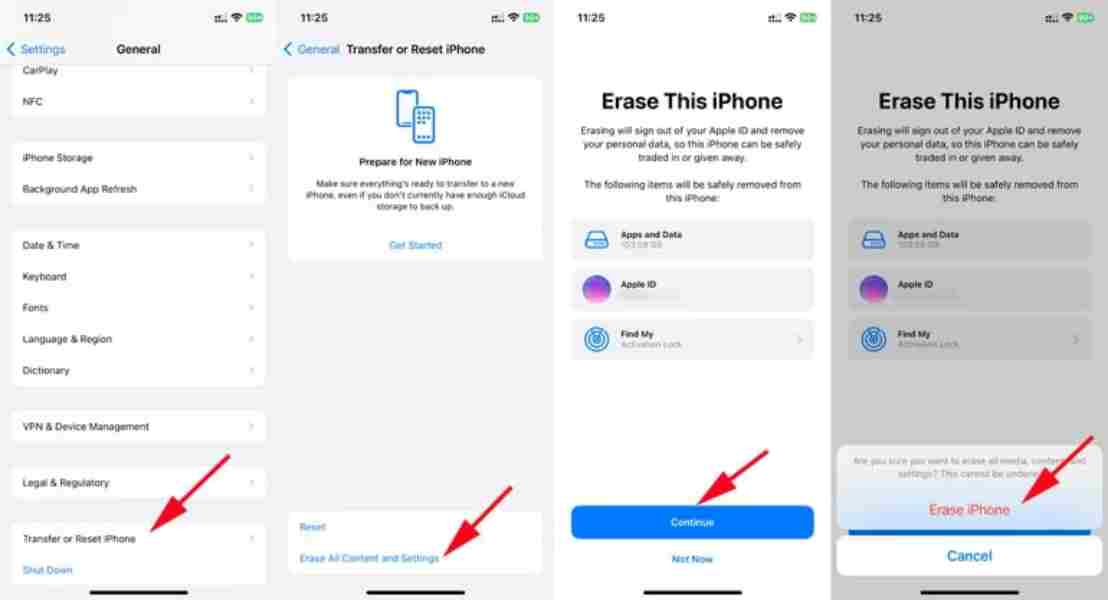
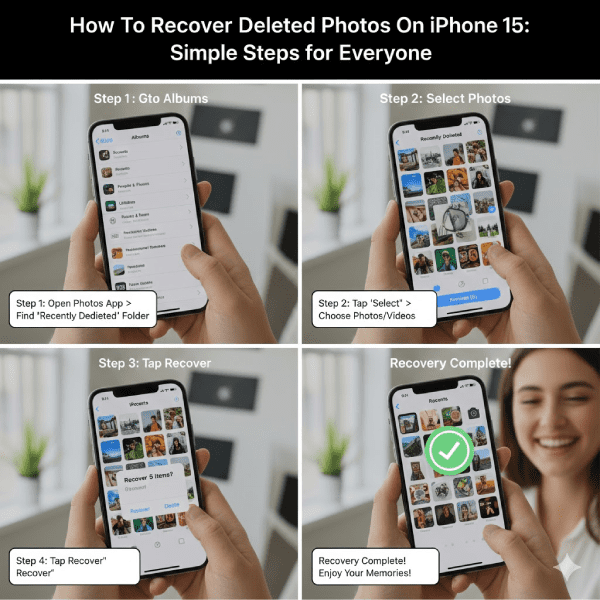
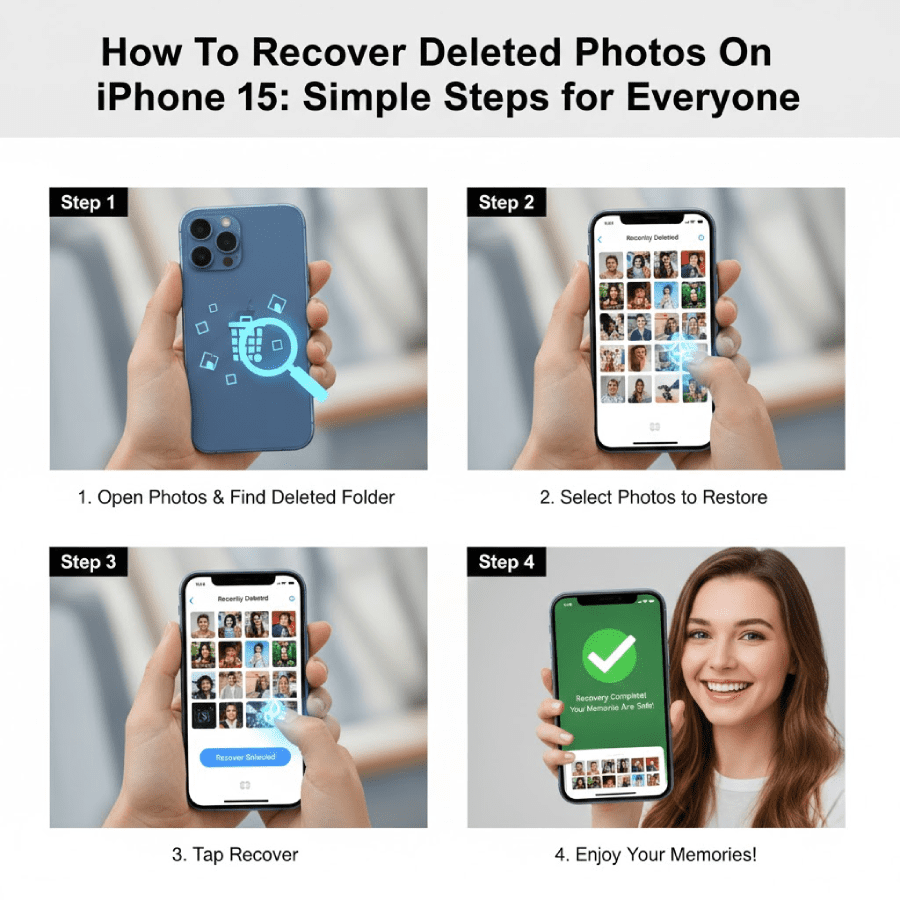
The easiest way to recover deleted photos on iPhone 15 is through the Recently Deleted folder. Photos stay here for 30 days after you delete them. Open the Photos app on your iPhone 15. Scroll down to the bottom and tap Albums. Swipe up to see the Utilities section. Tap Recently Deleted. You may need to unlock with Face ID or your passcode. Now you see all deleted photos and videos. Tap Select in the top right. Choose the photos you want by tapping them. Tap the Recover button at the bottom. Confirm if asked. The photos go back to your main library right away. They also sync to other devices if iCloud Photos is on. This method works without a computer or internet. It is free and safe. If you deleted many, select all by tapping Select All. Do not wait too long because after 30 days they vanish forever. Check this folder first every time. Many people in Tier 1 countries like the US recover photos this way daily. It takes just minutes. Practice this step to feel confident. If the folder is empty, try other methods below. This is the quickest fix for most cases.
How to Use iCloud Photos to Retrieve Deleted Photos on iPhone 15
If you turn on iCloud Photos, your pictures live in the cloud too. This helps recover deleted photos on iPhone 15 even more. Go to Settings on your phone. Tap your name at the top. Tap iCloud. Then tap Photos. Make sure Sync this iPhone is on. If it is, deleted photos still go to Recently Deleted on all devices. To check online, use a computer and go to icloud.com. Sign in with your Apple ID. Click Photos. Look for Recently Deleted on the left. Select and recover from there. This works great if your phone has issues. iCloud keeps everything safe across iPhone, iPad, and Mac. In countries like the UK and Canada, people use this for family sharing. If you deleted and emptied the folder, check if photos are still in iCloud from before. Turn on sync and wait for download. It may take time based on your internet. Do not turn off iCloud during this. This method saves photos without erasing your phone. It is best for users who back up often. Many find old photos this way after updates. Keep iCloud on to avoid future stress.
Restore Deleted Photos from iCloud Backup on iPhone 15
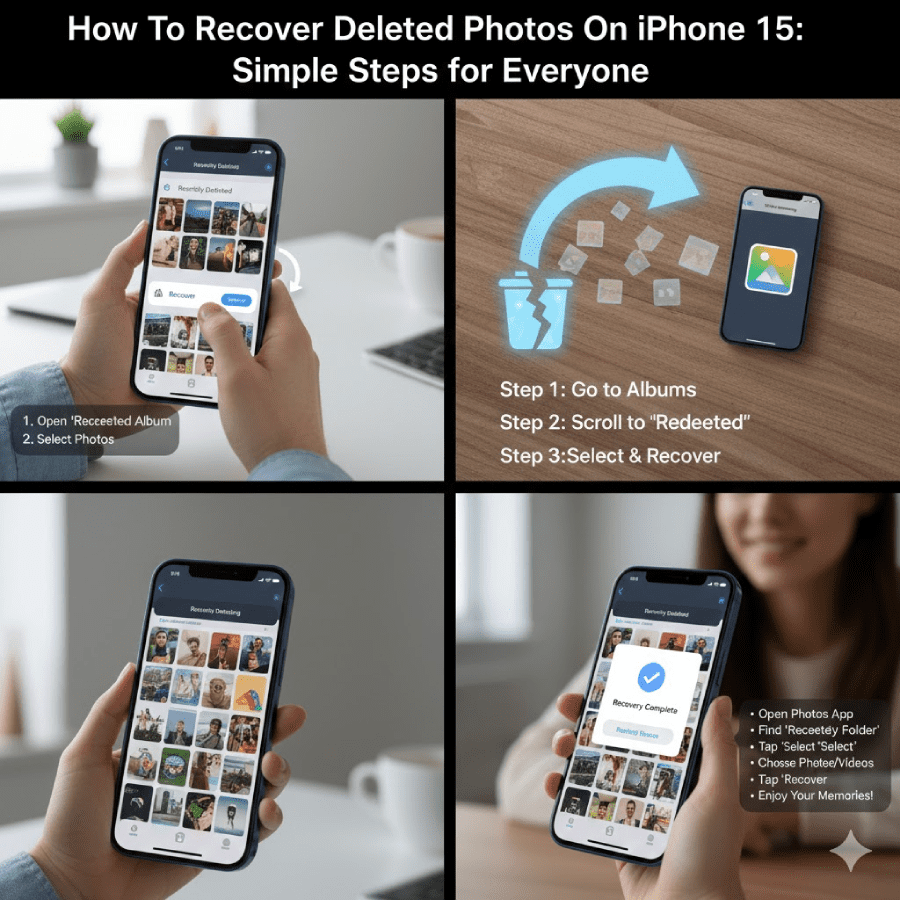
If the simple folder is empty, try a full restore from iCloud Backup. This brings back everything from when the backup was made. But it erases current data on your iPhone 15. First, check if you have a backup. Go to Settings, tap your name, tap iCloud, tap iCloud Backup. See the date of last backup. If it is before you deleted photos, you can use it. To restore, erase your phone first. Go to Settings, General, Transfer or Reset iPhone, Erase All Content and Settings. Set up your phone as new. When you see Apps & Data, tap Restore from iCloud Backup. Sign in and choose the right backup. Wait for it to finish. This can take hours. Photos from that time come back. Use this only if other ways fail. In Australia and the US, people do this for big losses. Back up often to have recent copies. This method is free but takes time. Do not use it if you added new important data after deletion. It overwrites current info. Think carefully before starting.
Recover Photos Using Finder or iTunes Backup on Computer
If you back up to a computer, use that to restore deleted photos iPhone 15. Connect your iPhone 15 to a Mac or PC with USB. On Mac with macOS Catalina or later, open Finder. On older Mac or Windows, open iTunes. Select your iPhone when it shows. Click Restore Backup. Choose a backup from before deletion. Enter password if needed. Wait for a restore. This brings back all data including photos. It erases current phone data like iCloud restore. Make a new backup first to save recent stuff. This works well without the internet. Many in Tier 2 countries like Germany use this for safe recovery. Keep backups updated. Check backup dates in the software. This is good if iCloud is not on. Third-party tools can extract only photos from backup without full restore. But the Apple way is the safest. Try this if you have old backups.
Use the Recovered Album in iOS 18 and Later on iPhone 15
In iOS 18 and newer, Apple added a Recovered album. It finds lost or damaged photos on your device. After updating, your iPhone 15 scans automatically. Open Photos app. Tap Collections. Scroll to Utilities. Tap Recovered. Unlock with Face ID. See photos not in your library before. Select ones you want. Tap Recover to add to the main library. Or Delete if not needed. This helps after crashes or bad saves. If iCloud Photos is on, recovered items sync everywhere. This album shows only if needed. It is free and built-in. Users in the US and UK love this new feature. Check it after big iOS updates. It saves photos that were hidden or broken. Great for iPhone 15 photo recovery without extra tools.
Third-Party Software Options for iPhone 15 Photo Recovery
If there is no backup and after 30 days, recovery gets hard. iPhone storage encrypts data. Third-party software like Tenorshare UltData, EaseUS MobiSaver, or Stellar claim to scan devices. They look for leftover data before overwriting. Success depends on time since deletion. Recent deletes have a higher chance. Connect phone to computer, run scan, preview, recover. Many cost money but offer free trials. Read reviews and use trusted names. Risks include data privacy. Apple does not support these. In Canada, people try them as a last resort. Success rate varies from 40% to 90% if not overwritten. Do not install shady apps. Back up first. This is not guaranteed. Try official ways first.
Tips to Prevent Losing Photos on iPhone 15 in the Future
Prevent loss by backing up often. Turn on iCloud Photos and iCloud Backup. Back up to the computer weekly. Use a strong passcode. Avoid emptying Recently Deleted fast. Turn off auto-delete if possible. Use a Shared Photo Library for the family. Check storage space. Update iOS safely. These habits save stress. Many in Tier 1 countries follow them.
FAQs on How To Recover Deleted Photos On IPhone 15
How long do deleted photos stay on iPhone 15?
Deleted photos on iPhone 15 stay in the Recently Deleted folder for 30 days. Apple designed this time to let you fix mistakes. During these 30 days, you can open the folder and recover them easily. After 30 days, they delete forever from your device and iCloud. This rule applies to all recent iOS versions like iOS 18. If you use iCloud Photos, the timer is the same across devices. Act fast within the first week for best results. This 30-day period is a big help for most users.
Can you recover permanently deleted photos on iPhone 15 without backup?
Recover permanently deleted photos on iPhone 15 without backup is very hard. After 30 days, files are gone and encrypted. Third-party software may find some if not overwritten. But success is low. Apple says no official way exists. New data overwrites old spots fast. Try the Recovered album first in iOS 18+. If nothing works, photos may be lost. Back up always to avoid this.
How To Recover Deleted Photos On IPhone 15 Without a Computer?
You can recover deleted photos on iPhone 15 without a computer using the Recently Deleted folder. Open Photos, go to Albums, find Recently Deleted. Unlock and select photos to recover. If iCloud Photos is on, check icloud.com on any browser. Use the recovered album too. These ways need no cable. They are free and quick.
What is the best way to recover deleted photos on iPhone 15?
The best way to recover deleted photos on iPhone 15 is the Recently Deleted folder within 30 days. It is simple and safe. Next is iCloud or computer backup restore. Third-party tools come last. Start with built-in Apple options. They work for most people in the US and UK.
Are third-party photo recovery tools safe for iPhone 15?
Third-party photo recovery tools can be safe from trusted companies. But risks exist like data leaks. Use well-known ones with good reviews. They scan without full erase. Apple warns against untrusted apps. Try free previews first. Many users in Australia use them carefully.
Conclusion: Master How To Recover Deleted Photos On IPhone 15 Today
To sum up, How To Recover Deleted Photos On IPhone 15 starts with checking Recently Deleted for 30 days. Use iCloud, backups, or the new Recovered album next. Act fast and back up often. These steps help most users get memories back. Stay calm and follow the guide. Have you tried any of these methods before? Share your story below!
References
- How to recover deleted photos on your iPhone – Apple Support – Official steps for Recently Deleted and recovery basics.
- If you’re missing photos or videos in the Photos app – Apple Support – Explains checks for hidden or iCloud issues.
- About the Recovered album in Photos – Apple Support – Details on iOS 18+ feature for lost photos.