Chrome Task Manager Shortcut: How to Quickly Fix a Lagging Browser
Everyone knows the frustration of a browser that suddenly freezes or slows to a crawl. You have ten tabs open, one video playing, and suddenly, nothing responds. Clicking does nothing. Scrolling feels stuck. Before you restart your whole computer or close everything and lose your work, there is a faster fix inside Google Chrome itself.
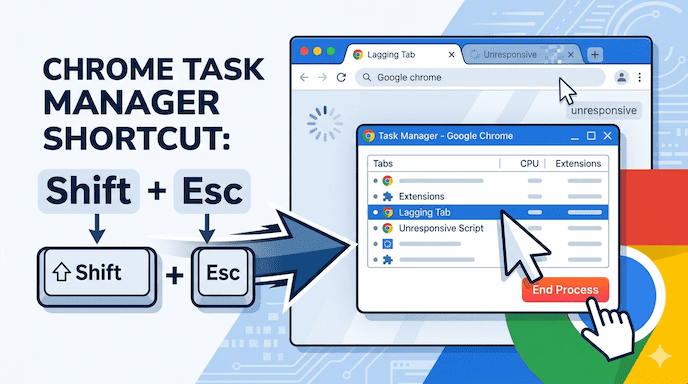
Chrome comes with its own built-in Task Manager. This tool works separately from your computer’s regular Task Manager. It shows exactly which tab, extension, or background process is using too much memory or CPU power. With one quick shortcut, you can open it, spot the troublemaker, and shut it down without losing everything else.
Quick ways to open Chrome Task Manager:
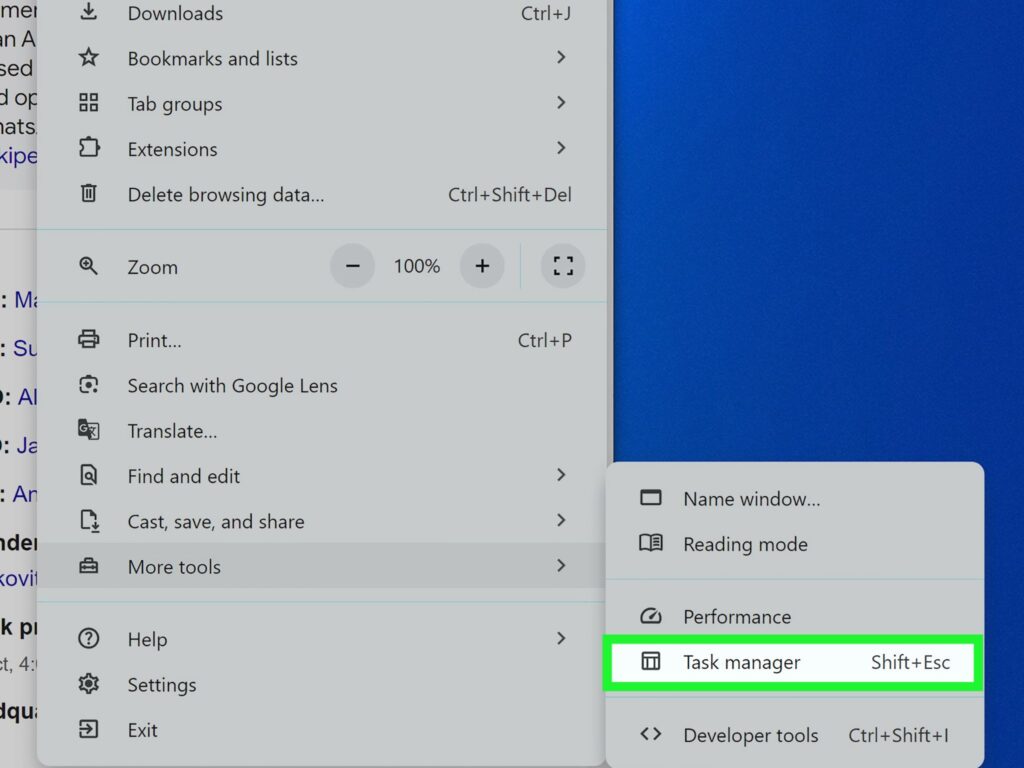
- Windows and Linux: Press Shift + Esc
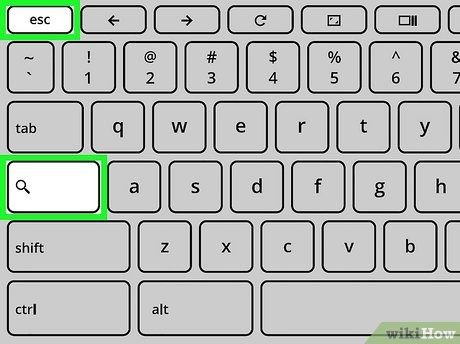
- ChromeOS (Chromebook): Press Search + Esc
- macOS: No direct key by default — go to the Window menu and choose Task Manager, or set up your own shortcut (explained below)
Many people notice slow performance on devices with 8GB of RAM or less. Opening the Chrome Task Manager shortcut lets you fix lag in seconds by ending heavy processes.
Platform-Specific Deep Dive
The shortcut works a bit differently depending on your device. Here is a clear breakdown so you can use it right away.
Windows & Linux
On Windows or Linux computers, the Chrome Task Manager shortcut is simple: hold down the Shift key and tap Esc. Do this while Chrome is the active window.
This shortcut opens a small window that lists every part of Chrome that is running. It includes open tabs, extensions, and even sub-frames inside complex websites. Most users find this the fastest way to regain speed when the browser feels heavy.
The window pops up instantly. You do not need to dig through menus. Just press the keys and start checking what is using resources.
ChromeOS
Chromebooks usually have lighter hardware, so they can slow down faster when too many tabs or extensions run at once. Chromebook users often need this tool more than others.
To open the Chrome Task Manager on a Chromebook, press the Search key (it looks like a magnifying glass or circle) together with Esc. This is the standard shortcut for ChromeOS.
Once open, you will see the same list of tasks. Because Chromebooks have less RAM in many models, spotting and ending a RAM-hungry tab can make a big difference in smoothness.
The macOS Challenge
Apple’s macOS does not have a built-in keyboard shortcut for Chrome’s Task Manager like Windows does. You must open it through the menu: click Window at the top of the screen, then choose Task Manager.
If you want a fast key combination, you can create a custom shortcut yourself. Here is how:
- Click the Apple menu and go to System Settings.
- Select Keyboard, then click Keyboard Shortcuts on the right.
- Choose App Shortcuts from the list on the left.
- Click the + button at the bottom.
- In the Application dropdown, select Google Chrome.
- In the Menu Title field, type exactly: Task Manager (make sure it matches the menu spelling).
- Click in the Keyboard Shortcut box and press your preferred keys — for example, Option + Shift + Esc or Control + Shift + Esc.
- Click Add or Done.
Now you can use your new shortcut whenever Chrome is open. It takes less than a minute to set up and saves time later. Many Mac users prefer Command + Esc or similar easy combos.
Navigating the Task Manager Interface
When the Task Manager window opens, you will see a table with columns. Each row represents a different task inside Chrome. Do not feel overwhelmed — the main columns tell you what you need.
The Big Three Metrics
Focus on these three columns first:
- Memory Footprint: This shows how much RAM each tab or extension is using. High numbers here often cause overall slowness, especially on laptops with limited RAM.
- CPU Usage: This tells you which tasks are working the processor hard. A tab running a heavy script or playing video in the background can drain your battery fast.
- Network: This column reveals which tab is downloading or uploading a lot of data. It can slow down your Wi-Fi for other apps.
Sort the list by clicking the column headers. Click Memory Footprint once or twice to put the biggest RAM users at the top. This makes it easy to spot the culprit quickly.
Advanced View
For more details, right-click on any column header. A menu appears with extra options like:
- Image Cache
- GPU Memory
- Process ID
- JavaScript Memory
Check these boxes to show more columns if you want deeper information. Most people only need the basic three, but the advanced ones help when troubleshooting tricky issues.
Chrome’s multi-process design means one website can create several rows. A single tab might show a main process plus subframes for ads, videos, or chat widgets. This setup keeps one bad site from crashing the whole browser, but it can also increase total RAM use.
Step-by-Step: How to Kill a Frozen Process
Here is the exact process to fix a lagging browser using the Chrome Task Manager shortcut:
Step 1: Open the manager with the shortcut for your platform (Shift + Esc on Windows, Search + Esc on Chromebook, or your custom key on Mac).
Step 2: Look at the list and sort by Memory Footprint or CPU Usage. The highest numbers usually point to the problem.
Step 3: Click the row for the guilty task. It could be a tab, an extension, or a subframe. You can select multiple rows if needed by holding Ctrl (or Command on Mac) while clicking.
Step 4: Click the End Process button at the bottom right of the window.
The frozen tab or extension will close immediately. Your other tabs should stay open and start responding again.
Pro Tip: Understand “Subframes.” Sometimes one visible tab creates three or four separate processes because modern websites load many pieces (like embedded videos or trackers). Ending the main tab row usually closes everything related to that site safely.
If you end the wrong thing by mistake, you can simply reopen the tab with Ctrl + Shift + T (or Command + Shift + T on Mac). Your recently closed tabs come back.
FAQs
Why is my shortcut not working?
Another program might be using the same key combination. On Windows, some apps capture Shift+Esc. Try closing other programs or checking your keyboard settings. On Mac, make sure you set the custom shortcut correctly and that Chrome is the active app.
Does closing a task delete my work?
Usually no — but be careful. If the tab has unsaved changes (like a long email or form), ending the process can lose that data. Save your work first when possible, or use the “Restore” option after reopening the tab.
Chrome Task Manager vs. Windows Task Manager — when to use which?
Use Chrome’s own Task Manager for browser-specific problems. It clearly shows individual tabs and extensions. Use the system Task Manager (Ctrl + Shift + Esc on Windows) when the entire Chrome browser has frozen or when you need to close Chrome completely. Chrome’s tool is more precise for everyday lag.
For more official help, visit Google’s Chrome support pages or trusted tech sites like How-To Geek.
Conclusion
The Chrome Task Manager shortcut (Shift + Esc on most systems) is one of the fastest ways to fix a slow browser. Just remember the keys, open the manager, sort by memory or CPU, and end the heavy process. In under 10 seconds, you can often make Chrome feel fast again.
For long-term improvement, turn on Chrome’s Memory Saver mode. Go to Chrome Settings > Performance and enable it. This feature puts inactive tabs to sleep automatically so they use less RAM. You can add important sites to an “always keep active” list if needed.
Other quick tips to keep Chrome running smoothly:
- Close tabs you are not using.
- Review and remove unused extensions.
- Keep Chrome updated — newer versions often improve memory handling.
- Try opening fewer tabs at once if your device has limited RAM.
Is your browser still slow after trying the shortcut? Consider exploring helpful Chrome extensions for better tab management and productivity.
Mastering this simple Chrome Task Manager shortcut can save you time and frustration every week. Next time your browser starts lagging, do not restart everything — just press the keys and take control.