How Do I Remove Windows 10 Built-in Apps for All Users? Complete Guide for Admins and Power Users
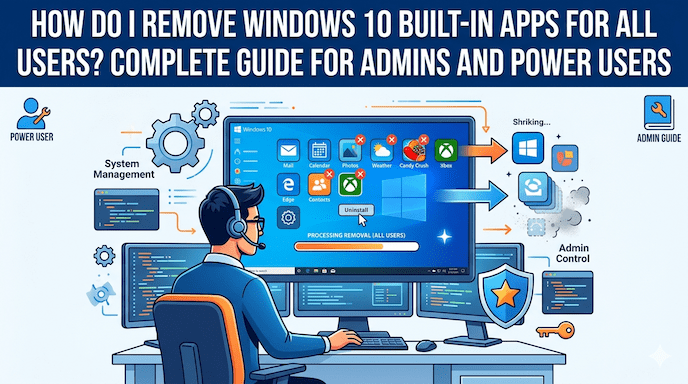
How do I remove Windows 10 built-in apps for all users? This common question arises when IT admins, deployment engineers, and power users want a leaner, faster Windows 10 experience. Microsoft includes many preinstalled apps—often called bloatware—that take up space, appear in the Start menu, and sometimes run in the background.
These default apps range from helpful tools like Calculator to less essential ones, such as Solitaire Collection or Weather. For organizations and advanced users, removing them across existing profiles and preventing reinstallation for new users improves performance and simplifies Windows 10 system cleanup.
In this comprehensive guide, you will discover proven methods using PowerShell commands Windows 10 apps, remove provisioned apps Windows 10, DISM for images, and Group Policy options. Whether you manage a single PC or hundreds of devices in Tier 1 and Tier 2 countries, these steps deliver actionable results without unnecessary complexity.
We cover remove Windows 10 built-in apps, uninstall default apps Windows 10, Windows 10 bloatware removal, and advanced techniques for Windows image customization. Follow along carefully, and always test changes in a safe environment first.
Why Remove Built-in Apps from Windows 10?
Windows 10 comes with dozens of preinstalled apps Windows 10 that Microsoft provisions for every user. These default Microsoft apps serve various purposes but can clutter the interface and consume resources on devices with limited storage or in enterprise settings.
Common reasons include:
- Freeing up disk space (some apps and their data add up over time).
- Reducing visual noise in the Start menu and All Apps list.
- Improving boot times and overall responsiveness.
- Enhancing security by minimizing unnecessary components.
- Customizing deployments for businesses or shared devices.
Statistics from IT communities show that many organizations remove 20–40 unnecessary apps during imaging to optimize performance. For example, apps like Microsoft News, Weather, or Xbox-related packages often go unused yet reinstall with new user profiles if not handled properly.
Removing them does not affect core Windows functionality when done selectively. Critical system components remain intact, while you gain a streamlined experience. This process supports uninstall Microsoft apps Windows 10 and remove system apps Windows 10 without third-party tools in most cases.
Understanding Provisioned Apps vs. Installed Apps
Before diving into commands, it helps to understand two key concepts:
Installed apps exist for specific user profiles. You remove them with Remove-AppxPackage.
Provisioned apps sit in the Windows image. They automatically install for any new user who logs in. You handle them with Remove-AppxProvisionedPackage to stop future installations.
How do I remove Windows 10 built-in apps for all users? requires addressing both. Simply removing the current user leaves the app open for others and new profiles. Proper Windows 10 app provisioning management ensures complete coverage—past, present, and future users.
Get-AppxPackage lists installed packages. Adding -AllUsers shows everything across profiles. Get-AppxProvisionedPackage -Online reveals what the system will install next.
Preparing for Safe Removal
Safety comes first. Follow these steps before any changes:
- Create a System Restore Point (search for “Create a restore point” in Windows).
- Back up important data.
- Run PowerShell as Administrator.
- Audit current apps with: Get-AppxPackage -AllUsers | Select Name, PackageFullName. This lists everything without removing it.
- Test on a non-production machine, especially in deployment scenarios.
Tip: Document which apps you remove. Some organizations maintain an approved list for consistency across devices.
Avoid blind removal of all packages. Certain apps support core features like printing, searching, or updating. Research dependencies when in doubt.
Method 1: Remove Apps for the Current User (Quick Start)
For individual troubleshooting or power users, start simple. This handles uninstall default apps Windows 10 for your account only.
Open PowerShell as Administrator and use commands like:
Get-AppxPackage *appname* | Remove-AppxPackage
Replace *appname* with a partial match (wildcards help). Examples include:
- remove Windows 10 built-in apps such as 3D Builder: Get-AppxPackage *3dbuilder* | Remove-AppxPackage
- Alarms & Clock: Get-AppxPackage *windowsalarms* | Remove-AppxPackage
- Weather: Get-AppxPackage *bingweather* | Remove-AppxPackage
This method works well for delete built-in apps Windows 10 all users on a personal level but falls short for multiple profiles. It forms the foundation for more advanced steps.
Method 2: Remove Windows 10 Built-in Apps for All Users with PowerShell
How do I remove Windows 10 built-in apps for all users? The robust answer combines -AllUsers switches.
Use this pattern:
Get-AppxPackage -AllUsers *partialname* | Remove-AppxPackage -AllUsers
The -AllUsers on both commands clears the app from every existing profile. For bundles (some apps install as packages):
Get-AppxPackage -AllUsers -PackageTypeFilter Bundle *name* | Remove-AppxPackage -AllUsers
PowerShell commands Windows 10 apps like these clear past installations effectively. Run them one app at a time or in a scripted loop for efficiency.
Example script snippet for multiple apps:
PowerShell
$AppsToRemove = @(
“*3dbuilder*”,
“*bingweather*”,
“*solitairecollection*”
)
foreach ($App in $AppsToRemove) {
Get-AppxPackage -AllUsers $App | Remove-AppxPackage -AllUsers
}
This approach supports remove appx packages Windows across profiles and integrates naturally into Windows admin tools PowerShell workflows. Always verify removal with Get-AppxPackage -AllUsers afterward.
Method 3: Remove Provisioned Apps to Prevent Future Installations
To stop apps from appearing for new users (remove provisioned apps Windows 10), target the image:
Get-AppxProvisionedPackage -Online | Where-Object DisplayName -like “*BingWeather*” | Remove-AppxProvisionedPackage -Online
Combine with the previous method for complete coverage:
- Remove from all existing users.
- Remove the provisioned package.
This prevents Windows 10 app provisioning issues during new logins or profile creation. In enterprise environments, integrate this into imaging processes for Windows deployment tools.
Important: Some provisioned removals require the -AllUsers flag where supported, though behavior varies by Windows 10 build. Test thoroughly.
Comprehensive List of Removable Apps and Safe Commands
Here is a practical list of commonly targeted apps with safe Get-AppxPackage remove command examples. These support uninstall Windows Store apps PowerShell and remove Microsoft apps Windows 10.
- Microsoft Solitaire Collection: Get-AppxPackage *solitairecollection* -AllUsers | Remove-AppxPackage -AllUsers
- Weather: Get-AppxPackage *bingweather* -AllUsers | Remove-AppxPackage -AllUsers
- News: Get-AppxPackage *bingnews* -AllUsers | Remove-AppxPackage -AllUsers
- Xbox Apps (various): Use *xbox* carefully—some game overlays may affect other features.
- Get Office / Office Hub: Get-AppxPackage *officehub* -AllUsers | Remove-AppxPackage -AllUsers
- Maps: Get-AppxPackage *windowsmaps* -AllUsers | Remove-AppxPackage -AllUsers
- Photos (if using alternatives): Get-AppxPackage *photos* -AllUsers | Remove-AppxPackage -AllUsers (restore via Store if needed).
- Camera, Voice Recorder, Alarms: Similar wildcard patterns.
For a full default Microsoft apps list, run Get-AppxProvisionedPackage -Online | Select DisplayName to see what your system provisions.
Advanced Techniques for Deployment Engineers and IT Admins
Using DISM for Offline Images
For Windows image customization, mount your install.wim and remove provisioned apps offline:
Dism /Image:C:\Mount /Remove-ProvisionedAppxPackage /PackageName:PackageName
This integrates into Windows deployment tools and MDT/SCCM workflows for clean base images.
Group Policy and Registry Approaches
Some Windows 10 versions support policies under Windows Components > App Package Deployment to control defaults. For broader control, explore AppLocker or WDAC policies to block execution rather than delete.
Windows group policy app removal offers centralized management in domain environments without per-machine scripts.
Scripting for Bulk Removal
Create reusable scripts that combine remove Windows apps PowerShell, and logging. Popular community scripts (like those from MSEndpointMgr) blacklist specific apps while preserving essentials. Deploy via logon scripts, Intune, or task sequences.
In shared PC or kiosk scenarios, enable Shared PC Mode to manage provisioning automatically.
Preventing Reinstallation After Updates
Feature updates sometimes re-provision apps. Remove the corresponding registry keys under HKLM\SOFTWARE\Microsoft\Windows\CurrentVersion\Appx\AppxAllUserStore or use updated de-bloat scripts that handle post-update cleanup. From Windows 10 1803 onward, deprovisioned apps generally stay removed during upgrades if handled correctly.
Troubleshooting Common Issues
- App reappears after new user login? Ensure you have removed both the installed package for -AllUsers and the provisioned package.
- Command fails with “file not found”? Double-check the exact PackageName from Get-AppxProvisionedPackage.
- Start menu or Search breaks? Restore specific packages via the Microsoft Store or PowerShell reinstall commands (e.g., Get-AppxPackage -AllUsers Microsoft.Windows.ShellExperienceHost | Foreach {Add-AppxPackage -DisableDevelopmentMode -Register “$($_.InstallLocation)\AppXManifest.xml”} for related components).
- Permissions errors? Always run PowerShell elevated.
For tech support teams, these steps simplify troubleshooting user complaints about clutter.
Using Third-Party Tools vs. Native Methods
While native uninstall apps via command line offer precision, some prefer graphical tools for speed. Always prioritize built-in options for security and compatibility in professional environments. Third-party uninstallers can help with residuals but introduce additional risk.
Best Practices for Windows 10 System Cleanup
- Remove in phases: Start with obvious bloat, then monitor performance.
- Combine with Storage Sense and Disk Cleanup for maximum gains.
- Maintain a custom reference image with desired apps pre-removed.
- Document your Windows 10 bloatware removal policy for team consistency.
- Regularly review after major updates, as new apps may appear.
These practices support long-term OS optimization and align with goals of deployment engineers focused on image customization.
Conclusion
How do I remove Windows 10 built-in apps for all users? By combining Remove-AppxPackage -AllUsers, Remove-AppxProvisionedPackage, careful auditing, and testing, you achieve a clean, efficient system tailored to your needs. Whether performing Windows 10 bloatware removal, uninstall default apps Windows 10, or full Windows image customization, these methods empower IT admins, deployment engineers, power users, and tech support teams with reliable control.
Remember to back up, test, and document every change. A streamlined Windows 10 delivers better performance and user satisfaction without sacrificing stability.