Linux Laptop Most Used Shortcuts: Boost Productivity with These Essential Keys

If you use a Linux laptop every day, switching from mouse to keyboard can transform how you work. Linux laptop most used shortcuts help you navigate faster, manage windows smoothly, edit text efficiently, and handle code like a pro. Whether you are a student, developer, or everyday user on Ubuntu, these Linux keyboard shortcuts save time and reduce frustration.
Many people new to Linux rely too much on the mouse or touchpad. But once you learn the most used Linux shortcuts, your workflow becomes smoother and more enjoyable. In this guide, you will discover Ubuntu shortcuts, Linux terminal shortcuts, VS Code Linux shortcuts, and more. These tips focus on real-life use in Tier 1 and Tier 2 countries where Linux laptops are popular for their reliability, low cost, and customization.
By the end, you will have a practical Linux shortcut cheat sheet you can reference daily. Let’s start with the basics and build up to advanced Linux productivity shortcuts that every user and developer should know.
Why learn Linux laptop most used shortcuts? Simple actions like opening the terminal or switching workspaces take seconds instead of minutes. Studies and user reports show that keyboard-driven workflows can improve workflow efficiency in Linux by 20-50% for repetitive tasks. Beginners gain confidence quickly, while experienced users handle complex projects with less effort.
Understanding the Super Key and Basic Navigation in Linux
The Super key (often the Windows logo key on your Linux laptop) is your starting point for many Linux hotkeys. Pressing Super alone opens the Activities overview where you can search apps, files, and settings instantly.
- Super: Open Activities overview and start typing to launch anything.
- Super + Tab: Switch between open windows (hold Shift to go backward).
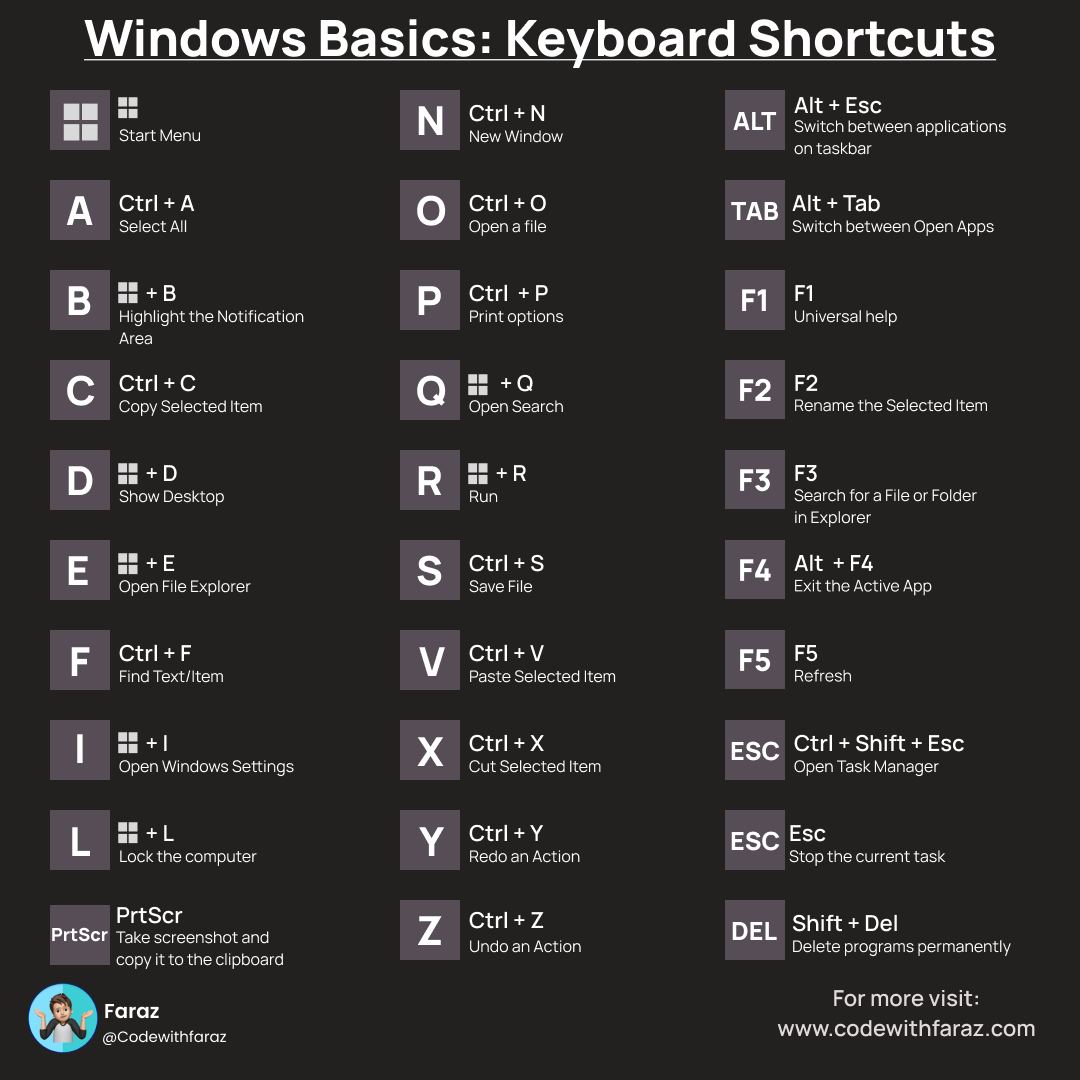
- Alt + Tab: Classic window switcher, works across most desktops.
- Alt + Esc: Cycle through windows in the current workspace without a popup.
These Linux navigation shortcuts feel natural after a few days. On GNOME-based systems like Ubuntu, Super + A shows all applications, while Super + Page Up/Down switches workspaces.
For workspace switching Linux, virtual desktops (multi-desktop) keep your screen organized. Use Ctrl + Alt + Up/Down or Super + Page Up/Down to move between them. Move a window with Shift + Super + Page Up/Down. This multitasking setup is perfect for students juggling notes, browsers, and code editors.
Tip: If your laptop has a touchpad, try three-finger gestures alongside these keys for even better flow.
Essential Linux GUI Shortcuts for Window and Desktop Management
Window management shortcuts make your Linux laptop feel responsive. No more dragging windows with the mouse.
Here are the most used Linux shortcuts for daily GUI use:
- Alt + F4: Close the current window.
- Super + Left/Right Arrow: Snap window to the left or right half of the screen.
- Super + Up: Maximize window.
- Super + Down: Restore or minimize the window.
- Super + H: Hide (minimize) the current window.
- Ctrl + Alt + L: Lock the screen quickly (great for security in shared spaces).
- Super + L: Another common lock shortcut on many distros.
For Ubuntu window management shortcuts, these work reliably on GNOME. Snap windows to create a clean side-by-side view for comparing documents or code.
Multi-desktop shortcuts shine in Linux when you have many tasks. Create new workspaces as needed and switch with keyboard only. This keeps your mind focused and reduces visual clutter.
In file managers like Nautilus (Ubuntu default):
- Ctrl + H: Show hidden files.
- Ctrl + T: Open a new tab.
- Alt + Left/Right: Go back or forward in folders.
- F2: Rename selected file.
- Ctrl + L: Focus the address bar for quick path typing.
These file manager shortcuts Ubuntu speed up browsing large folders on your Linux laptop.
Linux System Shortcuts and Power Management
Every user needs quick access to system actions. These Linux system shortcuts help daily:
- Ctrl + Alt + Delete: Open the power or the logout dialog.
- Super + V: Show notifications.
- Super + M: Sometimes toggles message tray (check your distro).
- Fn + keys (on laptops): Adjust brightness, volume, Wi-Fi, or touchpad. Combine with Super in some setups for media control.
For the Linux laptop shortcuts list, remember hardware-specific Fn combinations vary slightly by brand, but they work consistently on Ubuntu and popular distros.
Accessibility shortcuts you might appreciate:
- Super + Alt + 8: Toggle screen magnifier.
- Super + Alt + = / –: Zoom in or out.
These features make the Linux operating system productive for everyone.
Mastering Linux Terminal Shortcuts for Command Line Productivity
The terminal is where Linux shines. Learning Linux terminal shortcuts turns you into a faster user. Open it with the universal Ctrl + Alt + T — one of the most used Linux shortcuts for beginners and pros alike.
Once inside the terminal (Bash or Zsh), these shell navigation keys save countless keystrokes:
- Tab: Auto-complete commands, files, or folders (press twice for options).
- Ctrl + A: Jump to the beginning of the line.
- Ctrl + E: Jump to the end of the line.
- Ctrl + Left/Right or Alt + B/F: Move by word.
- Ctrl + U: Clear from the cursor to the start of the line.
- Ctrl + K: Clear from cursor to end of line.
- Ctrl + W: Delete previous word.
- Ctrl + Y: Paste deleted text (yank).
- Ctrl + L: Clear the screen.
- Ctrl + C: Cancel current command.
- Ctrl + Z: Pause command and send to background.
- Ctrl + R: Search command history backward (type to find, Enter to run).
- !!: Repeat last command.
- Ctrl + Shift + C: Copy in terminal.
- Ctrl + Shift + V: Paste in terminal.
These terminal command shortcuts make command line productivity tools feel effortless. For example, fix a typo without retyping the whole line.
Copy paste Linux terminal differs from GUI. Use Ctrl + Shift + C/V instead of plain Ctrl + C/V because Ctrl + C stops commands.
Essential Linux terminal shortcuts for beginners include starting with Ctrl + Alt + T, Tab, and Ctrl + R. Practice one per day, and soon you will navigate shells with confidence.
Advanced users love Ctrl + D to exit the terminal or log out of SSH sessions cleanly.
Text Editing Shortcuts That Work Everywhere in Linux
Basic text editing shortcuts Linux apply in browsers, editors, notes apps, and more:
- Ctrl + A: Select all.
- Ctrl + X: Cut.
- Ctrl + C: Copy.
- Ctrl + V: Paste.
- Ctrl + Z: Undo.
- Ctrl + Y or Ctrl + Shift + Z: Redo.
- Ctrl + S: Save.
- Ctrl + F: Find text.
In terminals, remember the Shift versions for copy/paste.
These universal shortcuts boost keyboard-driven workflow across your Linux laptop.
Linux Laptop Shortcuts Cheat Sheet for Students and Everyday Users
Here is a handy grouped Linux shortcut cheat sheet you can bookmark or print:
Desktop & Navigation
- Super: Activities overview
- Alt + Tab: Switch windows
- Super + Tab: Alternative switcher
- Super + Left/Right: Snap windows
- Ctrl + Alt + T: Open terminal
Workspaces & Multitasking
- Super + Page Up/Down: Switch workspaces
- Shift + Super + Page Up/Down: Move window to workspace
- Ctrl + Alt + Up/Down: Alternative workspace switch
System
- Ctrl + Alt + L: Lock screen
- Super + L: Lock screen (alternative)
- Ctrl + Alt + Delete: Power dialog
File & Text
- Ctrl + H: Show hidden files
- F2: Rename
- Ctrl + C/V/X/Z: Standard edit
Students love the Linux laptop shortcuts cheat sheet because it helps during exams, research, or group projects without breaking focus.
VS Code Linux Shortcuts for Coding Faster
Developers spend hours in code editors. VS Code Linux shortcuts are among the Linux shortcuts every developer should know. VS Code is free, lightweight, and runs beautifully on Linux laptops.
Open the Command Palette with Ctrl + Shift + P — your gateway to almost every action.
Top VS Code Linux keyboard shortcuts for coding faster:
File & Navigation
- Ctrl + P: Quick open file (type name to jump).
- Ctrl + Shift + O: Go to symbol in file.
- Ctrl + T: Go to all symbols.
- Ctrl + G: Go to line number.
- Ctrl + Shift + M: Show problems panel (errors/warnings).
Editing Magic
- Ctrl + /: Toggle line comment.
- Ctrl + Shift + A: Toggle block comment.
- Alt + Up/Down: Move the line up or down.
- Ctrl + Shift + K: Delete line.
- Ctrl + D: Select next occurrence of word (great for renaming).
- Ctrl + Shift + L: Select all occurrences.
- Ctrl + Space: Trigger suggestions.
- F12: Go to definition.
- Ctrl + .: Quick fix.
- F2: Rename symbol.
Multi-Cursor & Selection
- Alt + Click: Add cursor (may need a setting tweak on some Linux distros).
- Shift + Alt + Up/Down: Add cursor above/below.
- **Ctrl + Shift + **: Jump to matching bracket.
View & Terminal
- Ctrl + `: Toggle integrated terminal.
- Ctrl + B: Toggle sidebar.
- F11: Full screen.
- Ctrl + K Z: Zen mode (distraction-free; exit with Esc twice).
Search & Replace
- Ctrl + F: Find in file.
- Ctrl + H: Replace.
- Ctrl + Shift + F: Find in all files.
Debug Basics
- F5: Start debugging.
- F9: Toggle breakpoint.
- F10: Step over.
- F11: Step into.
These VS Code Linux shortcuts help with the top Linux keyboard shortcuts for the programming workflow. Combine them with Linux terminal shortcuts inside VS Code for ultimate developer keyboard efficiency.
Many developers report doubling their coding speed after mastering just 10 of these.
How to Use Keyboard Shortcuts in Ubuntu Efficiently
To get the most from how to use keyboard shortcuts in Ubuntu efficiently:
- Start small — learn 3-5 new shortcuts per week.
- Practice deliberately. For example, open terminal only with Ctrl + Alt + T for a full day.
- Customize if needed: Go to Settings > Keyboard > View and Customize Shortcuts. Add your own for frequent apps.
- Print or save a complete list of Linux shortcut keys for productivity and keep it visible.
- Use extensions like “Keyboard Shortcuts” viewers if available in your distro.
For Ubuntu keyboard shortcuts list for daily productivity, combine GNOME defaults with terminal and editor keys. This creates a keyboard-driven workflow that feels powerful.
Linux GUI shortcuts and Linux hotkeys work best when your hands stay on the keyboard. Reduce mouse use and notice less wrist strain over time.
Advanced Tips for Workflow Efficiency in Linux
Beyond basics, explore these for deeper workflow efficiency in Linux:
- Chain commands in terminal using && (run next if previous succeeds) or ; (run anyway).
- Use history command or Ctrl + R to recall complex past commands.
- In file managers, Ctrl + Shift + N often creates new folders.
- For screenshots: Print Screen (full), Alt + Print Screen (window), Shift + Print Screen (area select). Add Ctrl for clipboard.
- Screen recording: Ctrl + Alt + Shift + R on GNOME to start/stop.
Laptop users: Check Fn-lock settings in BIOS if hardware keys feel reversed.
Create custom shortcuts for apps you use often, like launching your browser or note app with Super + specific letter.
These small changes support increase productivity with Linux keyboard shortcuts.
Common Mistakes to Avoid with Linux Shortcuts
- Forgetting Shift in terminal copy/paste — use Ctrl + Shift + C/V.
- Confusing Alt + Tab with Super + Tab behaviors.
- Not practicing consistently — muscle memory builds with daily use.
- Ignoring distro differences (GNOME vs KDE vs XFCE); test on your setup.
- Overloading with too many at once — focus on best keyboard shortcuts for Linux laptop users.
Complete List of Linux Shortcut Keys for Productivity (Summary Tables)
General System Shortcuts
| Shortcut | Action |
| Super | Activities overview |
| Ctrl + Alt + T | Open terminal |
| Alt + Tab | Switch windows |
| Ctrl + Alt + L | Lock screen |
| Super + L | Lock screen (alt) |
Window & Workspace
| Shortcut | Action |
| Super + Left/Right | Snap window |
| Super + Up/Down | Maximize/minimize |
| Super + Page Up/Down | Switch workspace |
| Shift + Super + Page Up/Down | Move the window to the workspace |
Terminal Shortcuts
| Shortcut | Action |
| Tab | Auto-complete |
| Ctrl + A/E | Start/end of line |
| Ctrl + R | Search history |
| Ctrl + L | Clear screen |
| Ctrl + Shift + C/V | Copy/paste in the terminal |
VS Code Highlights
| Shortcut | Action |
| Ctrl + Shift + P | Command palette |
| Ctrl + P | Quickly open the file |
| Ctrl + D | Select next occurrence |
| Ctrl + ` | Toggle terminal |
| F12 | Go to definition |
Use these tables as your quick Linux shortcut cheat sheet.
FAQs
How do Linux shortcuts improve productivity?
Linux shortcuts improve productivity by reducing dependency on the mouse, speeding up navigation, and allowing faster execution of tasks like coding, file management, and system control.
What are the most used Linux laptop shortcuts?
The most used Linux shortcuts include Ctrl + Alt + T (open terminal), Alt + Tab (switch windows), Super key (open activities), Ctrl + R (search terminal history), and Super + Arrow keys (window snapping). These shortcuts help improve daily productivity on Linux laptops.
Why should I use keyboard shortcuts in Linux?
Keyboard shortcuts in Linux help you work faster, reduce mouse usage, and improve productivity. They allow quick navigation, better multitasking, and smoother workflow, especially for developers and students.
What is the Super key in Linux?
The Super key is usually the Windows key on your keyboard. In Linux (especially Ubuntu), it opens the Activities overview, where you can search apps, files, and settings instantly.
Conclusion
Linux laptop most used shortcuts empower you to work faster, smarter, and with less effort. From basic Ubuntu shortcuts and Linux terminal shortcuts to advanced VS Code Linux shortcuts, these tools create a true keyboard-driven workflow. You now have a solid Linux shortcut cheat sheet, explanations for Linux navigation shortcuts, window management shortcuts, and tips for workflow efficiency in Linux.
Start applying a few today — open your terminal with Ctrl + Alt + T, switch windows with Alt + Tab, and snap apps with Super + arrows. Over time, these most used Linux shortcuts will feel natural and dramatically improve your productivity.