VSCode Easter Eggs Make Coding More Fun
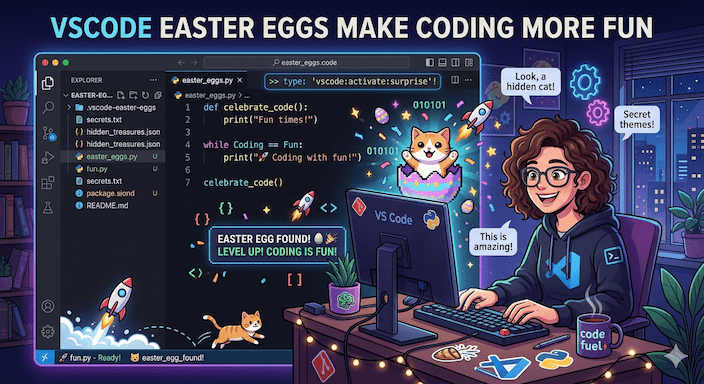
VSCode is a free code editor that many developers love. It works fast and lets you change many things. But it also has special surprises called vscode easter eggs. These are small fun things hidden inside the editor. They do not change how you write code. They just add joy and make you smile while you work.
In this article, you will learn about vscode easter eggs. You will see real examples of vscode hidden features, vscode secret features, and visual studio code easter eggs. We talk in simple words so everyone can understand – even if you just started coding.
Many developers in big countries like the USA, UK, Germany, Canada, and Australia use VS Code every day. They enjoy these little surprises because work feels less boring. Beginners learn new things. Advanced users find ways to add their own fun. Indie developers get ideas to make their own projects better.
VS Code easter eggs come from the people who made the editor and from the big community. Some appear only on special days. Others hide in settings or commands. When you find one, you feel like you discovered a small gift.
Let us start with the basics and go step by step. You will learn how to find easter eggs in vscode, vscode cool features, vscode hidden tricks, and many more useful ideas.
Why Do People Like VS Code Easter Eggs?
Coding can take many hours. Your eyes get tired. Your mind needs a break. A small, fun surprise helps you feel fresh again. That is why vscode fun features matter.
VS Code started in 2015. Microsoft made it, but many people helped make it better. The team added small playful things because they wanted developers to love their tool.
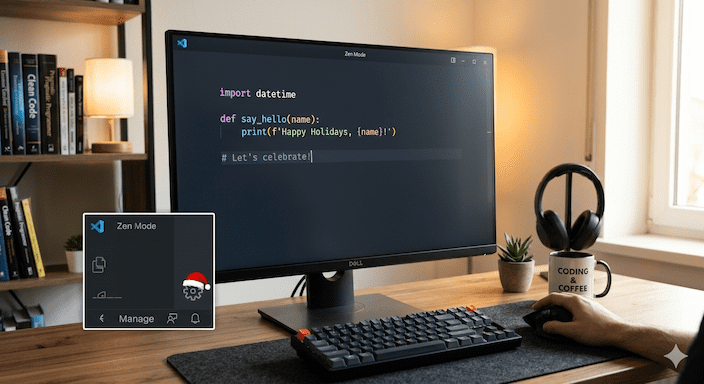
One old but famous example is the holiday surprise. On some December days, the settings icon in VS Code got a little Santa hat. When you clicked it, a happy message appeared. Many people on Reddit shared pictures and laughed. It showed that even big companies like Microsoft like to add joy.
These moments remind us that tools are made by real people who want others to smile.
Simple VS Code Easter Eggs You Can Try Today
Here are some easy vscode easter eggs and hidden things that almost anyone can find.
The Holiday Santa Hat Surprise
In past years, during holiday time, the gear icon at the bottom right of VS Code wore a red Santa hat. You just opened the editor on those days and looked at the bottom. Click the hat and you might see a fun extra option like “Happy Holidays”.
This is a classic visual studio code easter egg. It does not need any special setup. Many developers still remember it fondly and talk about it in community posts.
Tip: Keep your VS Code updated. New small surprises can appear in future versions.
Zen Mode – Your Quiet Coding Space
Zen Mode hides almost everything on the screen except your code. It feels like a calm room just for you.
How to turn it on:
- Press Ctrl + Shift + P (or Cmd + Shift + P on Mac).
- Type “Zen Mode”.
- Press Enter.
Your side bars, tabs, and status bar go away. Only code stays. Many call this one of the cool vscode tricks you didn’t know. It helps you focus when you need deep work.
Combine Zen Mode with a soft theme and you get a very peaceful place to code.
Box Selection – Edit Many Lines at Once
You know you can click with Alt to make many cursors. But there is a simpler way for straight columns.
Hold Shift + Alt, then drag your mouse up or down with the left button. You select a box shape. Now type and the text changes in every line inside the box.
This is great when you want to add the same word at the start of many lines. Developers list it as a top vscode hidden tricks and vscode shortcuts and hacks.
Secret Built-in Snippets
VS Code has ready-made code pieces for many languages. Some of them are not shown in the normal menu. They live inside the program files.
You can find them by going to the folder where VS Code is installed and looking in the language folders. But that is hard work.
A better way: install the free extension called “Snippets Ranger”. It shows all snippets in a nice list. You can see and change them easily.
This feels like a true vscode easter egg because it rewards people who look a little deeper. It connects to vscode secret features and helps you code faster.
Peek at Code Without Leaving Your Place
When you see a function name, hold Ctrl (or Cmd on Mac) and hover your mouse over it. A small window pops up with the definition.
Or press Alt + F12 to “Peek” the definition in a quick view at the bottom.
These small moves save time and feel like magic. They belong to hidden features in Visual Studio Code and VSCode advanced features.
Step by Step: How to Find More VS Code Easter Eggs
Follow these easy steps to discover more surprises.
- Update Your Editor: Open VS Code. Go to Help > Check for Updates. New versions sometimes bring fresh VSCode Insider features.
- Open the Command Palette. Press Ctrl + Shift + P. This is the magic door to almost everything in VS Code. Type words and see what appears. This is the best place for VSCode secret commands.
- Look at Settings, Press Ctrl +, (comma). Search for words like “zen”, “experimental”, or “workbench”. Some VSCode hidden settings and tweaks show up only when you search.
- Try Fun Extensions. Go to the Extensions view (Ctrl + Shift + X). Search for “easter egg” or fun themes. One example is the “Easter Egg” theme by ccabrera35. It gives nice colors for CSS and other files.
- Check the Bottom Bar. Look at icons on the bottom right, especially on special days. Click them and see if something fun happens.
- Play with Shortcuts: Try Ctrl + hover, Shift + Alt + drag, or F12 for Go to Definition. Write down what you like.
- Ask the Community Read posts on Reddit or dev.to. People share discoveries about fun things to try in Visual Studio Code.
Start with one step each day. Soon you will know your editor much better.

VSCode Hidden Features That Help You Work Faster
Many VSCode hidden features are not just for fun. They make real work easier.
- Better Git Tools: You can stage only some lines of code. Open the source control view and select what you want.
- Split Terminal: Right-click in the terminal and choose Split. Run two commands at the same time.
- Symbol Search: In Command Palette, type @ to find things inside your current file fast.
- Error Lens: Install this extension to see errors right next to your code. No need to look at the bottom panel.
These ideas come under Visual Studio Code secret tricks for productivity and developer productivity tools.
Make VS Code Your Own with Customization
VS Code lets you change almost everything. This is called VSCode customization features.
For Beginners – Simple Steps:
- Open Extensions (Ctrl + Shift + X).
- Search for a nice theme like “Dracula”, “Night Owl”, or “Catppuccin”.
- Click Install and reload.
- Your colors change, and coding feels new.
For More Fun:
Create your own small surprises. If you make an extension, you can add a message that shows when someone runs a test successfully. Or change colors on certain dates.
Many developers enjoy VSCode themes and extensions and coding environment personalization. It makes the long hours feel lighter.
Creative Coding Ideas:
- Add a funny comment that appears only for you.
- Make a small animation when your code runs without errors.
- Change the welcome screen with your own text.
These belong to how developers add easter eggs and how to create easter eggs in vscode extensions.
More VS Code Tips and Tricks You Will Like
Here is a short list of easy tips:
- Press Ctrl + K then Z to start Zen Mode quickly.
- Use F12 to jump to a function definition.
- Hold Alt and click to make many cursors.
- Type > in Command Palette to see all commands.
- Install “Error Lens” to see problems clearly.
- Customize the status bar so only important info shows.
These are VS Code tips and tricks that help every day. Start with two or three and practice.
VS Code and Real Developer Life
Good tools help you stay happy at work. When your editor feels friendly, you code more and feel less tired.
Many developers also think about how to keep users happy in their own apps. Simple and fun details matter a lot.
FAQs
How do I find new surprises?
Update often and read community posts. Try things in the Command Palette.
Is it safe to try these?
Yes. Most are safe. Just keep a backup of your settings file if you change many things.
Can I make my own easter eggs?
Yes. Learn to build simple extensions and add your ideas.
Conclusion
VS Code easter eggs are small gifts inside a powerful editor. They include holiday icons, hidden snippets, Zen Mode, box selection, and many more vscode cool features.
We looked at vscode hidden features, vscode secret features, visual studio code easter eggs, vscode hidden tricks, and ways to customize your space. All explained in easy words.
The main message is simple: explore a little. Open the Command Palette. Try new things. Your coding time can be both useful and fun
Share your favorite vscode easter egg or hidden trick in the comments. Your story might help another developer smile while coding. You can also read more about keeping users happy in apps here: user onboarding best practices. For ideas on earning from tools you build, check app monetization strategies.